
Copilot for Microsoft 365
Copilot for Microsoft 365: Word, Excel, PowerPoint, Outlook and Teams features, practical examples, comparison with Gemini and effective business use.
Reading time: 12 min
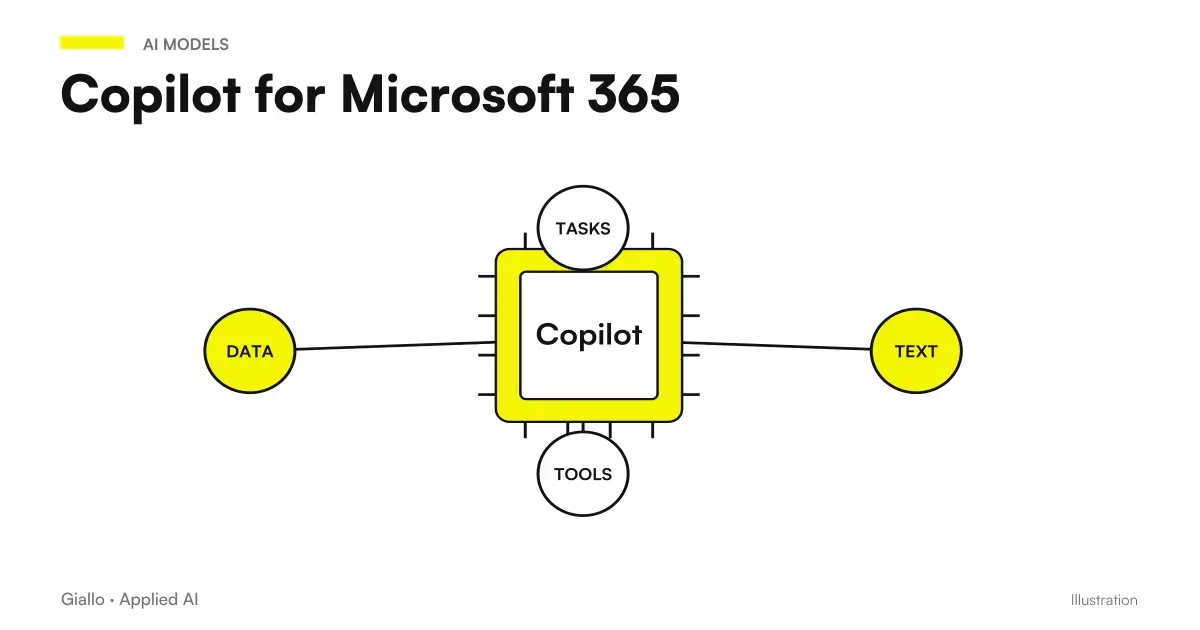
Copilot for Microsoft 365 is the set of AI experiences that can assist work in Word, Excel, PowerPoint, Outlook, and Teams. The context depends on the function: open or selected files, materials provided in the chat or work data retrieved through the authorized path. License and settings determine access and depth of integration, as the Copilot Experience Guide.
For an SME, the opportunity is to reduce preparation steps: turn notes into a draft, analyze a table, reconstruct a thread or set slides. The useful result is not having the same button in each app; it is finishing a task with less friction and a reliable revision.
Here you will find a map of the suite, hypothetical examples and a method of introduction. If you also work on Google, compare with Gemini for Google Workspace must be done on the functions of the actual plan: not assuming that the two suites are equivalent.
In summary
- Copilot functions assist documents, sheets, slides, mail and meetings, according to rights and availability.
- Basic Chat, Standard App Access, and Premium are distinct experiences: check the license before the test.
- The context of the open file does not equal the Automatic job data search between multiple sources.
- Comparison with another ecosystem must use identical tasks and criteria, without assuming equal quality.
- Drafts, formulas, and summaries require revision: a plausible sentence does not prove the content of a source.
- Before extending, it also measures control time, quality, real use and cost of the chosen route.
What Copilot is for Microsoft 365 and how it activates
Before assigning a license, clarify the Differences between Copilot Chat and Copilot with access to work: Business accounts, plan and available sources must be verified together.
Microsoft is updating some of the nomenclature to Microsoft Copilot and Microsoft Copilot Chat; licenses and screens can still use Microsoft 365. The unified experience of the app does not eliminate the distinction between personal and work identity. The app changes guide helps to recognize the path, while What is Copilot AI distinguishes the families of the product.
The three documented levels require attention. Copilot Chat (Basic) does not automatically assign rights for Word, Excel, PowerPoint, and OneNote. Microsoft 365 Copilot (Basic) offers standard access in the planned apps. Premium includes the add-on, priority access and the broader path on the organizational context. Check your account label in the License Guide.
It is not enough to ask if Copilot "is included": you must specify included to do what. The context provided in the chat, access to the app and data recovery via Graph/Work IQ are different rights and behaviors. The Microsoft requirements indicate business accounts, prerequisites and conditions; a test should be performed with the identity you will use in production.
What Copilot does in every Microsoft 365 app
This map describes tasks to try, not automatically assigned functions to each user. Check the client's plan and requirements before evaluating the time saved.
| App | What Copilot does | Example of request |
|---|---|---|
| Word | Writes first drafts, rewrites, shortens or lengthens texts, summarizes long documents, suggests revisions | "Write a draft commercial proposal from these notes" |
| Excel | Suggest formulas, create tables, analyze data, highlight trends, generate graphs | "Add a column with margin % and sort by customer" |
| PowerPoint | Generate a presentation from a Word document or prompt, create slide and speaker notes | "Transform this report into an 8-slide presentation" |
| Outlook | Summarize long email threads, propose response drafts, adjust tone and length | "Summary this conversation and prepare a courteous response" |
| Teams | Summarizes meetings, lists decisions and actions, retrieves what was said if you arrive late | "What have I missed and what are my tasks?" |
| Copilot Chat | Use explicitly provided sources or work context according to the license; distinguish citations and inferences | "Summary decisions in authorized materials and report those to be confirmed" |
The sources on functions are the Word Guide, the Excel FAQ, the PowerPoint FAQ, the Outlook FAQ and the Teams Guide. The table summarizes documented possibilities to verify in the plan and tenant; let's see how to turn them into a useful test.
Word: write and revise drafts
The Guide Copilot in Word for Proposals and Documents shows how to prepare sources and keep amounts, recipients and draft versions under control.
In Word, Copilot is above all a proofreader and an early writer. You give him an instruction and notes, and he produces a first draft structured: a proposal, a letter, a report, an article. It can work on the selected content to summarize or rewrite it. The paths of creation and modification vary during rollouts: check the Word Guide for your client.
The value is not "write for you", but delete the blank page. You start from an already set draft and correct it, instead of building everything from scratch. For a comparison on which models make best in writing you can also see the differences between assistants in the guide on how to choose the right tool.
Excel: formulas, analyses and graphs without syntax
To work on the file with verifiable criteria, read Copilot in Excel: analysis, formulas, and controls: the sheet must remain reconcilable after each change.
In Excel, Copilot lowers the technical barrier. Instead of remembering the syntax of CERCA.X or of a pivot table, describe in words what you want: "calculate the average turnover per quarter", "highlight customers below the threshold", "create a graph of the monthly trend". Documented modes of chat, scheduling and editing can support formulas and views, according to platform and rights: Excel FAQ. How he copes with the alternatives you find in the Best AI for Excel.
It works best on well-structured data (tables with clear headers). On messy sheets the results get worse. If you work a lot with spreadsheets, compare with the approach of ChatGPT for Excel and of Gemini for Google Sheets It helps you figure out which ecosystem is right for you.
PowerPoint: From Draft to Presentation
The process Copilot in PowerPoint for business presentations starts from the audience and the goal, then connects documents, playlist and review of slides.
In PowerPoint, Copilot creates a presentation from a Word document, a file, or a simple prompt. Generates the structure of slide, titles, bullet points and notes for the speaker. Check the reference files and path available in the PowerPoint FAQ: the capabilities of the current version should not be confused with those of a preview.
Treat the result as a draft: Control layout, messages, and consistency with the reference document. A useful test is to check which messages of the report remain in the slides, which data require correction and how long it takes for the review.
Outlook: Manage mail in less time
The Guide Copilot in Outlook for emails and shared boxes distinguishes summaries, drafts and actions, with the limits to be verified in your environment.
In Outlook, Copilot works on two fronts. Summary long threads (those chains of twenty emails where you no longer understand who decided what) and prepare response drafts which you can adjust by tone and length. It can also help you write an email starting from a few points, keeping a professional record.
For a business team, a case to measure is the reconstruction of threads and engagements before the response. For a shared box use the shared/delegated specific guide, verifying functions and clients; summary and draft do not imply direct sending or triage. It remains the usual rule: the draft revises it a person before pressing "send".
Teams: meetings without taking notes
To turn a conversation into a usable verbal, follow Copilot in Teams: transcription, decisions and actions: attributions and deadlines must be confirmed before follow-up.
In Teams, a summary can help reconstruct decisions, actions and open points. The mode only during the meeting can work without recording or transcription; to recover after the spoken content requires live transcription. Microsoft describes the difference in guide without transcription. Do not consider recording and transcription interchangeable prerequisites.
Before using the summary as a record, have names, assignments, and deadlines confirmed. The test must also include what has been said ambiguously, not just a brief, orderly meeting.
Copilot for Microsoft 365 vs Gemini for Google Workspace
The suite already in use offers a reasonable starting point, but does not decide on its own purchase. A task can be better covered by the authorized function in the existing stack, another assistant connected to the data, or a workflow. Do not assume that both products have the same function or performance.
| Criteria to be verified | Candidate Copilot | Gemini Candidate |
|---|---|---|
| Team Tools | Evaluate tasks in Word, Excel, Outlook, and Teams | Evaluate tasks in the actually used Workspace apps |
| Working materials | Check content provided, Graph/Work IQ access and permissions | Check Google Plan Sources and Permissions |
| Function needed | App Verification, Basic/Premium Level, and Tenant | Check function, Workspace edition and region |
| Quality | Tests on examples of your process | Same examples and same rating column |
| Total cost | Base, add-on, training and any consumption | Actual plan, training and any extra services |
For Microsoft the references are the License Guide and the requirements; on the Google side check the Workspace Price list and the guide Gemini for Google Workspace. Useful comparison uses the concrete plan, not the quality of an isolated response in personal chat.
How do I choose between Copilot and Gemini in practice?
Choose a recurring task and a number of representative examples. Measure completion, errors, review time, and steps between applications. The proximity to the stack can reduce friction, but the pilot must demonstrate the advantage without assuming a migration or a second subscription.
Data and models: two separate controls
For enterprise processing Microsoft documents that prompts, responses, and Graph data do not train LLM foundations: Microsoft Privacy. This guarantee is distinct from geographical residence. The Anthropic Models page it currently indicates them outside the EU Data Boundary and applicable in-country commitments: before allowing them, it verifies the requirement of the organization. The multimodel options in Excel are described in the Excel FAQ.
How to start using Copilot: a practical guide
The test becomes more useful with Copilot prompts that spell out goal, context, and sources. If the answers have to retrieve internal documents, also prepare SharePoint and OneDrive for Copilot: versions and permissions precede the judgment on the answer.
An easy route to start without wasting your license.
- Verify license and requirements. Check the appropriate plan and what it already includes; assign new rights to the pilot's users only if the task requires them.
- Choose an app and a real task. Start where it hurts the most: email summaries in Outlook, formulas in Excel or drafts in Word. One case at a time.
- Write specific requests. The more context from the ("formal tone", "8 slide", "in Italian"), the better the result. Vague requests give vague drafts.
- Always review the output. Check numbers, formulas, names and citations before sending or publishing. Copilot prepares, you approve.
- Measure and enlarge. After a few weeks, evaluate saved hours and avoided errors. If the numbers hold up, extend to other teams.
Practical examples
Three scenarios hypotheticals, not customer results, show how to organize the test. Size and timing describe the chosen case, not product benchmark.
1. Professional study — minutes and proposals. An accountant uses Copilot in Teams to summarize meetings with clients (decisions, deadlines, documents to be collected) and then in Word to turn the notes into a consulting proposal already set up. The assistant prepares, the professional corrects amounts and details. It compares the total time of drafting and revision with the previous method, without certainly giving a saving. For specific case studies see also AI for accountants.
2. Commercial SMEs — email management and quotes. A sales office receives dozens of requests a day away Outlook. Copilot summarizes the long threads and prepares the response drafts; in Excel helps build the quote table with margins and discounts calculated from the historical. The commercial reviews the prices and sends. The manager measures the completeness of the drafts, the correctness of the prices and the control time before deciding whether to extend.
3. Service company — reporting and presentations. The project manager collects the data of the month in Excel, asks Copilot to highlight trends, then uses PowerPoint to generate an eight-slide presentation from the report. The team notes the time to get usable slides, including source control and finishing; it does not require a half-day to an hour shift.
In all cases the same logic applies: Copilot makes the first draft, the person decides. It is the model that brings real value.
Mistakes to Avoid
- Treating output as final. Copilot produces drafts, not truth. Wrong formulas, incomplete summaries and inaccurate numbers captain: always needs a review, especially on data that ends up in official documents. The mechanism is the same as AI Hallucinations.
- Buying licenses for everyone right away. Activating Carpet Copilot without a clear use case leads to unused licenses. Better to start from a few users on concrete tasks and widen when the numbers justify it.
- Changing ecosystem only for AI. If you work in Google Workspace, migrating to Office 365 solely to get Copilot is rarely worthwhile: first consider Gemini for Google Workspace.
- Ignoring data governance. Copilot complies with the tenant's permissions, but needs internal rules on what can be asked and what sensitive data should not be processed. Verify residence of data and settings on official Microsoft documentation.
- Writing vague requests. "Write something" produces poor results. Specifies format, tone, length and audience: the quality of the output depends on the quality of the request.
How to apply it in the company
To make Copilot useful to the team, link the test to an activity with sources, responsibilities and review criteria. Adoption concerns both the configuration and the work of people.
- Locate the 2-3 high-volume tasks where the assistant saves more hours (emails, meeting summaries, first drafts).
- Define clear rules about what data can be entered and what should always be reviewed by a person.
- Form the team with real-world examples of effective requests, not with a generic demo.
- Measure the "before and after": hours, errors, response times. Without numbers you don't know if you're gaining value.
- When the flow exceeds what a generic assistant can do, evaluate custom-made automations or agents connected to your management software.
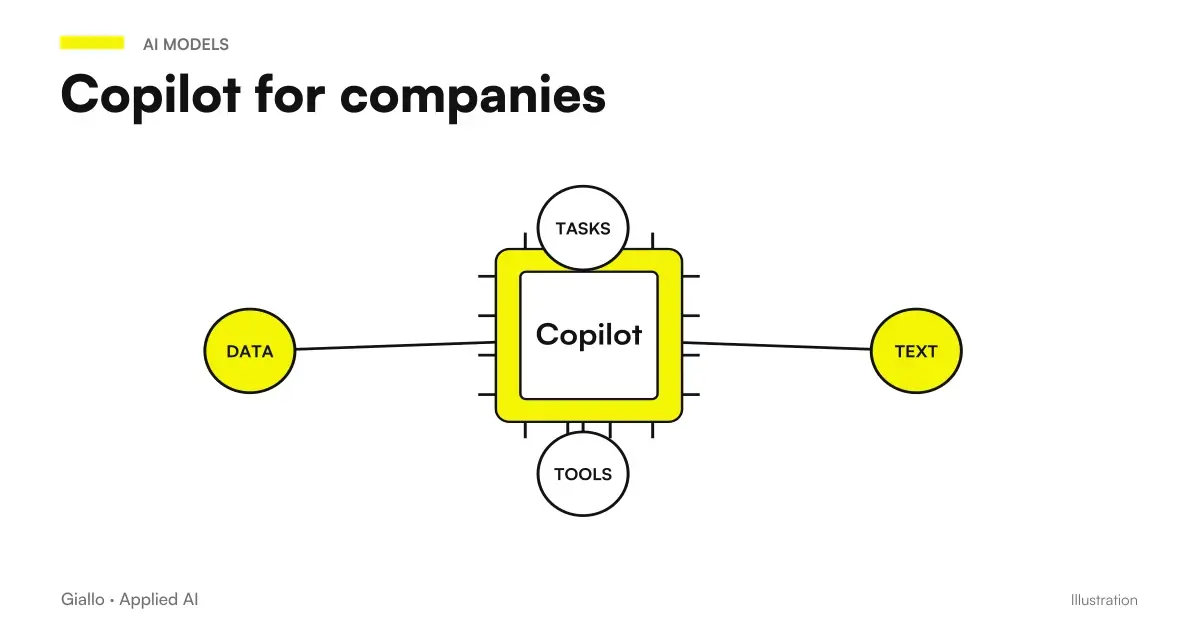
Here is the useful boundary: functions in apps assist the person's work; agents and workflows are designed for an operational sequence. Also Copilot Studio can link knowledge and tools, according to the Microsoft Overview. When the need crosses management software, CRM and documents, identity, connectors, authorizations and maintenance should be evaluated: it is the work of the process automation and of AI agents. For a framework on how to introduce it at the organization level, see also Copilot for companies.
Conclusion
Copilot for Microsoft 365 is the most direct way to bring generative AI into your day-to-day work if your company already lives on Office: it writes drafts in Word, builds formulas in Excel, generates slides in PowerPoint, manages mail in Outlook, and summarizes meetings in Teams. It is not magic and is not a source of truth: it is an assistant who prepares the first draft, while the person maintains judgment and responsibility. The value comes when you apply it to a few concrete tasks, measure it and extend it only where the numbers hold up.
To turn the test into a path with clear responsibilities and data, Giallo Studio designs automations of business processes starting from the actual work of the team. From here you can continue with the comparison on Gemini for Google Workspace or with the guide to Copilot for companies.
Giallo Studio guides: methodology and sources
How we apply it in the company
Related resources
 Copilot AI: what it is and how to use it
 Copilot for companies
 Gemini for Google Workspace
 ChatGPT for Excel and Google Sheets
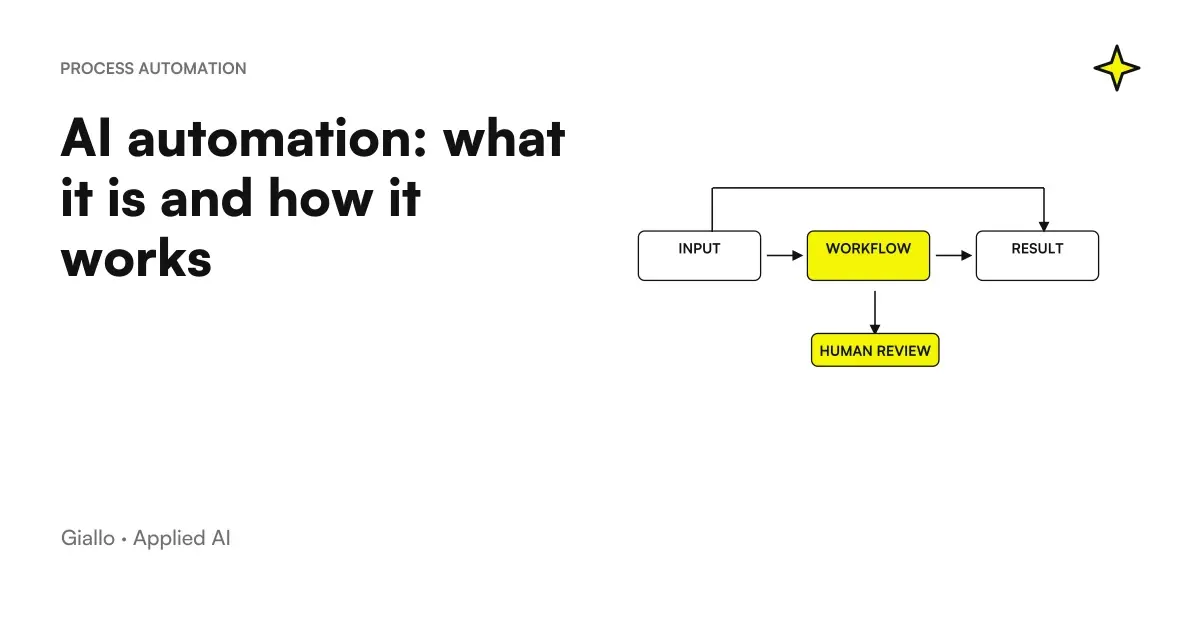 AI automation: what it is and how it works
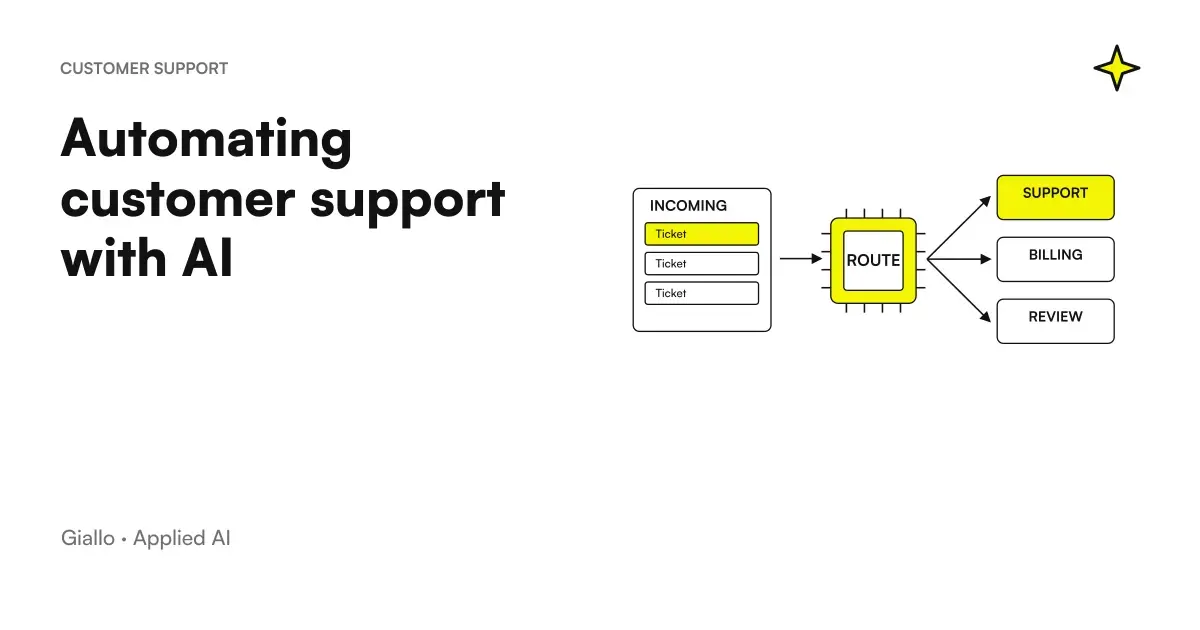 Customer Care Automation: When AI Responds for You
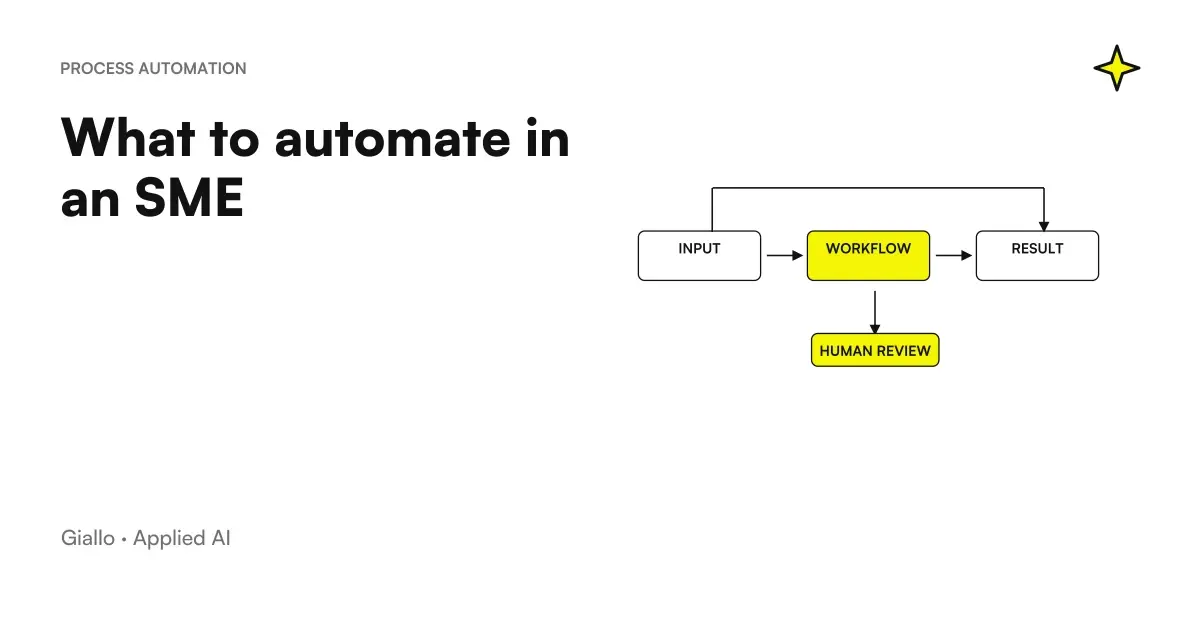 What to automate in an SME: the list of the right activities
 Best AI for email: tools to write and manage mail
FAQ
What does Copilot do for Microsoft 365?
It can assist drafts, analyses, presentations, mail, and meetings in supported applications. Functions depend on license, platform, and tenant. The context of the open file is distinct from automatic retrieval of organizational information.
Does Copilot work inside Word, Excel and PowerPoint or is it a separate app?
There are features within the apps, as well as an app and chat that work across applications. Copilot Chat Basic, Microsoft 365 Copilot Basic, and Premium have different entitlements. Check the plan and feature rather than inferring them from the button’s location.
How much does Copilot cost for Microsoft 365?
Chat is included in eligible business licences; the add-on and any pay-as-you-go agents have different terms. The budget must distinguish the base licence, Copilot entitlement, payment frequency, taxes, and promotions. Recheck the Italian pricing before purchasing.
What is the difference between Copilot and Gemini for Google Workspace?
The starting point is the team stack, but the functions of the two plans are not automatically equivalent. Compare the same task, authorized sources, errors and review time. The advantage must be demonstrated on the concrete process.
Can Copilot make mistakes or invent data?
Yes. Like any assistant based on language models, Copilot can produce inaccurate text, incorrect formulas, or incomplete summaries. Treat it as a first draft to review, rather than a source of truth: always check numbers, formulas, and citations before sending or publishing.
Is the company data put in Copilot safe?
The enterprise setup has documented data processing commitments and access controls, but it does not make every use compliant. Exclusion from training, permissions and geographic data residency are separate checks. Some models and features have specific terms that the administrator must evaluate.