
Copilot in Outlook: email, threads and shared mailboxes
Copilot in Outlook: summarise threads, draft emails and work with shared mailboxes. Documented features, current limitations and checks before sending.
Reading time: 12 min
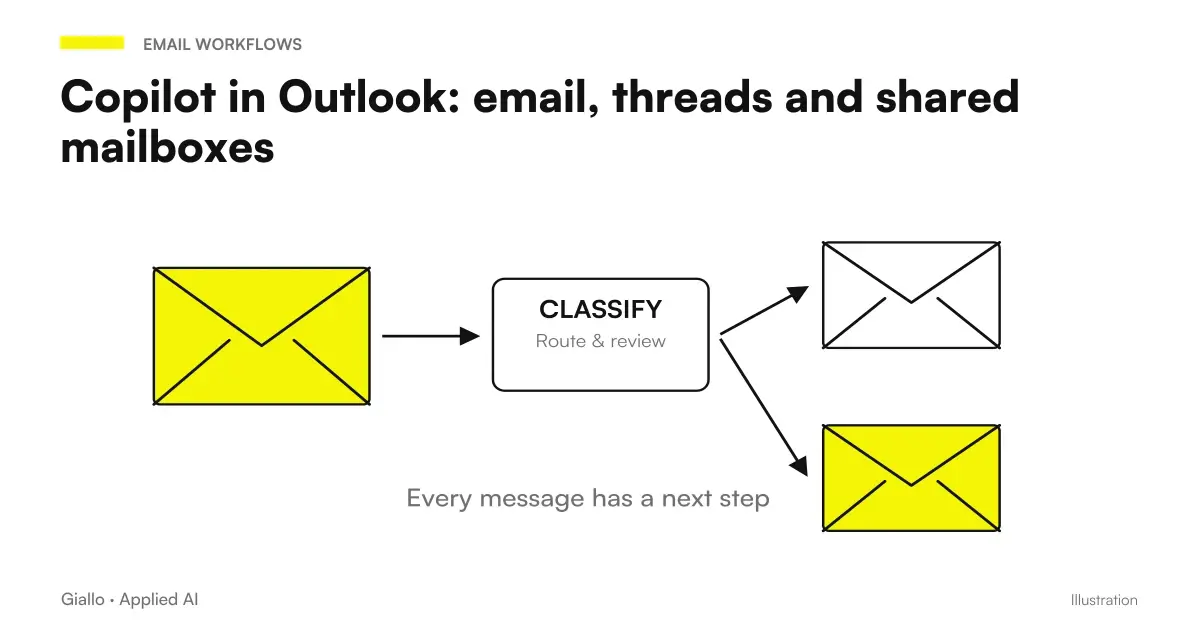
Copilot in Outlook helps you read conversations and prepare emails, but the draft needs to be verified before sending. For an SME the possible advantage arises from the reduction of reconstruction work: to understand what has been asked, what has already been decided and what response is missing. The final message must maintain correct recipients, conditions and responsibilities.
Microsoft documents summaries, drafting, and text suggestions, along with organization functions in supported experiences. For scenarios connected to the box, Exchange Online, client, and license are important; some message protections restrict access. It is not enough for the app to be called Outlook. Microsoft FAQ on Copilot in Outlook.
A new point concerns shared and delegated boxes: the dedicated guide already describes summaries and drafts, while distinguishing actions not yet available. This distinction is crucial for those working from addresses such as assistance or commercial. Copilot Chat in shared and delegated boxes.
Before using Copilot, recognize the box and the expected result
An email can belong to the employee's personal box, to the shared one of a department or to the mail managed by proxy. Daily work appears similar, but access and functions should not be deduced by analogy. The first test must state which box you are operating in and which Copilot experience you are using.
Then determine if you want to read, prepare, or act. Summarizing a thread produces a text; preparing a response produces a draft; archiving a message or sending an email changes the state of the job. These operations have different consequences. A good synthesis does not prove that the system can perform any subsequent action.
The Guide Copilot Chat and Microsoft 365 Copilot helps to interpret accesses. For the actual cost you need the guide on Microsoft Copilot Pricing and Licensing. In the pilot it is better to register accounts and clients, so an experience seen by a colleague does not become a promise for all users.
A first suitable case may be the answer to a standard request for which the team possesses the necessary information. A case with many undocumented exceptions requires more judgment. The criterion of choice is the ability to control content and result, along with the work that is being repeated today.
Summarize a thread by distinguishing requests, agreements, and open points
A generic summary may be too compact for commercial use. «The customer confirms the delivery» could hide that the customer has requested a different delivery and waits for confirmation. So ask for a summary that separates the decision categories instead of just compressing the length.
Hypothetical example: a distributor receives a chain of messages about a supply. The quantity is agreed, the place of delivery has changed and a proposed date has not been approved. The team needs to understand what it can confirm in the response. The example does not represent data or results from a real customer.
Summarize this thread by separating customer requests, explicit agreements, still open proposals, and missing information. For each important point, indicate the message to be verified. Do not turn a proposed date into a confirmed date. Close with the questions you need to prepare an operational response.
The reviewer opens messages about quantity, place, and date. If the summary attributes a non-existent agreement, it corrects the point before generating the response. Adding "always check" to the prompt does not replace this proof: the criterion is that the reported chords are actually present in the conversation.
Look also at the temporal order. In a thread, a new condition can replace an old one, or refer to only part of the order. A useful summary preserves that scope instead of mixing the versions. If it is not clear which proposal is current, leave the point open and ask the manager for confirmation.
Prepare the answer without making any missing commitments
The draft must start from the verified facts, not directly from an uncontrolled synthesis. You can write a short internal note with the agreements that the department authorizes to confirm and the questions that it must ask. In this way the prompt is about formulating a response, keeping explicit decisions already made.
Prepare a professional and short answer. Confirm only quantity and destination already verified. Ask for confirmation of the new date, without promising it will be available. Do not add discounts, economic conditions or guarantees. Close indicating that we will update the summary when the date is agreed. Return a draft to review.
After generation, check the verb used for each commitment. "We will provide", "we guarantee" and "it is included" can change the meaning with respect to "we verify" or "we propose". A tone adjustment should not change the perimeter of the response. The text can become more courteous by keeping exactly the same conditions.
For an attached proposal, the message must coincide with the document. The guide Copilot Word for documents and proposals helps build that controlled source. Before sending it looks for discrepancies between email and attachment: an exception introduced in the email can change the offer even if the document is correct.
Shared Boxes: Current Functions and Action Boundaries
The Microsoft-specific page describes summaries and drafts in the shared or delegated boxes according to folder permissions and full access. The Copilot conversation remains associated with the single main account. Sending, direct triage, and changing appointments in these boxes are instead referred to as not yet supported. Microsoft Shared and Delegated Mailboxes Guide.
This avoids two opposite errors: exclude any use because an old guide banned it, or extend to a shared box all actions seen elsewhere. In the department it verifies the precise function and retains a test example. The test must include a user with the actual intended access perimeter, without expanding it just to make the demo easier.
| Department work | Useful Test | Outcome control |
|---|---|---|
| Orienting in a thread | Summary of requests and open points | Agreements verified in original messages |
| Preparing an Answer | Draft based on confirmed conditions | No new commitments or improper recipients |
| Pass the case to a colleague | Operational summary shared by the team | Responsible and registered out of personal chat only |
| Changing the state of the practice | Defined and Authorised Workflow | Action, approval and error management |
| Reply from Shared Box | Specific path available in client | Distinguish draft from submission and permissions from responsibility |
Personal history does not resolve the handover
A shared box needs a shared process. Although two colleagues can read the same email, it doesn't mean they know who is preparing the answer, what has been verified, and what choice has been approved. Personal conversation with the assistant should not become the only place where this information exists.
You can define a short sheet for the practice: subject, current request, manager, verified points, open questions and next action. Keep reference to the relevant email. The handover must allow a colleague to continue without rebuilding a chat that he or she has no access to.
If a decision has been taken at a meeting, please link the file to the approved minutes. Copilot Teams for meetings and actions explains why a suggested action should be confirmed before turning into a department commitment. The value of synthesis is helping that siding, without creating a second uncontrolled version of decisions.
As the number of practices grows, it assesses a structured state in the system used by the company. ‘Ready response’ and ‘sent response’ are not synonymous; ‘informed customer’ and ‘confirmed customer’ must also remain distinct. These definitions make work measurable and reduce ambiguity among colleagues.
What to Check Before Pressing Send
The first check concerns recipients and role. The email could include external people, a similar address as expected or a long copy list. Verify that any content is appropriate for the recipient. The correct text in the wrong thread remains an error, and the prompt is not the right place to automatically assume the sending.
The second check is on the attachments. Open the version you want to send and verify that it contains current conditions. It is not enough to quote "the attached proposal" if the file is missing or is the previous one. The draft can recall a document without having solved the choice of the version to share.
The third check concerns commitments, dates and amounts. Read each with respect to the verified source, including any dependencies. A short message may lose an essential condition such as material availability or technical approval. Asking for a further reduction of the text then requires a new sense check.
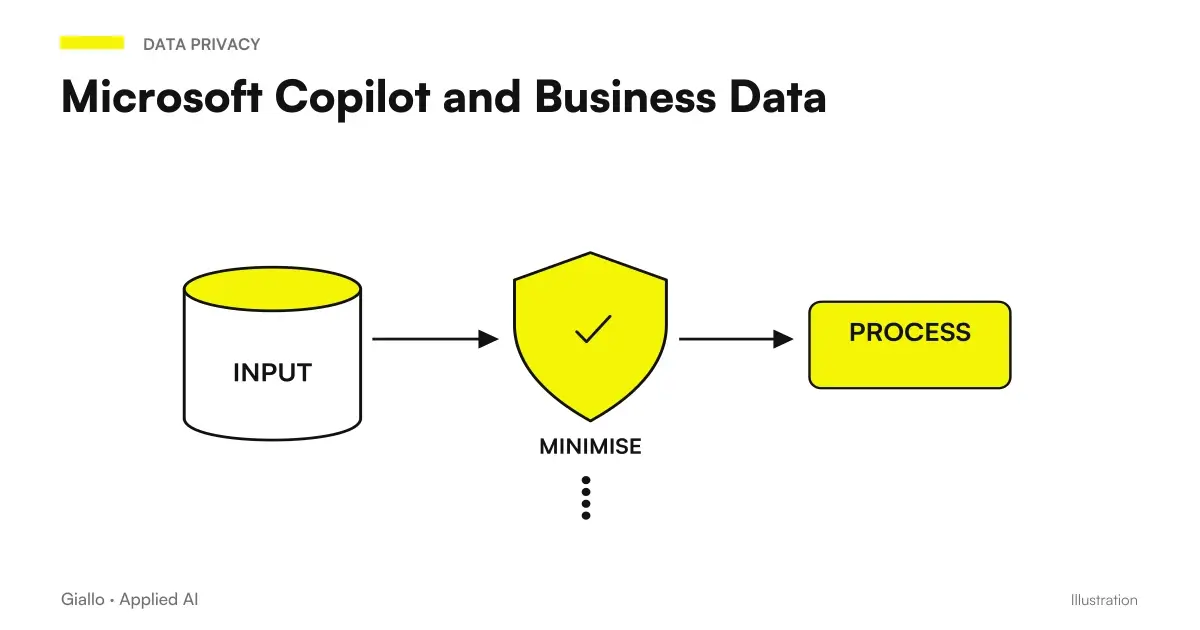
The fourth check concerns internal information. A note designed for the colleague must not end in the response to the customer. If you use an internal document as a reference, you only extract the appropriate content for the recipient. The Guide privacy and business data in Microsoft Copilot places this choice in the perimeter of use of materials, without promising automatic compliance.
A tab to review a department response
Check box and recipients, thread reference, correct attachment, confirmed conditions, and open questions. Assigns responsibility for sending and records the actual status of the practice at the shared location provided by the team.
If a condition is not verified, keep the draft suspended. A phrase produced by the assistant does not authorize a new price, guarantee or deadline. After a substantial change, it also rereads the subject, the opening and the conclusion of the message.
When email management requires Power Automate or an agent
Writing an answer is different from orchestrating the process. If you want to create a practice in management software, check an availability or assign a manager, you need to define which system owns that data and which identity can perform the action. The mail may be the entrance to the flow, but it must not become an invented source of the corporate state.
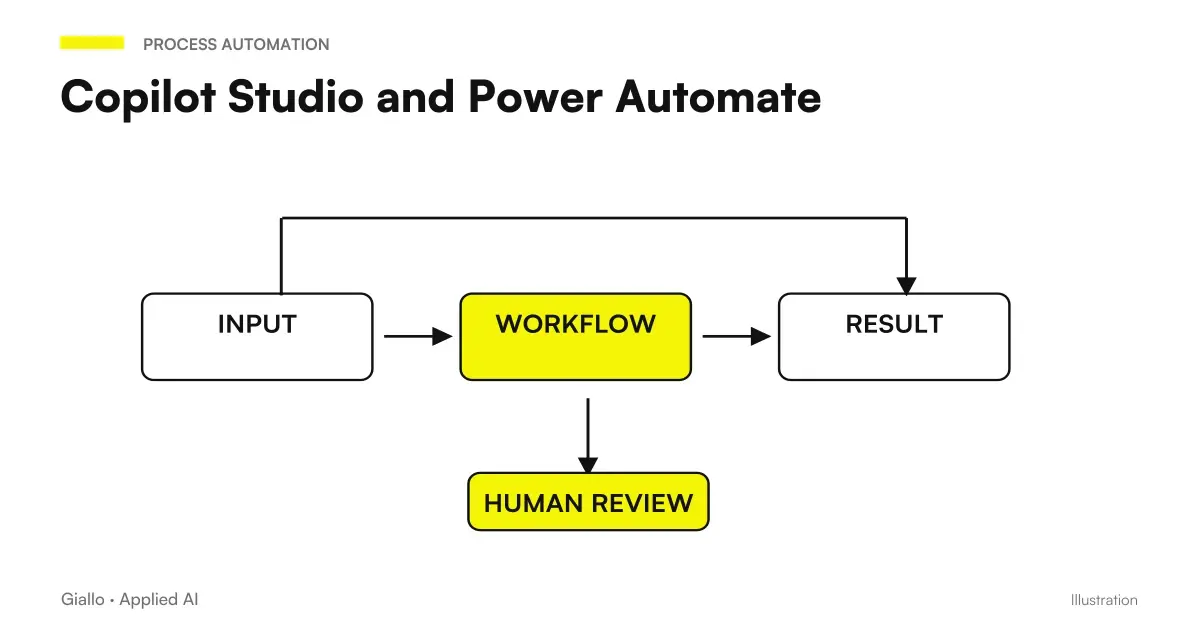
The Guide Copilot Studio and Power Automate addresses the link between conversation and workflow. For business data, Copilot with CRM and management software distinguishes information retrieval and writing. The project should include operator confirmation, system response, and case management that cannot be completed.
A first step can remain simple: collect the necessary fields and prepare a summary for those who need to approve. There is no need to automate sending immediately to produce a benefit. An ordered collection can make verification faster, as long as the extracted inputs are compared with the original request.
Determine which requests must pass directly to a person
The department can define categories that require a specific decision: off-price list conditions, complaints with economic consequences, incomplete data or a recipient who disputes the previous agreement. The criterion must be understandable to the person who manages the box. "Complicated case" is too vague; "request for a condition not present in the approved source" makes the passage recognizable.
You can use the draft to gather context even in these cases, without generating a definitive answer. Ask for a summary of the request and missing information for the person responsible. The possible value lies in better preparing the decision, keeping the responsibility to those who can take on that commitment. A well-documented suspension is a valid outcome of the process.
Don't prioritize just based on the urgent tone of the message. For the company work can count an effective deadline, the status of the practice and the impact of the failure to respond. You can define these criteria with the team and use them in case checking, distinguishing what the text states from what the operating system confirms.
When a request arrives in multiple threads, it links the worksheet to the relevant conversations. Don't assume that the last email contains the whole story. The auditor must recognize previous agreements and subsequent changes, then choose which content to use in the response. If the perimeter is not rebuildable, the draft must ask for clarification instead of resolving the conflict with a plausible phrase.
A test with these categories makes it possible to understand where the synthesis is useful and where the work remains mainly decision-making. The team can thus adopt Copilot on a realistic perimeter, before attempting an indistinct handling of all mail.
A test that measures correct answers and overall work
Choose a sample of ordinary conversations and one of exceptions. It counts reading, reconstruction, draft, revision and corrections. It separately records invented conditions, omissions, and recipients to be corrected. If the text is generated quickly but requires longer verification, the comparison must show it.
The Guide to Copilot prompt for office work helps to standardize the first attempt; the Copilot pilot for SMEs connects qualities and costs. The useful result is to understand which conversations the team manages best and which ones still require direct management.
Bring a representative inbox, an ordinary thread and an exception to the AI consulting of Giallo. We can define the path between synthesis, draft and approval, or design an integration when the real bottleneck is the transition from the mail to the company's operating system.
Giallo Studio guides: methodology and sources
How we apply it in the company
Related resources
 Copilot Chat and Microsoft 365 Copilot: What Changes
 Copilot in Teams: meetings, minutes and actions to be confirmed
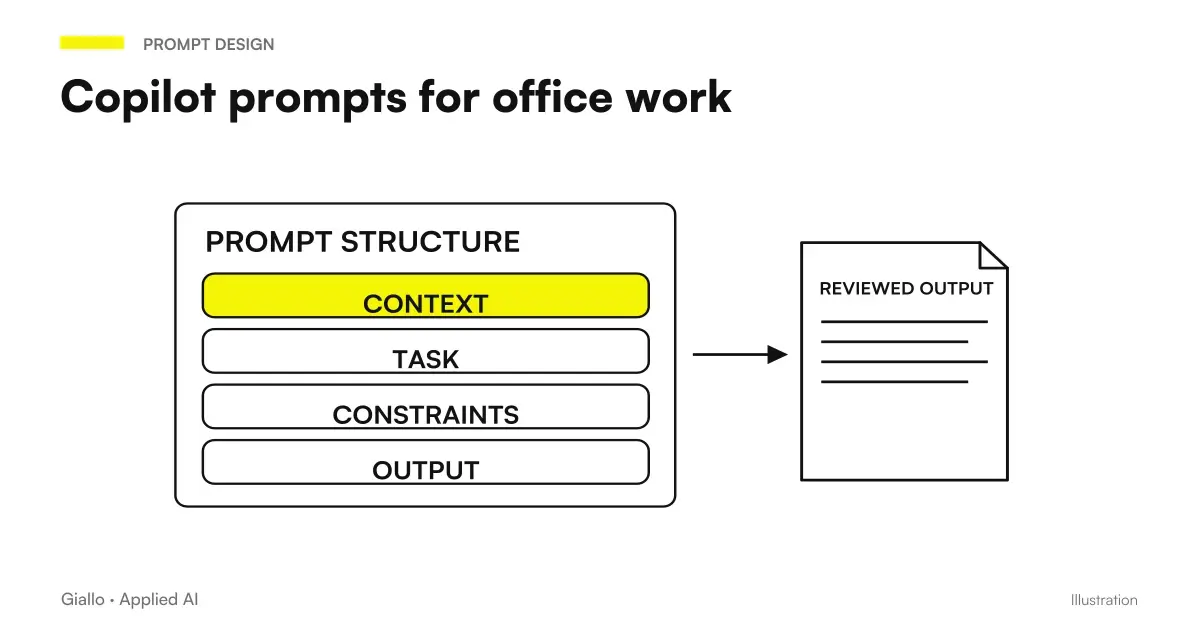 Copilot prompts: examples for office work
 Microsoft Copilot and Business Data: Privacy and Permissions
 Copilot Studio and Power Automate: agents and workflows
 Copilot for Microsoft 365
 Copilot for companies
 ChatGPT vs Copilot: which to use in business?
FAQ
What does Copilot do in Outlook for business emails?
Microsoft documents summaries of threads, drafts, and text suggestions, as well as mail organization functions in supported experiences. Availability depends on account, license, client, and type of mailbox.
Does Copilot work in Outlook shared and delegated mailboxes?
The most recent dedicated Microsoft guide documents summaries and drafts in shared and delegated mailboxes, subject to permissions. The older blanket exclusion in the FAQ does not describe every current feature. Check the setup in your tenant.
Can Copilot send or categorize emails from a shared mailbox?
In the specific guide consulted, sending, direct triage and appointment changes in shared or delegated mailboxes are not yet supported. They are different from summarizing and preparing a draft.
Is the Copilot history of a shared mailbox visible to everyone?
Microsoft indicates that conversations started from a shared mailbox remain associated with the individual user's main account. They should not be considered a shared department operational history.
Does an email summary replace reading the conversation?
It helps you get your bearings, but conditions, attachments, and commitments must be verified in the original messages. A request, hypothesis, and decision may appear similar in too short a summary.
When do you need a workflow besides Copilot Outlook?
When the process needs to register a case, assign a person responsible, or update a system using repeatable rules. Permissions, approval, and error handling must be designed; preparing text does not complete that workflow.