
ChatGPT for Excel and Google Sheets
How to use ChatGPT for Excel and Google Sheets: create and explain formulas, clean data and generate macros. Ready-to-use prompts and mistakes to avoid.
Reading time: 10 min
ChatGPT for Excel and Google Sheets is used to do in seconds what usually requires you to search for the right syntax on Google: write a formula, understand why a formula doesn't work, clean a column of messy data or generate a macro that automates a repetitive task. Describe to him in words what you want to achieve and the AI returns the formula or code to be pasted into the sheet.
The key point to understand immediately is that ChatGPT doesn't see your sheet: he thinks only about the description you give him. For this reason the quality of the result depends almost entirely on how you describe the problem — which columns, which cells, on which of the two programs you work — and every formula must always be verified on a case you already know the answer to. It's a time-saving tool for those who can control it, not a shortcut to stop reasoning.
In this practical guide we see how to use ChatGPT with spreadsheets for four concrete jobs —create formulas, explain them, clean data, and create macros.with examples of ready prompts, a problem-prompt table, and errors to avoid. And let's see when it's best to use Gemini in Google Sheets.
In summary
- ChatGPT writes formulas for you if you describe to him in words what you want and where are the data: SEARCH.VERT, SEARCH.X, SUM.SE and the like, ready to paste.
- Works for both Excel both for Google Sheets, but you have to say which uses: function names and separators (comma-to-comma) change.
- In addition to the formulas, he knows explain an existing formula, clean messy data and generate VBA macro or Google Apps Script.
- ChatGPT doesn't see your sheet: it produces the answer more likely from your text, then always check every formula on a case whose answer you know.
- Never load personal data of customers or confidential information about public tools: describe the structure, not the real data.
What ChatGPT can do with Excel and Google Sheets
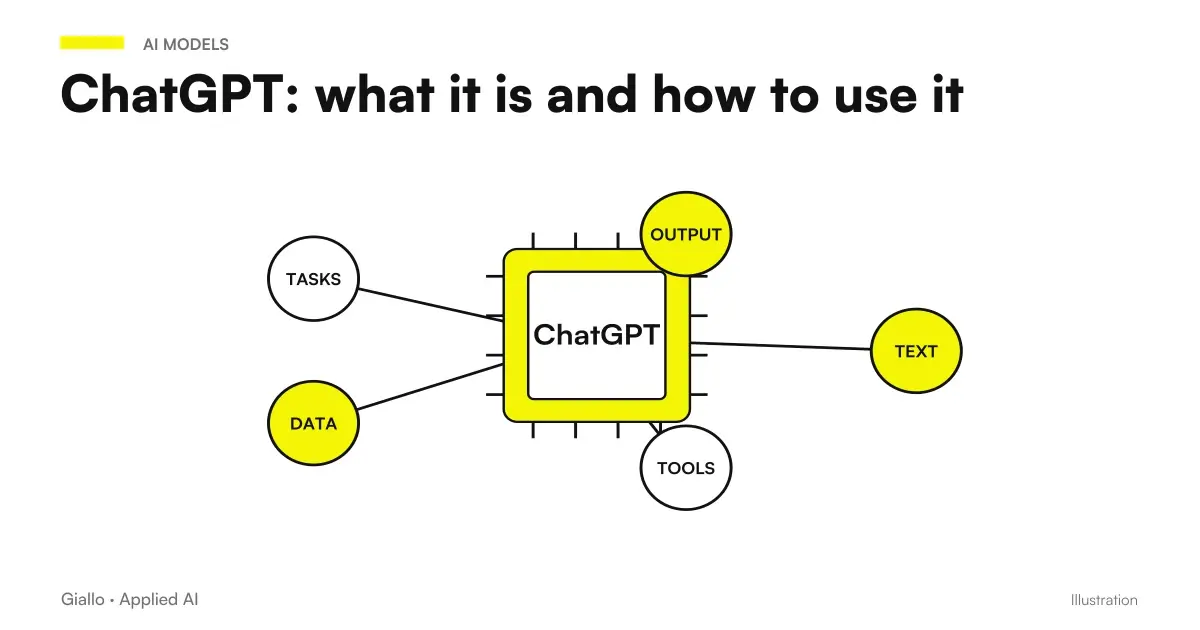
ChatGPT is a language model: it understands natural language and produces text, and a formula or script is text. This allows him to translate a written request into Italian ("sum the March sales only for the Lombardy region") in the corresponding formula. If you still don't understand how the tool works in general, start from What is ChatGPT.
The jobs where it yields more on spreadsheets are four:
- Creating Formulas starting from a description in words, without remembering the syntax.
- Explaining a formula that you have found or inherited and do not understand.
- Clean and Transform Data messy (dates in different formats, text with spaces, capitals, duplicates).
- Generate macros and scripts to automate repetitive tasks.
In all four the AI makes the first draft and you decide if it is correct. It is the same principle that applies to ChatGPT in the company: AI prepares, person approves.
Excel or Google Sheets: why you need to specify it
ChatGPT knows both, but don't guess which one you're using. The differences that matter:
- The Function Names in Italian Excel are translated (CERCA.VERT, SOMMA.SE), in Google Sheets English and Italian names coexist depending on the language setting.
- The argument separator is the semicolon
;in Excel with Italian settings, while Sheets often accepts the comma. - Some functions exist only on one side or behave differently.
The practical rule: always type in the "for Excel" or "for Google Sheets" prompt and specify the language. Save the blank spin of a formula with the wrong syntax. If you are still choosing the tool, the comparison between Copilot, Gemini, ChatGPT and Claude is in the Best AI for Excel.
How to write the right prompt for a formula
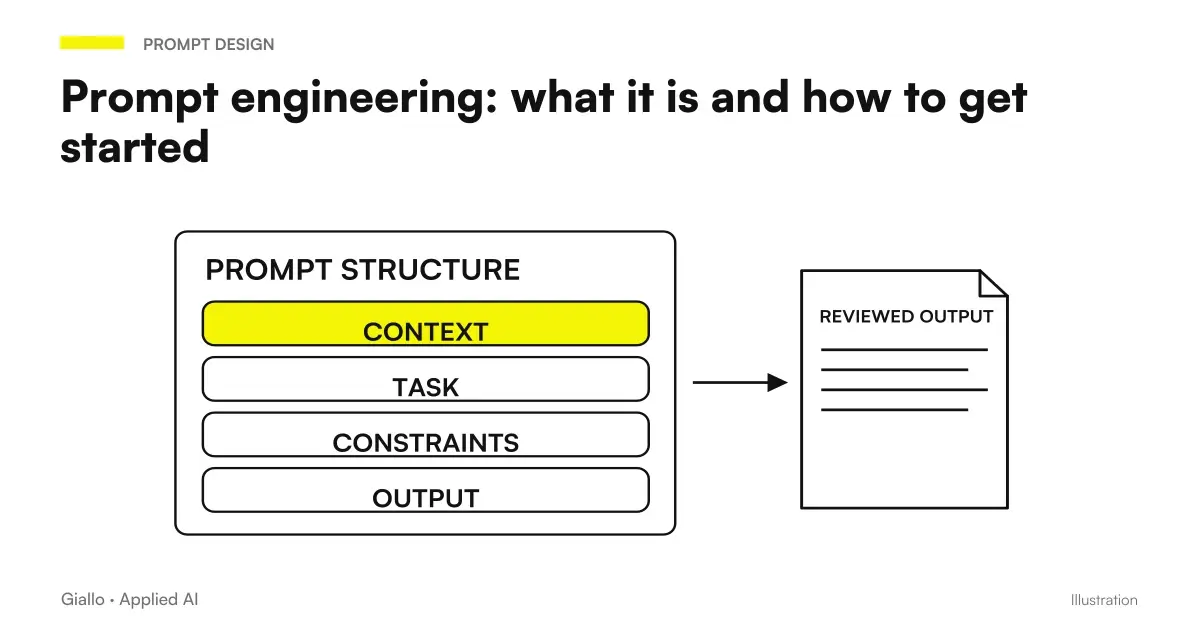
The difference between a correct and a useless formula is almost all in the prompt. A good prompt for spreadsheets contains four elements. If you want to delve into the general method, see prompt engineering: how to get started.
- Program and language. "In Excel italiano" or "in Google Sheets". Determine function names and separators.
- Sheet structure. Where are the data: "customer names are in column A, sales in column C, from row 2".
- Result wanted. What the formula must return, in a clear phrase: "I want the sum of the sales of the customer I am looking for".
- Constraints and examples. Limit cases: "if the customer does not exist he must return 0, not an error".
A complete example: "In Italian Excel, I have the customer names in column A and the turnover in column B, from row 2 to 500. In E1 I write a customer name. Give me a formula in F1 that returns that customer's turnover, and if the name isn't there it returns 'not found' instead of error." With a prompt so the AI will give you a CERCA.X (or CERCA.VERT) corrected at first stroke in most cases.
Ready prompt examples, by problem
This table associates the most common problems with the prompt to use. Copy it and adapt it to your column structure.
| Problem | Prompt to give to ChatGPT | Typical function |
|---|---|---|
| Search for a value in another table | "In Excel, search for the price in column B of the List sheet by code in A2. Use SEARCH.X." | CERCA.X / CERCA.VERT |
| Sum with a condition | "In Google Sheets, add column D only for rows where column C is equal to Lombardy." | SOMMA.SE / SUMIF |
| Counting by Category | "In Excel, count how many rows have 'paid' in the status column." | CONTA.SE |
| Extracting the year from a date | "In Italian Excel, extract the year from the date in A2 as a number." | ANNO |
| Merge first and last name | "In Google Sheets, merge first name (A) and last name (B) with a space in between." | & / CONCATENA |
| Find duplicates | "In Excel, report with 'duplicate' the lines where the email in column C appears more than once." | CONTA.SE |
| Clear spaces and uppercase | "In Google Sheets, formula that removes initial/final spaces and puts the first capital letter of the text in A2." | MAIUSC.INIZ + ANNULLA.SPAZI |
Below you find the same cases with the full prompt and what to check. Open only what you need.
Example SEARCH.X / SEARCH.VERT recuperare retrieve a data from another table
Prompt: "In Italian Excel I have two sheets. In the List sheet, column A contains the product codes and column B the prices. In the Orders sheet I have the codes in A2 and following. Give me a formula in B2 of the Orders sheet that fetches the price from the List according to the code, and if the code does not exist it returns 'missing' instead of an error. Use SEARCH.X."
What ChatGPT Returns: a formula of the type =CERCA.X(A2;Listino!A:A;Listino!B:B;"manca").
What to check: that the names of the sheets are written exactly as in your file; that the separator is ; and not ,; that on a code whose price you know the result matches. If you use a version of Excel without SEARCH.X, ask for the variant with SEARCH.VERT.
Example SUM.SE — add with a condition
Prompt: "In Google Sheets I have the regions in column C and the amounts in column D, from row 2 to 1000. In F1 I write a region. Give me a formula in G1 that adds the amounts only for the region written in F1."
What ChatGPT Returns: a formula of the type =SUMIF(C2:C1000; F1; D2:D1000) (or SOMMA.SE in Italian).
What to check: head with a region you already have the hand-calculated total of. If the numbers don't return, often the problem is a hidden space in the C-column texts: ask ChatGPT how to clean them up.
Example macro / Apps Script — automate a repetitive task
Prompt (Google Sheets): "Write me a Google Apps Script that, every time I run it, deletes all the lines in the 'Data' sheet where the E column is empty. Explain to me step by step where to paste it and how to run it."
What ChatGPT Returns: the script code plus instructions (Extensions → Apps Script → paste → run).
What to check: run always on a copy of the file. A macro that deletes lines is not reversible with a simple undo. Read the code: if you don't understand what a line does, ask ChatGPT to explain it to you before executing.
How to use ChatGPT to explain a formula you don't understand
It often happens to inherit a sheet with long and indecipherable formulas. Here ChatGPT is particularly useful: paste the formula and ask for an explanation in simple Italian.
Type prompt: "Explain step by step what this Excel formula does, in simple Italian: =SE.ERRORE(INDICE(B:B;CONFRONTA(1;(C:C=F1)(D:D=G1);0));"")"*. ChatGPT explains that it is a search with two conditions that returns an empty result in case of an error, and tells you what F1 and G1 represent.
It is also useful in reverse: "This formula gives me ,N/D error, why and how do I fix it?". In this case, in addition to verifying the advice, remember that AI can misdiagnose the diagnosis: treat it as an experienced but distracted colleague, not as a certain source. The same applies to all AI responses, as explained in the logic of AI Automation.
How to use ChatGPT to clean and transform data
Data cleaning is one of the most tedious jobs and where AI saves the most time. ChatGPT can help you in two ways:
- Giving you the formula to transform data directly into the sheet (remove spaces, standardize dates, separate first and last names, put capital initials).
- Transforming a small block of text that binds them, when the data is few and not confidential — for example a list of addresses to put in order.
For large volumes it is almost always better to ask for the formula or script, do not paste the data. So the work stays inside your sheet, repeatable and without exposing information.
ChatGPT or Gemini in Google Sheets: Which is Better
If you work within Google Sheets, you have two paths: ChatGPT in a separate window, or Gemini integrated directly into the sheet. There is no single answer.
Better ChatGPT when
- You want to think deeply about a complex formula or understand why it doesn't work.
- You work on both Excel and Sheets and you need a single assistant for both.
- You need to generate VBA macros for Excel, not just scripts for Google.
- You want detailed explanations and alternatives to choose from.
Better Gemini when
- You live within Google Workspace and want to act without copying-pasting.
- You want AI to write or edit directly into cells.
- You need it to "see" the context of the sheet you're working on.
- Look for maximum comfort on the single open file.
In practice many hold ChatGPT for reasoning about formulas and code, and use Gemini for quick actions in the sheet. The full comparison is in Gemini for Google Sheets. Whatever you choose, the principle does not change: always check the result.
Practical examples
Two realistic scenarios of Italian SMEs, to see the method in action.
1. Accountancy firm — reconciliation receipts. The studio receives a statement in Excel with dates in mixed formats and descriptions full of spaces. ChatGPT provides formulas to standardize dates and clean up text, plus a SOMMA.SE to total receipts per customer. The operator tests the formulas on three known lines, then applies them to the whole sheet. The monthly reconciliation time is significantly reduced, and the process becomes repeatable every month.
2. E-commerce — catalog preparation. To load 600 products, the manager has a sheet with messy codes, names and prices. It asks ChatGPT for a Google Apps Script that normalizes names (capital initials, spaces removed) and reports duplicate codes. Run the script on a copy, check the result, then use it on the real file. What used to be half a day of hand corrections becomes a final check. Hence the next natural step is to connect the sheet to true automatic flows, such as those described for the automation of business processes.
In both cases the value is not "AI does everything", but "AI writes the formula or script, the person checks and applies".
Mistakes to Avoid
- Not saying whether it is Excel or Google Sheets. Without this information the AI takes a guess about functions and separators, and gives you a formula that doesn't work. Always specify program and language.
- Applying the formula to the whole sheet without testing it. A wrong formula on 5000 lines produces 5000 errors, or worse plausible but false results. Try first on lines whose answer you know.
- Pasting confidential data. Amounts, customer names, real emails on a public tool are a GDPR risk. Ask for the formula, don't give the data.
- Running a macro without reading it or making a copy. Macros edit and delete data in a non-reversible way. Always run on a copy and read what the code does.
- Trusting the explanation of an error without verifying. ChatGPT can misdiagnose a
#N/Dor a#RIF!. Use the hint as a guess, then check the sheet.
How to apply it in the company
For a team, ChatGPT on spreadsheets switches from a "personal trick" to a useful tool when giving three simple, shared rules.
- Data Rule: define what you can and cannot paste into public tools. Never personal customer data.
- Mandatory verification: Each formula or script must be tested on known cases before entering a real process.
- Prompt library: collect the prompts that work (like those in the table above) in a shared document, so you don't start from scratch every time.
When a spreadsheet becomes a recurring, critical process — reconciliations, monthly reports, price list updates — it is worth asking whether using ChatGPT manually is still worthwhile or whether you need real automation that does the work on its own. This is the boundary between using AI as an assistant and designing a workflow: you will find it explained in the AI Consulting and in the experiments of The Lab.
The natural sequel to this article: Best AI model for data analysis and Claude Haiku 4.5 vs Gemini Flash-Lite.
Conclusion
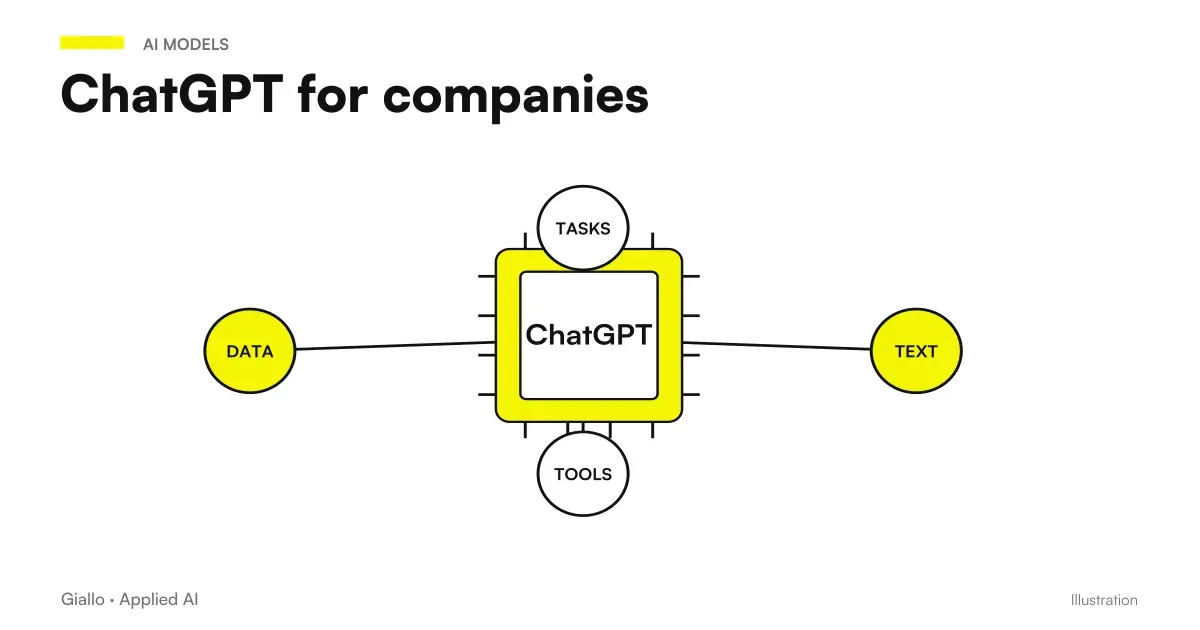
ChatGPT for Excel and Google Sheets is a concrete and low-cost tool for those who spend hours on spreadsheets: it writes formulas from a description to words, explains those you don't understand, cleans messy data and generates macros. The value comes when you describe the problem well —program, structure, desired result —and always check the result on a known case, because AI produces the most likely answer, not the certainly correct one. For those who live in Google Workspace, it is worth comparing it with Gemini for Google Sheets; to use it well on multiple tasks, start from ChatGPT for companies.
AI becomes useful when it enters processes. Giallo Studio It helps SMEs and teams build concrete, measurable and sustainable automations — from the spreadsheet to the flow you manage yourself.
Giallo Studio guides: methodology and sources
How we apply it in the company
Related resources
 ChatGPT: what it is and how to use it
 Prompt engineering: what it is and how to get started
 ChatGPT for companies
 Gemini for Google Sheets
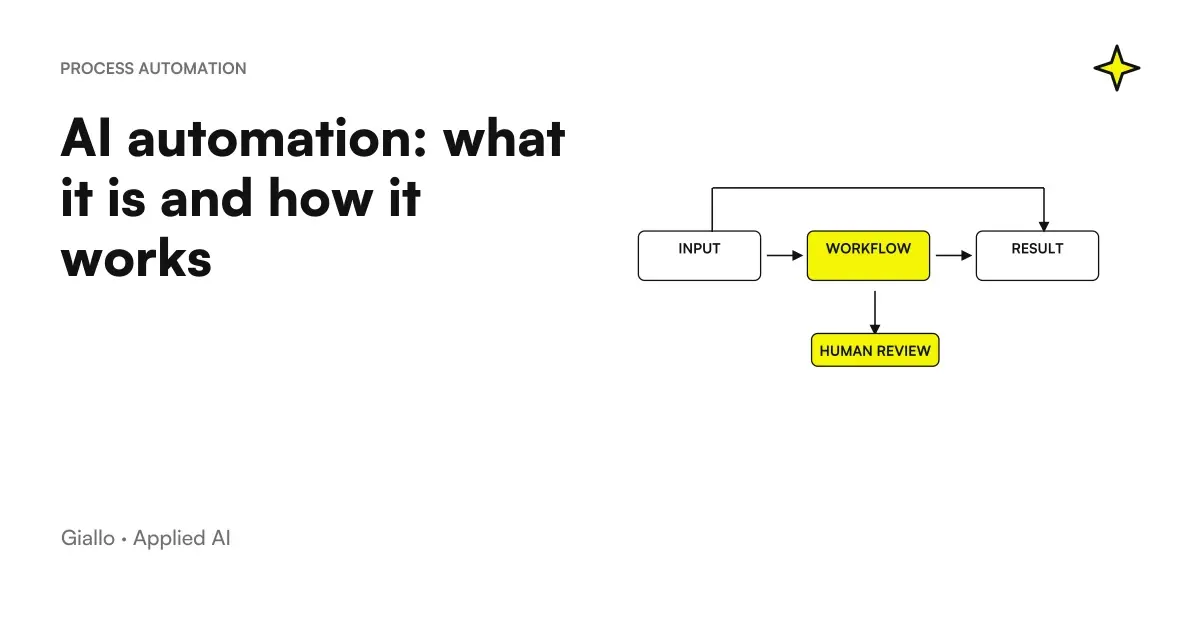 AI automation: what it is and how it works
 AI to reduce manual work in the company
 Best AIs to summarize PDFs and documents
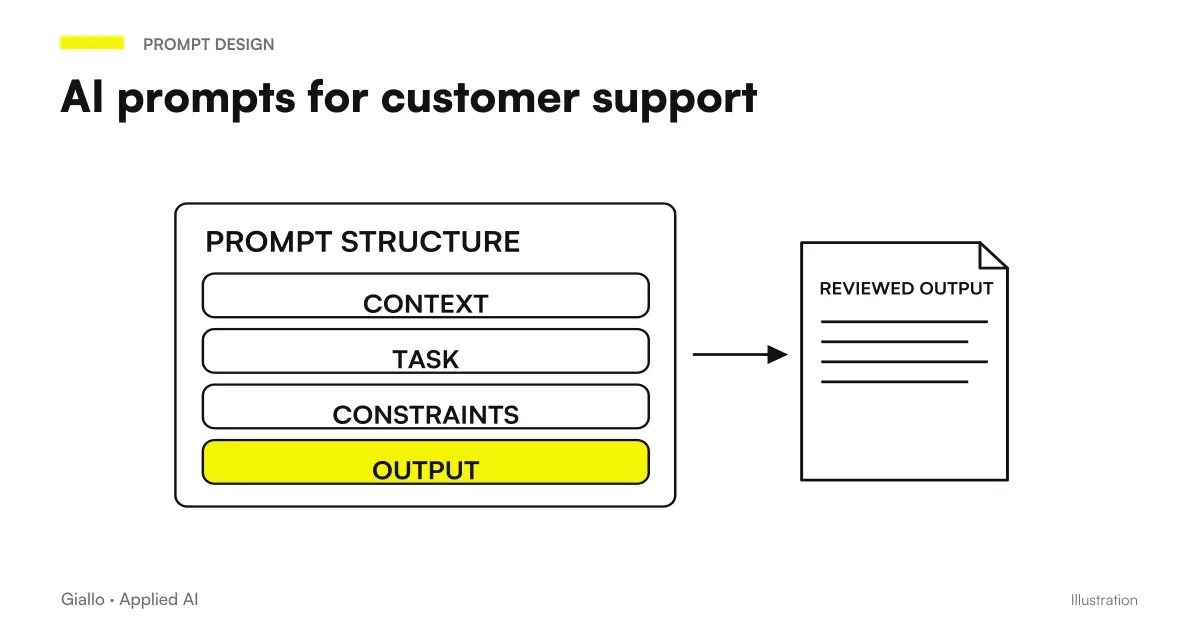 AI customer support prompts: ready-to-use examples
FAQ
Can ChatGPT write formulas for Excel and Google Sheets?
Yes. Describe in words what you want to achieve and which cells contain the data, and ChatGPT returns a formula ready to paste. It works for both Excel and Google Sheets, but you must specify which one you use because some functions and separators differ. Always check the result against a case where you know the answer.
Are the formulas generated by ChatGPT always correct?
No. ChatGPT produces the most likely formula based on your text, not one guaranteed to be correct. It often makes mistakes with cell references, separators (semicolons versus commas) and function names between Excel and Sheets. That is why you should test it on rows where you already know the result before applying it to the whole sheet.
Do I need to upload my Excel file to ChatGPT?
It is not mandatory. To get a formula, simply describe the structure of the sheet (which columns and cells). Uploading the file is only needed if you want AI to analyse the actual data, and in that case you must never upload customers' personal data or confidential information to public tools, to avoid violating the GDPR.
What is the difference between using ChatGPT and Gemini in Google Sheets?
ChatGPT works in a separate window: you copy and paste formulas and data back and forth. Gemini is integrated into Google Workspace and can act directly in the spreadsheet. For people who work primarily in Google Sheets, Gemini is more convenient; for complex reasoning about formulas, many prefer ChatGPT. It is often worth trying both.
Can ChatGPT create macros or scripts to automate a sheet?
Yes. It can write VBA macros for Excel and Google Apps Script for Google Sheets, for example to clean data, send emails or generate reports. You must describe the desired result clearly and test the script on a copy of the file, because a macro can modify or delete data irreversibly.
Do you need to be able to program to use ChatGPT with spreadsheets?
No for formulas: just describe in words what you want. For macros and scripts it helps to understand where to paste the code and how to execute it, but ChatGPT can guide you step by step. The real limit is not technical: it is learning to describe the problem accurately and to check the result.