
Gemini for Google Workspace
Gemini for Google Workspace: Gmail, Docs, Sheets, Slides and Meet features, included plans and business data handling. A practical SME guide.
Reading time: 10 min
Gemini for Google Workspace is Google's AI assistant built directly into the work apps you probably already use every day: Gmail, Documents, Sheets, Presentations, Meet and Drive. It is not a separate tool to go to: it is a button and a panel that appear included the app, and working on the content you have in front of you — the open email, spreadsheet, meeting in progress.
The practical difference from using a generic chatbot in another tab is just this: Gemini in Workspace knows the context of your files (the ones you have access to) and acts where you are already working. Summarizes an email thread without copying it elsewhere, builds a table in the open sheet, takes notes from a Meet meeting as you speak.
In this guide we see what Gemini does in every Workspace app, how plans and licenses work (with the warning that they change often), how Google treats business data and when it really pays to activate it in an SME. For the general picture on the model you can start from What is Gemini AI.
In summary
- Gemini for Google Workspace It's Google's AI built into Gmail, Documents, Sheets, Presentations, Meets, and Drive: it works where you already are, not in a separate tab.
- Its advantage is the context: sees the files you have access to and acts on those, instead of starting from a blank page.
- In newer paid Workspace subscriptions, Gemini functions are included in the plan, but the coverage for app and plan often changes: always check the official page.
- Google states that the Business data in Workspace is not used to train models Gemini nor for advertising; however, internal rules of use remain necessary.
- Like any generative AI, it can Making Mistakes With Confidence: must be used for the first draft, with human review on the content that comes out of the company.
What Gemini does in every Google Workspace app
The most useful way to understand Gemini in Workspace is not "what the model is", but "what changes inside each app I open". Each app has different typical tasks, and Gemini fits those. The table below summarizes the picture; in the following sections we enter the two most relevant cases for an SME (Gmail and Sheets), which also have dedicated guides.
| Workspace App | What Gemini does there | Concrete example |
|---|---|---|
| Gmail | Summarizes long threads, suggests and writes drafts of emails, finds details buried in the conversation | Summarize a chain of 20 messages and prepare an answer in your tone → see Gemini for Gmail |
| Documents (Docs) | Create formatted drafts, rewrite and shorten texts, adapt tone | Turning raw notes into an orderly business proposition |
| Sheets (Sheets) | Generate tables, explain and create formulas, analyze data in natural language | Ask "what's the turnover per customer?" and get the formula → see Gemini for Google Sheets |
| Presentations (Slides) | Add slide, generate images, structure a presentation | Create the draft of a deck from an existing document |
| Meet | It takes automatic notes and produces the summary of the meeting | Have the minutes and actions decided without writing during the call |
| Drive | Search and synthesize between your files, reply on documents you have | Ask "what did supplier X's contract say?" without opening it |
| Gemini App | Autonomous AI chat for broader activities outside of individual apps | Brainstorming, search, drafts not related to a specific file |
Gemini in Gmail: Less time on mail
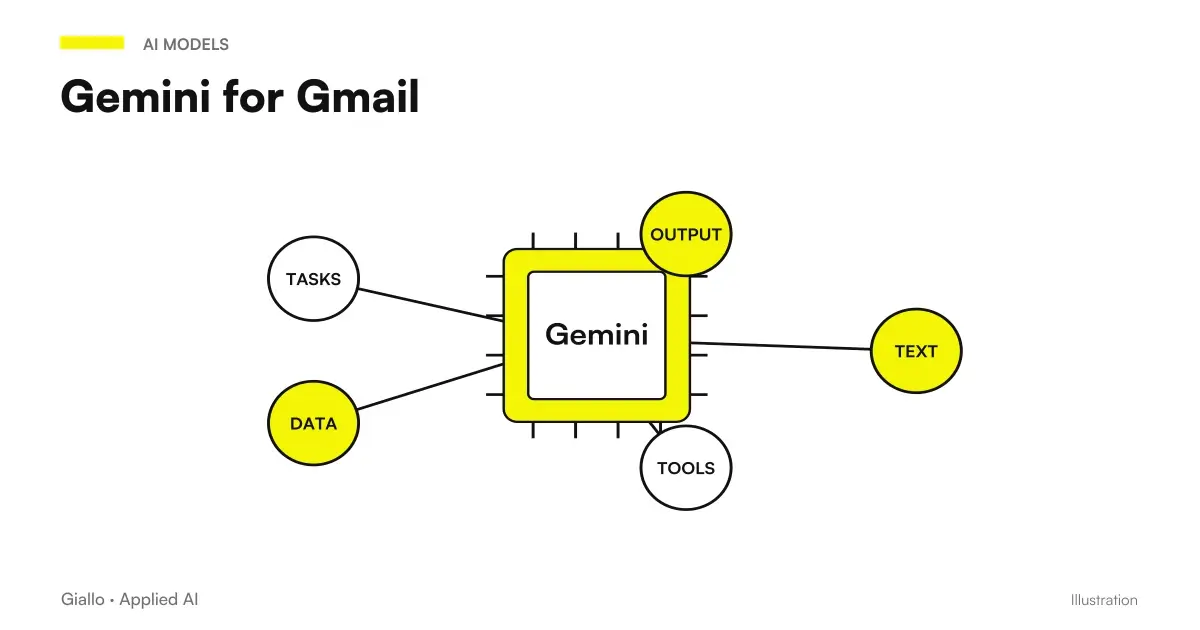
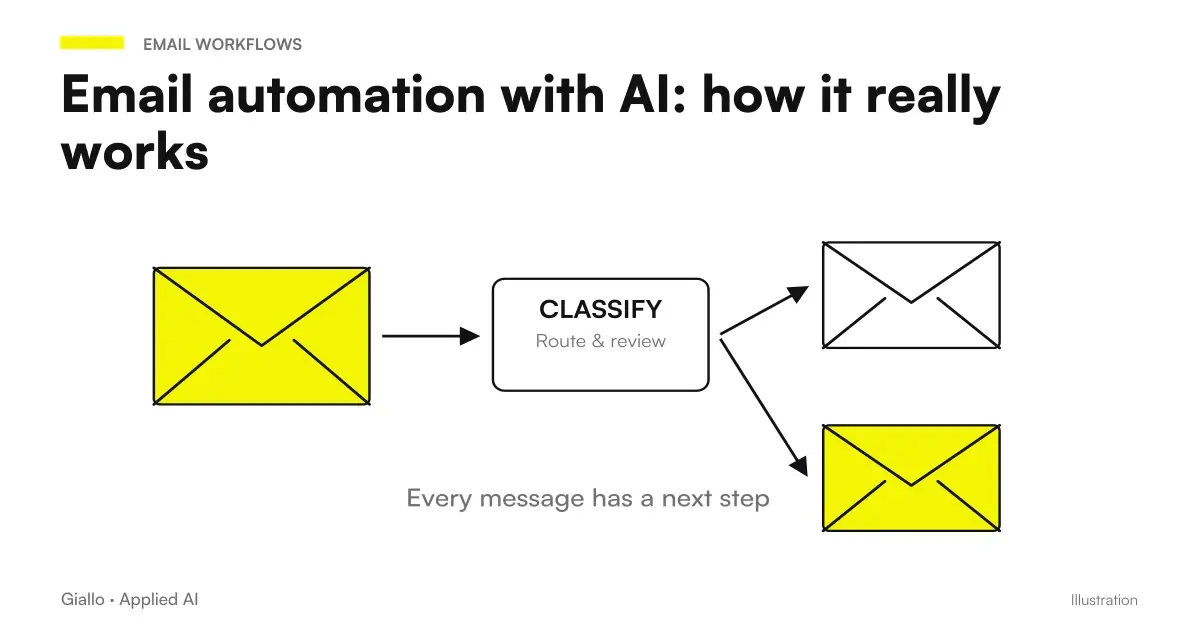
Mail is where most offices waste the most time. In Gmail, Gemini does three practical things: summarises a thread long in a few lines so you don't reread twenty messages; suggests a draft response which you can correct instead of writing from scratch; search inside the conversation to retrieve a detail (a date, an amount, a decision) without scrolling by hand.
For an administrative office or a service team, this means responding faster while keeping your tone. The point remains the same as always with AI: the draft makes the model, the sending decides the person. The Guide Gemini for Gmail goes into the details of use cases.
Gemini in Sheets: analysis without knowing the formulas
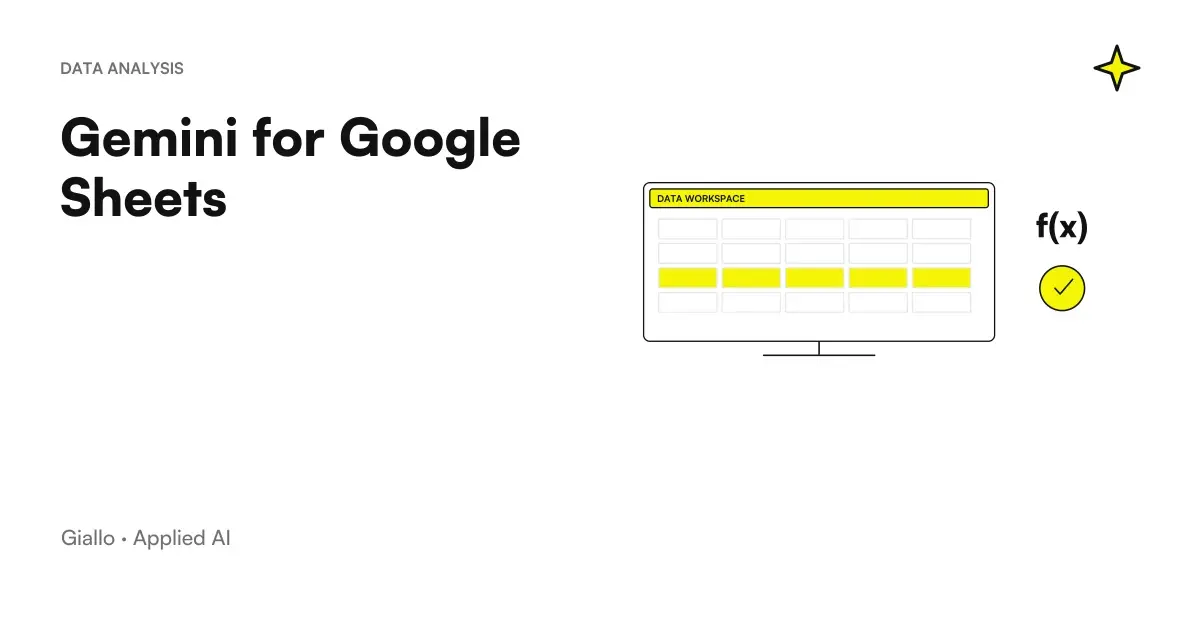
In Google Sheets, Gemini lowers the technical barrier. You can ask in Italian "create a table of expenses per month" or "What is the formula for counting active customers?" and get the structure or formula ready to paste. It is useful to those who know what they want to get but do not remember the syntax of Sheets.
It should be used with the same caution as a new colleague: formulas and numbers must be verified before basing a decision on it. On this we go back to the mistakes to avoid. For practical cases, see Gemini for Google Sheets.
Document format also changes collaborative work. The new native Markdown support in Google Docs is about editing and collaborating on files; it is distinct from the already existing import and does not alone attribute permissions to an AI agent.
What plans and licenses include Gemini
Here the golden rule is only one: Plans and prices often change, so any number needs to be confirmed on the official page before deciding. That said, the current picture is quite clear in logic.
In subscriptions Google Workspace paid more recent, the Gemini functions are included in the plan at no additional cost per user. In the past Gemini was a separate add-on to purchase; today Google has integrated it into business subscriptions. Coverage however is not identical on all levels: Input plans may have more limited functions (e.g. Gmail support), while upper floors enable Gemini in all apps and add security controls for the administrator.
- Check on the Official Google Workspace Pricing which Gemini functions are included in the plan you are interested in.
- Check the admin panel for what is already active on your domain: sometimes it is available but not enabled.
- Distinguish between Gemini Inside Workspace (Gmail, Sheets...) and the Gemini app autonomous: they are different things, with different availability.
- If you compare costs, you reason for user per month on the whole team, not the single: AI makes sense when many use it.
Why we avoid writing prices and "fixed" plan names
Google renames plans, rearranges levels, and updates prices frequently. An article that quotes a precise price becomes wrong in a few weeks and leads you to decide on an old given. That's why here you find the logic (what changes between basic and advanced plans) but not a figure to be taken for good: that you read on the official page the moment you decide.
How Gemini Business Data is Processed in Workspace
For an Italian company this is often the question that counts more than any function. The position declared by Google is clear: the your organization's data in Workspace remains yours and are not used to train Gemini models, nor for advertising profiling. Also Gemini, when searching through your files, recovers only content that the user already has access to: does not override existing permissions.
This is a plus point compared to pasting sensitive data into a generic public tool, where the rules on processing can be different. But it doesn't exempt you from your responsibilities: the supplier's statement is a part of the picture, not everything.
What Google does (supplier side)
- It states that Workspace data does not train Gemini models.
- Respect existing permissions: Gemini only sees files you have access to.
- It offers controls for the administrator to restrict access to sensitive data.
What's left to you (company side)
- Define internal rules about what staff can ask and input.
- Check contract, DPA and updated conditions for your plan and country.
- Manage file permissions: who accesses what determines what Gemini sees.
- Maintain human review of customer data and sensitive documents.
When is Gemini convenient in Workspace (and when not)
Gemini in Workspace is not the right choice for everyone: it depends on where your team already works.
When it makes sense
- The team already works inside Gmail, Documents, Sheets and Drives every day.
- You want AI in the place where you work, no copy-paste between tools.
- You need the assistant to see the context of your business files.
- You have a Workspace plan that already includes Gemini functions.
When to Look Elsewhere
- Your company uses Microsoft 365 or another ecosystem, not Google.
- You need a specific model (e.g. for long-form writing or code) → consider Claude or ChatGPT.
- The need is a process automation, not an assistant: you need a AI Agent made to measure.
- You need to integrate AI into management software external to Workspace.
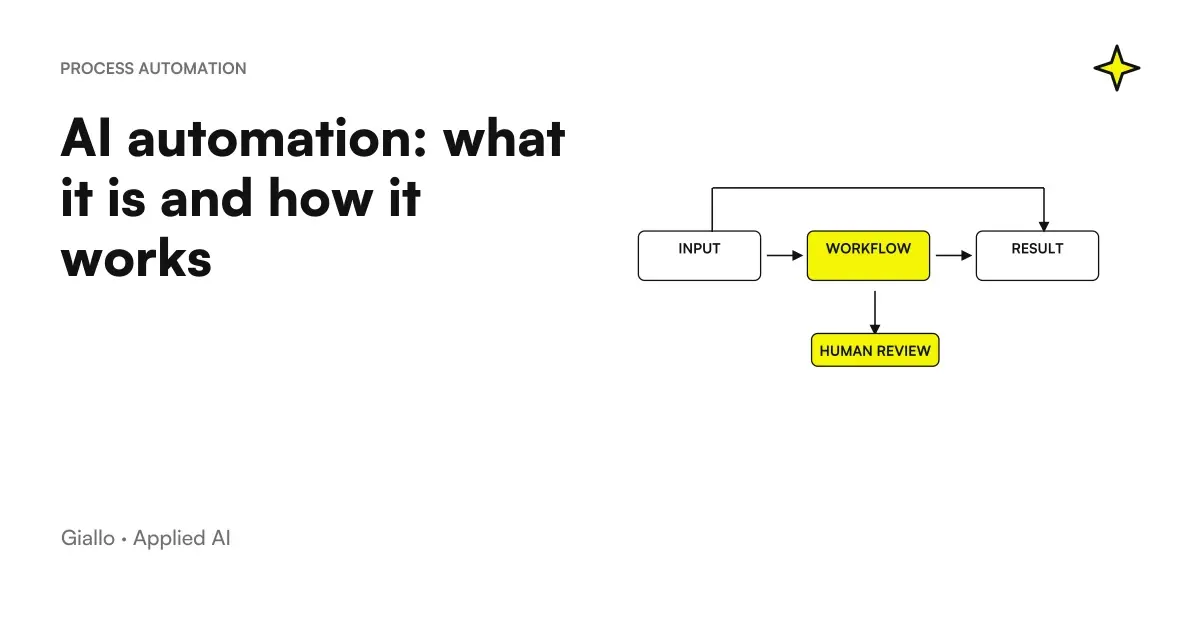
An assistant like Gemini saves you time while work, but do not automate an end-to-end process on its own. When the need is "every email of a certain kind has to start three steps in management software", we are in the territory of AI Automation, no more than an assistant in the browser.
Practical examples
Two realistic scenarios of Italian SMEs, to make the speech concrete.
1. Consulting study — meetings and minutes. The firm makes several calls a week with customers on Google Meet. First, a person would take notes during the meeting (losing pieces) and then waste half an hour tidying them up. With Gemini in Meet, the summary and the actions decided come automatically at the end of the call; the person reads them again, corrects them and sends them to the customer in a few minutes. Minutes time collapses, and no one has to "rebuild" what had been decided.
2. Commercial SMEs — mail and quotes. The sales office receives dozens of requests via Gmail per day. Gemini summarizes the long threads and prepares a draft response in the corporate tone, so the commercial corrects instead of writing from scratch. In parallel, in Google Sheets the manager asks in Italian for the analysis of sales per customer and gets the table ready, without having to remember the formulas. The team always reviews numbers and prices before sending. For operational details on these two cases: Gemini for Gmail and Gemini for Google Sheets.
In both cases the model is the same: Gemini prepares, the person decides. It works because it takes away low-risk repetitive work and leaves the human with judgment.
Mistakes to Avoid
- Treating answers as truth. In Gmail, Sheets or Documents, Gemini produces the most plausible, not the verified one. About amounts, formulas, dates and citations always needs a check before publishing or sending.
- Confusing Gemini in Workspace with the Gemini app. They are different products, with different functions and availability. Knowing which one you are using avoids wrong expectations.
- Taking the prices for granted. Workspace plans and Gemini coverage often change: deciding on a digit read in an old article leads to errors. Always confirm on the official pricing.
- Ignoring file permissions. Gemini sees what the user has access to: if the permissions on Drive are messy, someone might get summaries of documents they shouldn't see. First you fix the accesses.
- Expecting complete automation. An assistant is not an agent. If you need a process to start and complete itself, you need a project to process automation, not just Gemini in the browser.
The announcement of Gemini Agent for Work brings attention to persistent context, tools and coordination. Before inserting it into team documents, check availability and conditions of the plan, identity used and boundaries of the actions granted.
How to apply it in the company
Activating Gemini in Workspace sensiblely is a short path, not a big project.
- Check what you already have. Check on the admin panel and official pricing which Gemini functions are included in your plan: they are often there and are not active.
- Start with an app and a process. Choose the point that hurts the most — usually Gmail (the mail) or Sheets (the analysis) — instead of activating everything at random.
- Define the rules of use. Write down what staff can ask for and what data should not be entered, especially on customers and contracts.
- Keep the human review. Drafts yes, automatic submission no. The person approves what comes out of the company, at least in the first few months.
- Measure and decide. How much time do you really save on that process? If numbers improve, extend to other apps; if not, change approach.
For many SMEs the next step is not "more assistant", but connecting AI to real processes. It is the type of work for which the AI consulting by Giallo Studio: understand where an assistant like Gemini is enough and where an automation or a AI Agent If you want to see concrete experiments, take a look at the The Lab.
Conclusion
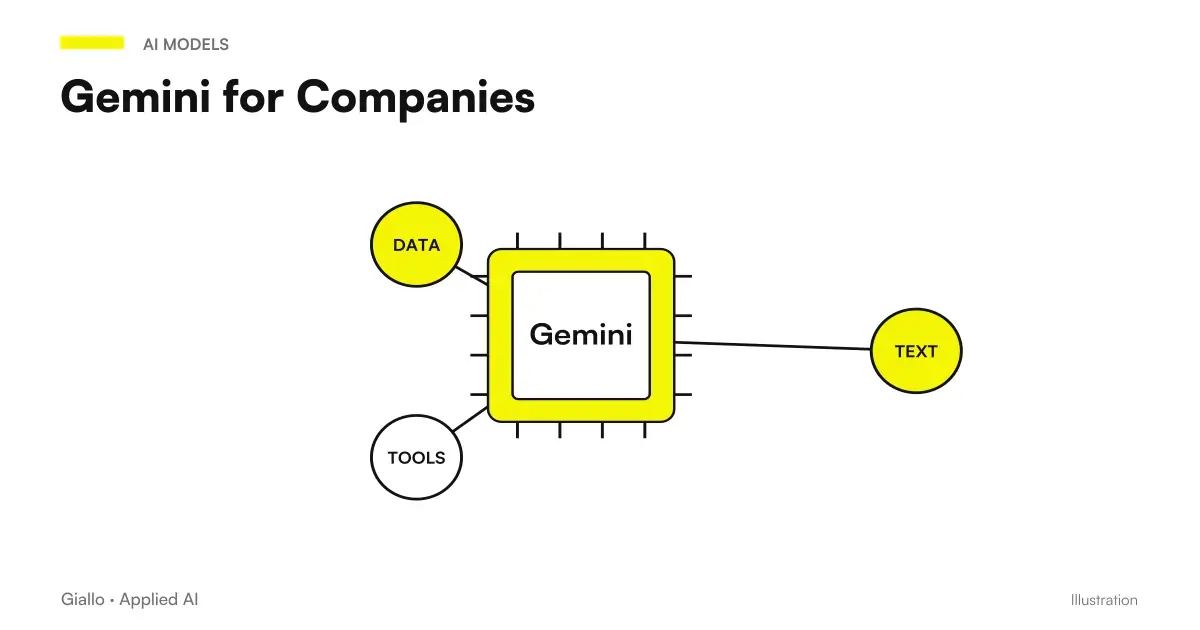
Gemini for Google Workspace It's the most direct way to bring AI into your day-to-day work if your team already lives inside Gmail, Sheets, Documents, and Drive: it works in the context of your files, saves you time on repetitive tasks, and, according to Google, doesn't use your business data to train models. There are two things left in your hands: always verify plans, prices and conditions on the official page, and keep human review on the content that matters. From here you can deepen with Gemini for Gmail and Gemini for Google Sheets, or see the framework for the enterprise in Gemini for Companies.
If you want to go from testing with ChatGPT to an AI system integrated into business processes, Giallo Studio custom designed agents and automations.
Giallo Studio guides: methodology and sources
How we apply it in the company
Related resources
FAQ
What is Gemini for Google Workspace?
Gemini for Google Workspace is Google’s AI assistant integrated into its work apps: Gmail, Docs, Sheets, Slides, Meet and Drive. It is not a separate website, but a feature within the tools you already use to summarize, write drafts, analyze data and take meeting notes.
Is Gemini included in Google Workspace or is it paid separately?
In the latest paid Workspace subscriptions Gemini features are included in the plan, at no additional cost per user. Availability per app and per plan often changes: always check the official Google Workspace page and the admin panel of your domain to know what is active on your account.
In which Workspace apps does Gemini work?
The main apps are Gmail (email summaries and drafts), Docs (writing and rewriting), Sheets (analysis and formulas in natural language), Slides (slides and images), Meet (meeting notes and summaries), and Drive (search and summarization within your files). There is also a standalone Gemini app for chats and broader tasks.
Does Google use my business data to train Gemini?
Google states that your organization's data in Workspace remains yours and is not used to train Gemini models or for advertising. It is still your responsibility to define internal rules on what staff can enter and verify the updated conditions in the contract and on the official page.
Does Gemini for Workspace replace ChatGPT or Claude?
It addresses a different need. Gemini in Workspace works best when you already use Gmail, Sheets and Drive, because it sees the context of your files. ChatGPT and Claude remain useful for tasks outside that ecosystem or when you need a specific model. Many businesses use them together.
Can I trust Gemini's answers in the documents?
They need to be checked. Like any assistant based on language models, Gemini can produce plausible but wrong answers, especially on numbers, citations and dates. Use it for the first draft and to speed up, but keep a human review on the content you publish or send to customers.