
Gemini for Google Sheets
Use Gemini in Google Sheets to generate formulas, create tables, clean and categorise data, and run analyses. Example prompts and mistakes to avoid.
Reading time: 10 min
Gemini for Google Sheets is Google's AI assistant built into Google Sheets: it allows you to write formulas describing them in words, generate ready tables, clean and categorize messy data and get a first analysis of a range, without leaving the sheet. In practice turn a request into Italian ("calculate the margin for each line", "extract the city from the address") into a usable formula or data block.
It is especially useful for those who do not remember the exact syntax of functions or waste time in repetitive manual operations. But there is a rule that applies throughout this article: Gemini proposes, you verify. AI generates the most likely response, not the certainly correct one, so each formula must be tested and each summary number must be recalculated before trusting.
In this practical guide we see how to use Gemini in Google Sheets step by step: where it is, how to get it to write formulas, how to generate and clean tables, how to analyze data, with ready-to-copy prompt examples and an honest comparison with ChatGPT for Excel.
In summary
- Gemini for Google Sheets is Google's AI inside Sheets: write what you need in natural language and get formulas, tables or summaries.
- The four most solid uses are: generate formulas, create tables, clean and categorize data, parse a range.
- It works best if you give it context: describe the columns, the target and the output format you want.
- Always check: test formulas on real data and recalculate summarized numbers, because AI can misreference or logic.
- Compared to ChatGPT for Excel, Gemini is natively integrated into Google Workspace; the choice depends on where you already work.
What is Gemini for Google Sheets and where is it
Gemini is Google's AI model, integrated throughout the Workspace suite (Gmail, Documents, Presentations, Sheets). Inside Google Sheets You find it in two main forms:
- The Gemini Side Panel: the icon at the top right opens a chat assistant to which you ask for formulas, tables, summaries and tips referring to the open sheet.
- The Sheet Function
=AI(): in plans that include it, it is a function that generates or transforms text directly into a cell (for example categorizing or summarizing the contents of other cells), and recalculates as a normal formula.
Availability depends on the plan: some functions are in Google Workspace Business/Enterprise, others in Google AI plans for personal accounts. Plan names, prices, and functions often change: Before basing a decision on it, check the official Google Workspace page. For the general picture of the assistant in the suite, see Gemini for Google Workspace; to understand what the model is, Gemini AI: what it is.
How to use Gemini in Google Sheets, step by step
Practical flow is almost always the same, whatever the task.
- Prepare the data. Put the data in columns with a clear header in the first row. Gemini works much better when it understands what each column contains.
- Open the Gemini panel. Click the Gemini icon at the top right of the sheet. If you use the function, write it in a cell with =AI(...).
- Describe the target, not the syntax. Write what you want to achieve in plain Italian, indicating the columns involved and the expected result (a formula, a table, a category).
- Add context and format. Specify range, unit, currency, language and what shape you want the output in ("only the formula", "a table with 3 columns").
- Check the result. Paste the formula, test it on lines whose value you already know, check the cell references. Never accept the first shot.
- Itera. If it is wrong, correct the prompt ("use SOMMA.PI..SE instead of SOMMA", "also consider empty cells") and try again.
Generating formulas with Gemini
It is the most immediate use. Instead of remembering the syntax of CERCA.X, QUERY or SOMMA.PIÙ.SE, describe the calculation in words and Gemini proposes the formula. Works well for functions that many rarely use and each time should be rechecked on the guide.
The critical point is the verification: a formula may look right and use the wrong range, ignore empty cells or confuse the decimal separator. Always test it on at least two or three lines of which you know the expected result.
Example prompt condiziona conditional formula
"In the sheet I have column A with the region, column B with the month and column C with the turnover. Write me a formula that adds up the North region's turnover only for the month of March. Just give me the Italian formula for Google Sheets."
Example prompt cerca looks for a value in another table
"I have the product codes in column A of the Orders sheet and a price table in the List sheet (column A code, column B price). Write me a SEARCH.X formula that returns the price next to each order, and that returns 'to be verified' if the code does not exist."
Example prompt spiega explains an existing formula
"Explain to me in simple words what this formula does and tell me if it has a possible error: =ARRAYFORMULA(SE(B2:B='';'';C2:C/B2:B)). Tell me about any risks with the empty cells."
Generating and structuring tables
Gemini can create a table from scratch or restructure existing data. Useful for quickly setting up a model: a monthly budget, an editorial plan, a deadline log, a supplier comparison matrix. You describe columns and rows, he proposes the structure and sample data, which then suits.
Example prompt — creates a table from scratch
"Create me a table for a month-long social publishing plan with these columns: Date, Channel, Post Theme, Format, State. Fill 8 lines of example consistent with a mechanical workshop in Italy. Put it in ready-to-paste table format in Google Sheets."
Example prompt trasforma turns text into table
"Transform this messy list into a table with Name, Phone, City columns. If any data is missing, write 'n.d.'. Here is the list: ..."
Clean and categorize data
Here Gemini is particularly useful, because data cleaning is the most tedious manual work of the sheet: names written in different ways, given in mixed formats, categories to be assigned by hand. With panel or function =AI() you can normalize and classify in a few steps. If the sheet lives in Excel and not in Google, the tool comparison is in the Best AI for Excel.
Examples of typical tasks:
- Uniformize Formats: "put all phone numbers in the format +39 ...", "bring dates to the format dd/mm/yyyy".
- Extracting an Information: extract the city from a full address, separate first and last name, extract the domain from an email.
- Categorize: assign each line a category ("expense: fixed/variable", "lead: hot/warm/cold") according to the text.
Example prompt categorize a column
"In column A I have descriptions of business expenses. For each line, assign me a category among: Rent, Utilities, Personnel, Marketing, Software, Other. Return only the category column, one per row, in the same order."
Example cleaning prompt with the function =AI()
"In a cell write a formula =AI(...) which, given cell B2 with a name written in uppercase and lowercase at random, returns the name with uppercase initials. Give me the formula ready to drag down."
Analyzing Data: Synthesis, Trends, Charts
Gemini can look at an interval and give you a first reading: the total, the average, the trend, the abnormal rows, a hint of graph or pivot table. It is a starting point to explore, not a definitive report.
Caution here is maximum: a AI-generated text summary may contain inaccurate numbers, because the model sometimes "estimates" instead of calculating. The practical rule is: use Gemini to understand what Watching and which formula serves, then calculate the sheet with that formula. The numbers you put in a decision must come from a cell, not a sentence.
Example exploratory analysis prompt
"Look at range A1:D200 (Date, Product, Quantity, Revenue). Tell me: the 3 products with the most revenue, the best month and if you see a noticeable drop. For each statement tell me which formula to use to verify it in the sheet."
Problem → prompt: a reference table
A shortcut to start. Fit column names and ranges to your sheet, and always check output.
| Problem in Sheet | Prompt to give to Gemini | What to Check After |
|---|---|---|
| I don't remember the formula for a sum with conditions | "Sum column C where column A is 'North' and column B is 'March'. Just the formula." | Head on lines of which you already know the total |
| I need to link two tables per code | "Return the price from the Price List sheet next to each order with SEARCH.X; if it is missing write 'n.d.'." | Properly managed non-existent codes |
| Dates in different formats | "Bring all dates in column A to the format dd/mm/yyy." | ambiguous dates type 03/04 (day or month?) |
| Addresses in a single cell | "Extract the city from each address in column A into a new column." | Addresses without city or with typos |
| Hundreds of lines to categorize | "Assign each line a category between [list], same order." | Sample sample on ambiguous cases |
| I want to understand the sales trend | "Summary the trends of A1:D200 and tell me which formulas to use to verify them." | Recalculate each number quoted in the sheet |
Practical examples
Two concrete scenarios of Italian SMEs.
1. Studio accountant — categorization of movements. An assistant exports a customer's bank movements to Google Sheets: hundreds of lines with raw descriptions. With Gemini, it assigns each row a category (judgments, suppliers, salaries, taxes) and evens out the dates. First he checked everything by hand, now he only revises the lines that Gemini reports as uncertain. The key point: a sample check remains, because a wrong category on a movement can distort a summary. For the picture on how AI eases these flows, see AI Automation.
2. E-commerce — quick catalog analysis. The holder has a sheet with 800 products (category, price, margin, last quarter sales). He asks Gemini which categories make the most and which products sell below the threshold. Gemini proposes analysis and, above all, formulas (SOMMA.PIÙ.SE, QUERY) to really calculate them in the sheet. The holder uses formula numbers, not text summary numbers, to decide what to promote. This is exactly the kind of work that a good AI Consulting helps to set well from the start.
Gemini for Google Sheets or ChatGPT for Excel?
The recurring question. It depends on where your data lives and what you need to do.
When is Gemini for Google Sheets
- You already work within Google Workspace (Sheets, Gmail, Drive).
- You want AI natively integrated into the sheet, without copy-paste.
- You need the cell function to categorize or transform many lines.
- You want an assistant who sees the context of the open sheet.
When is ChatGPT for Excel convenient
- You work in Microsoft Excel or with downloaded files.
- You have to think deeply about a complex formula or a VBA macro.
- You want to paste raw data and have it cleaned off the sheet.
- You need a comparison of different approaches before you write the formula.
In practice the two tools coexist: Gemini is comfortable inside the Google ecosystem, ChatGPT is strong as a "consultant" on formulas even outside Excel. ChatGPT for Excel and Google Sheets. For a wider comparison on models, the article Gemini AI: what it is frames strengths and limits.
Mistakes to Avoid
- Trusting the formula without testing it. The reference or logic can be wrong: always try on lines whose result you know.
- Using the numbers of the text summary. The figures in an AI-generated summary can be inaccurate: the numbers of a decision come from a cell.
- Giving little context. "Make a formula" without explaining columns and goal leads to random results. Always describe the data.
- Categorizing en masse without control. On hundreds of lines a silent error propagates: a sample occurs.
- Entering sensitive data without criterion. Personal data of customers in a shared sheet should be treated according to the GDPR; check the permissions and conditions of the plan.
How to apply it in the company
To go from occasional testing to a time-saving use, a simple, repeatable path is worth it.
- Choose a sheet that costs you time each week. A recurring report, a data cleanup, a categorization. Start there.
- Standardize the structure. Clear headers, a column = a figure. Gemini yields more on ordered data.
- Build a prompt library. Saves prompts that work (like those of above) so the team reuses them instead of reinventing them.
- Define where human control is needed. Which numbers and categories should always be checked before leaving the sheet.
- Measure before and after. How many hours that paper took, how many it takes now. Without numbers you don't know if it's convenient.
When these tasks become frequent and connected to other tools (CRM, management software, email), it is often better to overcome the manual use of the sheet and build an automatic flow: it is the transition from "use Gemini when I remember" to "the process runs on its own". For companies that want to adopt these tools in a structured way there is the guide Gemini for Companies, and for custom streams you can see the work in the The Lab.
Conclusion
Gemini for Google Sheets is a concrete accelerator for those who live in spreadsheets: it generates formulas that you would struggle to remember, creates and restructures tables, cleans and categorizes boring data, and gives a first reading of an interval. The value is real, but under a condition that applies to every use of AI in data: proposes the AI, decides the sheet. Test each formula, recalculate each number, check a sample of the categories. From here you can continue with Gemini for Google Workspace to see the assistant in the rest of the suite, or compare the approach with ChatGPT for Excel.
Do you want to understand what processes in your company can be automated with AI? Giallo Studio can help you turn the problem into a real workflow.
Giallo Studio guides: methodology and sources
How we apply it in the company
Related resources
 Gemini AI: what it is and how it works
 Gemini for Google Workspace
 ChatGPT for Excel and Google Sheets
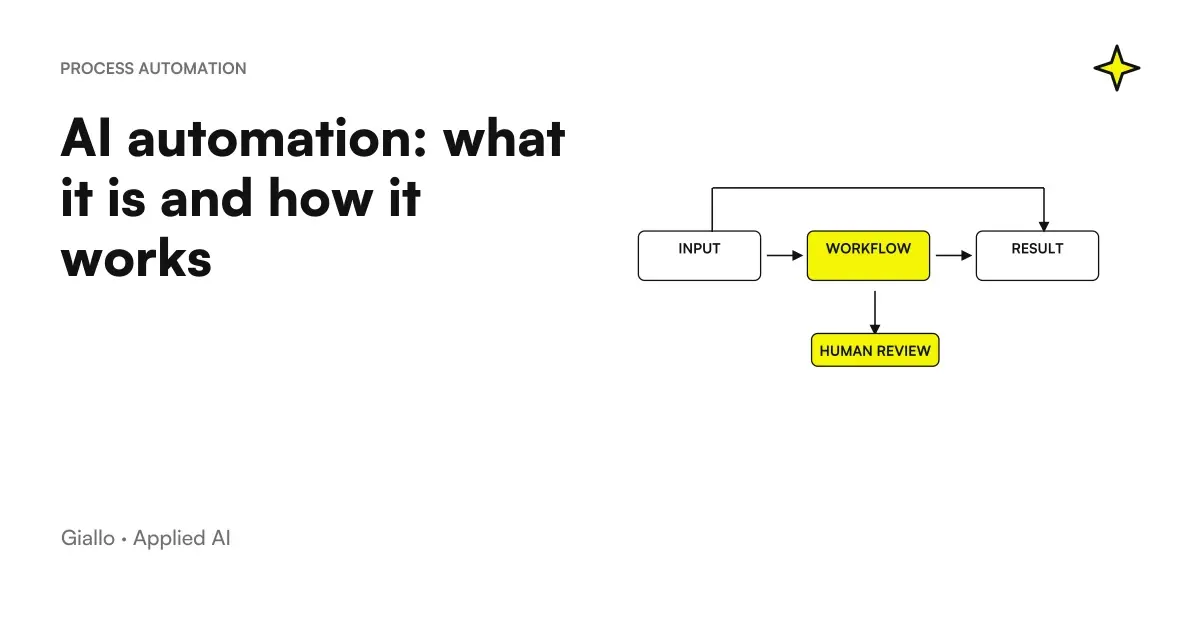 AI automation: what it is and how it works
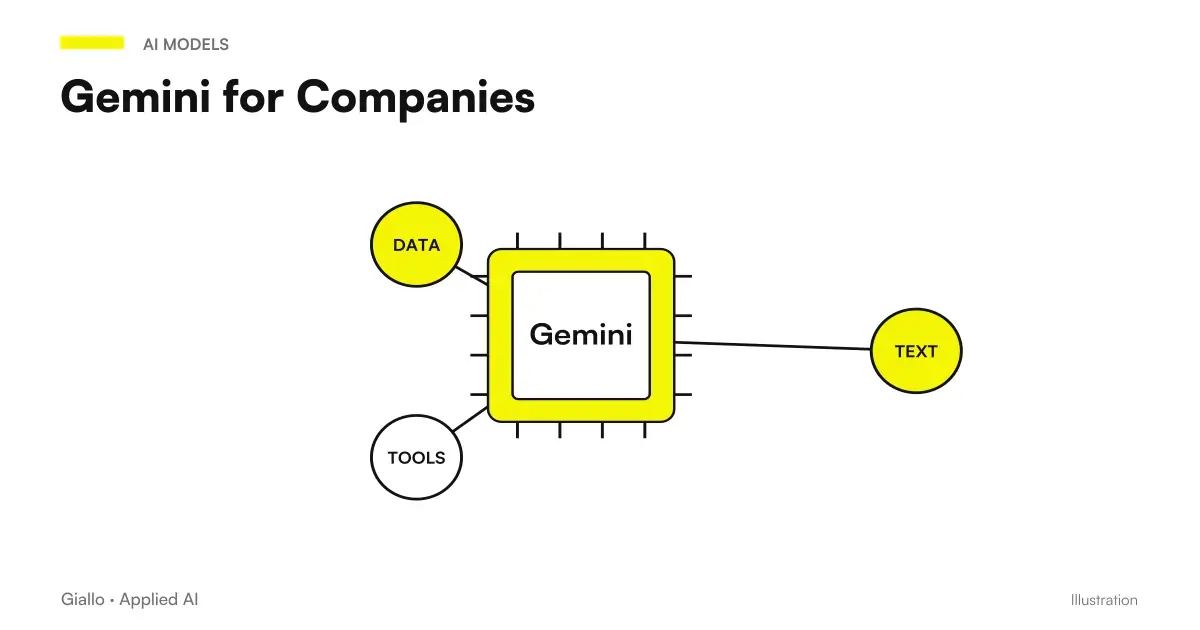 Gemini for Companies
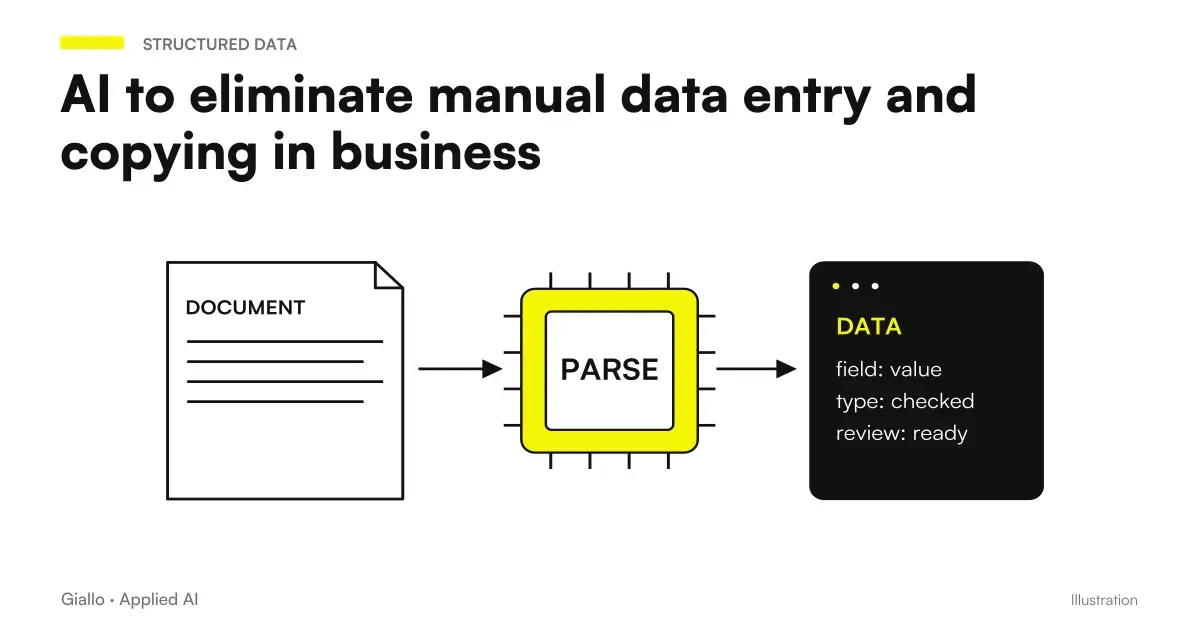 AI to eliminate manual data entry and copying in business
 AI for business reporting: fewer hours, the same data
 AI to Respond to Business Emails: How It Works
FAQ
How is Gemini used inside Google Sheets?
Gemini is integrated into the Google Sheets sidebar (the Gemini panel at the top right) and, on plans that include it, the =AI() spreadsheet function. Open the panel and describe what you want in natural language—a formula, table or summary—and Gemini suggests a result you can paste or accept. Availability depends on your Google Workspace plan: always check Google’s official page.
Can Gemini write formulas for Google Sheets?
Yes. Describe the calculation you need in words (‘sum March sales only for the North region’), and Gemini suggests the corresponding formula, such as SOMMA.PIÙ.SE or QUERY. It is an excellent starting point, but always test the formula on real data before trusting it: AI can make mistakes in cell references or logic.
Is Gemini for Google Sheets free?
Gemini's advanced AI features in Sheets are included in some Google Workspace plans (Business and Enterprise) and in Google AI Pro/Ultra for personal accounts. Availability, plan names, and pricing often change: before signing up, check the official Google Workspace page for your country.
Can I analyze my data with Gemini in Google Sheets?
Yes, within certain limits. Gemini can summarize a range, identify trends, suggest charts and propose pivot tables. For large datasets or precise calculations, ask it to generate the correct formula or query and perform the calculation in the sheet, because an AI-generated text summary can contain inaccurate numbers.
Which is better: Gemini for Google Sheets or ChatGPT for Excel?
It depends on where you work. Gemini is natively integrated into Google Sheets and the rest of Google Workspace, making it convenient if that is where you work. ChatGPT is not inside Excel, but is excellent for reasoning about formulas, cleaning pasted data and generating macros. They often coexist: the guide to ChatGPT for Excel includes a comparison.
Is the data in my Google Sheets safe with Gemini?
On Google Workspace business plans, Google states that content is not used to train models and remains subject to the same Workspace controls. It is still data managed by a provider: for customers’ personal data, assess GDPR requirements, limit sharing permissions and check the updated terms in the official documentation.