
Copilot in PowerPoint: slides from business documents
Copilot in PowerPoint: create slides from documents and prepare a presentation that supports decisions. Sources, requirements, templates and checks for SMEs.
Reading time: 12 min
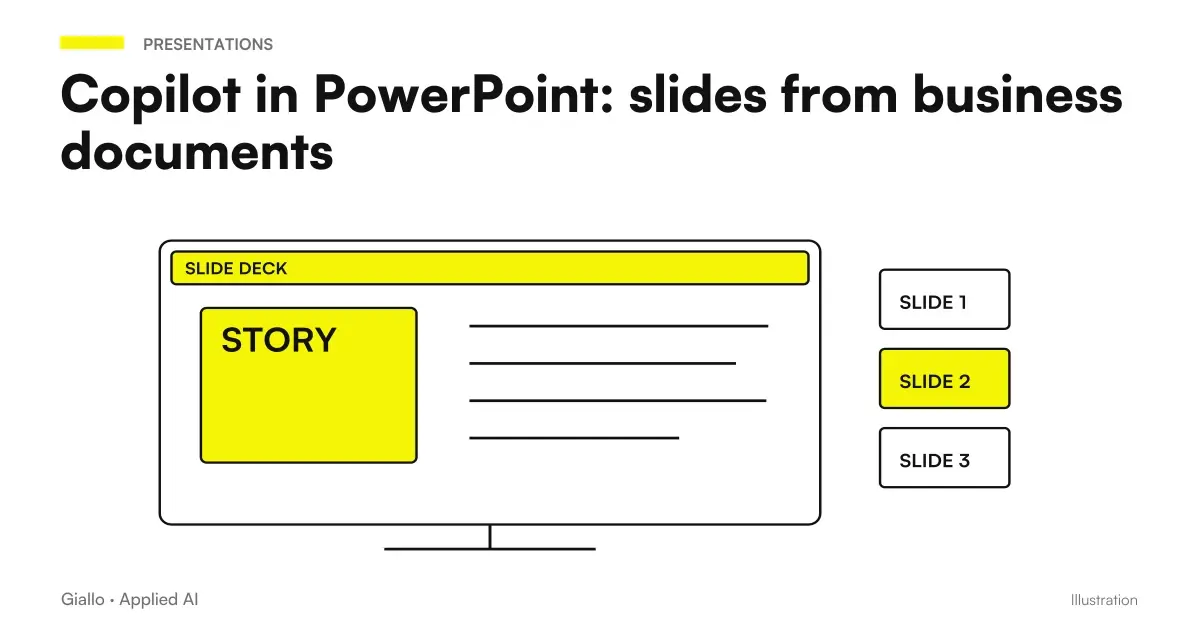
Copilot in PowerPoint can turn a business source into a draft presentation. To get useful slides, however, you need to define audience, waiting decision and information that must remain verifiable. Generation accelerates a part of the work; narrative structure and visual control determine whether the recipient really understands the proposal.
Microsoft describes creation from request or document, summaries, and questions about slides. The path documented in the FAQ distinguishes sources and licenses and requires a supported PowerPoint format and connection. Check the experience in your account, without extending a demo to each tenant. Microsoft FAQ on Copilot in PowerPoint.
Here we propose a path for a commercial or internal presentation, with a hypothetical example and reproducible controls. To understand the available accesses, read Copilot Chat and Microsoft 365 Copilot. The central question of the slides remains different from that of the license: what decision must the reader be able to make after seeing them?
A presentation arises from the decision, before the file
"Create ten slides on this document" defines a length, but leaves the reason for the presentation open. A sales meeting, a budget request, and an update on the project use the same material with different priorities. Before generating, write what choice you want to make possible and what information is needed to accomplish it.
If the public is to approve a pilot project, the slides should explain the problem, perimeter, assessment criteria and commitment required. If it is to compare two options, the structure must maintain a common basis for comparison. If you're looking for an update, you may have enough status, obstacles, and upcoming decisions. The format follows the work of the reader.
Don't ask to make everything "more convincing" without setting the limits. A presentation can show an opportunity by keeping visible conditions and uncertainties. Removing them to get a simpler narrative is likely to create a promise other than the approved document. A good summary helps you decide; it doesn't delete the data that makes the choice less immediate.
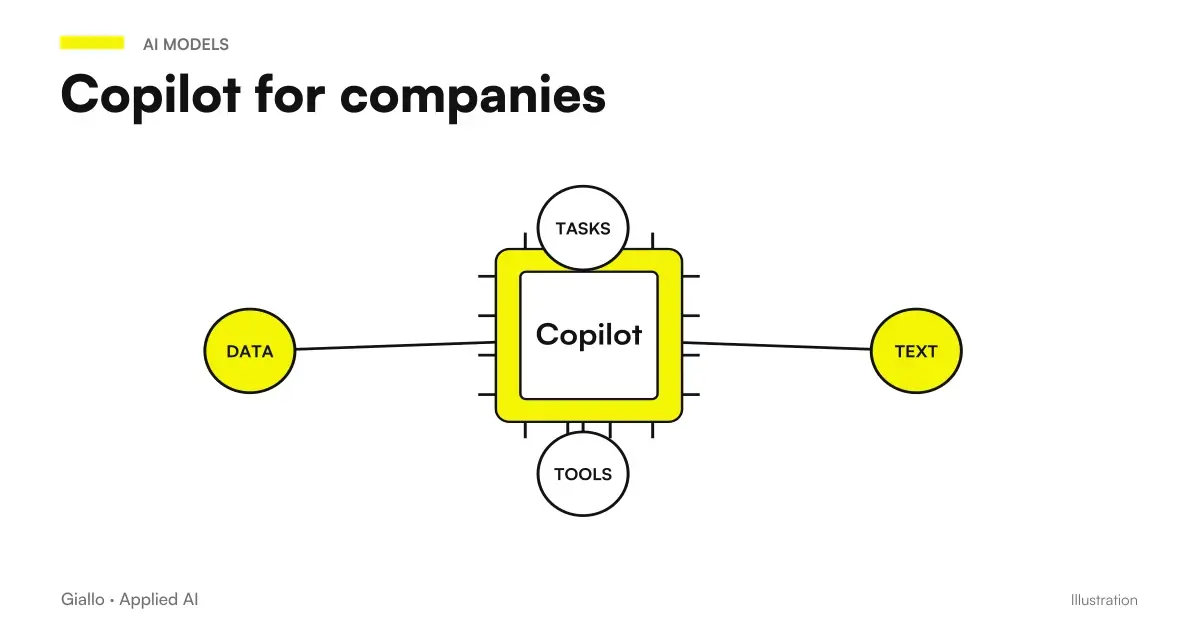
The Guide Copilot for companies places slides in the team's adoption. A circumscribed initial case may be to turn an approved report into an internal presentation. Control is clearer when source, recipient and acceptance criteria are already defined.
The starting document must have only one version of the message
Before importing content, prepare a source that distinguishes facts, proposals, and scenarios. A report full of comments and alternatives can contain incompatible messages: one section says that the project starts immediately, another subordinates it to a technical verification. The assistant can produce an orderly presentation without resolving that contradiction.
You can create an approved note that summarizes the desired result, usable data, conditions, and points still open. You don't need to transform every business file; you need to prepare the right material for that presentation. It also indicates which elements belong to the internal context and which can be shown outside.
If you start with a commercial proposal, the source must maintain performance and exclusions. The guide Copilot Word for Proposals and Documents helps to prepare that controlled draft. Switching to slides can shorten the explanation, but should not broaden the service or turn an option into an included performance.
When files are in shared folders, use a reference to the current version. The guide Copilot with SharePoint and OneDrive distinguishes accessibility and reliability of sources. An old deck can be useful as a graphical model; its numbers do not become current data just because the slides are already formatted.
A hypothetical example: presenting a pilot without selling it as a result
Entirely hypothetical scenario: an SME wants to evaluate an assistant to prepare answers to commercial requests. It must decide whether to start a limited test. It has a problem document, including cases, review criteria and costs to verify; it has not yet measured savings or output quality. No Giallo customer results are represented.
A useful presentation does not say ‘the assistant will reduce costs’ as done. It explains what the test needs to measure, what work remains at the trade and how exceptions will be dealt with. Narrative can be purposeful and clear by maintaining that boundary. The goal is to approve a test, not declare its outcome already achieved.
Prepare a draft presentation for the holder and commercial manager, using the pilot's document. The decision required is to authorize a circumscribed test. Organizes the slides into problem, current work, test perimeter, quality criteria, expected commitment and required decision. Keep available data, assumptions, and results separate to measure. Don't invent savings percentages or customer cases.
Use this request to prepare and discuss the playlist. In the path that creates a presentation directly from a file, select the source according to the available interface and apply the finishes in successive steps: do not assume that that stream also accepts all the additional instructions in the same prompt. The reviewer mainly checks the slides on the benefit. If a percentage appears absent in the source, it should be removed and it should also be searched in the notes. A hypothesis stated in a section does not authorize presenting the same number as a result in the conclusion. Consistency must go through the whole presentation.
| Part of the hypothetical presentation | Message Needed | Checking before use |
|---|---|---|
| Problem | What work the team wants to improve | No invented data on the current situation |
| Perimeter | What Requests Enter the Test | Visible exceptions and responsibilities |
| Method | How Work Compares | Measures defined before the results |
| Expected benefit | What opportunity is being assessed | Assumption distinct from observed result |
| Commitment | What resources are required | Costs and conditions confirmed or to be verified |
| Decision | What the holder must approve | The test does not become an implicit full purchase |
Create a single slide from a precise section
For an existing presentation you can proceed one slide at a time. The Microsoft guide describes the choice of a file via the selector or / and suggests to indicate the relevant section. After generation the slide should be adapted to the presentation. Add a slide from a file with Copilot.
This mode helps when the document contains multiple arguments but the reader needs only one step. ‘Use the quality criteria section to prepare a slide with three pilot checks’ is more controllable than ‘adding a slide on the project’. The precise reference limits the interpretive work, without ensuring that the synthesis is complete.
If you want to link multiple materials, first check the route actually available. The FAQ describes one source at a time in the document generation; new or preview experiences may have different conditions. Do not design a multi-file process by assuming that each interface offers the same commands. Path limits from files in the PowerPoint FAQ.
The creation guide also distinguishes Agent Mode: the file reference is referred to as future in that path. For file creation, it also signals that you cannot add context in the same prompt. They are different experiences, to be verified separately. Creating a presentation: Microsoft paths and limits.
In the editorial method you can still consolidate approved information into a clear source of work. That consolidation must be controlled by those who know the materials: it not only serves to overcome a technical limit, but to solve first the contradictions that slides should not interpret on their own.
The business template is a starting point, not a verification
Using an approved template helps maintain the logo, colours and conventions. However, it does not prove that every slide is well composed. After generation, check title hierarchy, readability, alignment and text density. A deck with consistent colours may be hard to follow if each slide presents too many messages.
Choose a main idea for slide. The title should say what the reader needs to understand, not just name the theme. ‘The pilot covers standard requests with commercial review’ informs more than ‘Perimeter’. The body of the slide can then explain categories and conditions, with an order that supports that phrase.
Do not force the same layout on different content. A comparison of options, a sequence of work, and a numerical result require different arrangements. The model must offer consistency, while the shape of the single slide must make the message readable. Generation does not eliminate judgment on composition.
Also watch the presentation in projection mode and on the device the recipient will use. Small texts and poorly contrasted colors may seem acceptable in the open file but lose utility during the encounter. If the deck is shared without a speaker, check that the text allows you to understand it yourself, while maintaining the necessary conditions.
Numbers, charts, and sources must remain linked
Each number must retain unit, period and definition. ‘Medium time’ may refer to generation, control or the complete process. If the slide omits what measure it represents, the audience could interpret a correct data incorrectly. Add the essential reference near the number, not just in a separate document that no one opens during the presentation.
For a chart also check the comparison base. A cut axis, groups with different perimeters or percentages calculated on different denominators can change the message. Before discussing the visual form, verify the data in the workbook with the method of Copilot Excel for formulas and analysis.
Distinguish an illustrative view from a measured result. A process diagram can show how it proposes to work; an economic graph must state whether it uses observed data or hypotheses. An explicit caption helps the reader to recognize the nature of the evidence even outside the meeting.
Check references to sources in the context of the message. It is not enough to add a link page at the end if the public does not know which statement is being supported. A short and precise reference can help the verification without filling every slide with quotations. If a source does not support the number, remove that link instead of using it as a generic authoritativeness signal.
A quick review to do slide for slide
Read title, main issue, source, and conclusion. Does the message match the approved document? Has a hypothesis become a result? Has an essential condition disappeared? A chart shows unit and period?
Then check the speaker's notes, images, and readability. The slide must support the expected decision without introducing a different promise. If a fact changes in the source, it also updates all the slides and notes that use it.
The rapporteur's notes are part of the document to be checked
Notes may help explain a synthetic slide, but they must not introduce data that the body does not show or that the source does not contain. A prudent title and an overly assertive note still produce a wrong promise when the speaker reads it. Then review the oral message along with the visual composition.
You can prepare a track that distinguishes what to say, what to show and what questions to ask. For the slide on the pilot, the speaker should explain the quality criterion and ask for perimeter approval. He must not anticipate missing results to make the speech more fluid. This distinction makes the meeting more concrete and the follow-up easier to write.
If the presentation follows a meeting, check the decisions in the approved minutes. The guide Copilot Teams for minutes and actions helps to prevent a discussed proposal from being turned into a commitment. For the accompanying message use Copilot Outlook, maintaining consistent decks, attachments and final request.
Choose the version intended for the meeting and the one to leave
A presentation accompanied by the speaker can use very synthetic slides. A document left to the recipient must instead retain enough context to be understood afterwards, when the team cannot explain by voice. It then evaluates how the file will be used, instead of assuming that the same deck performs both tasks without adaptations.
For the version to share you can add a final slide with required decision, open points and reference to the approved source. It is not a generic list of additional material: it must help the reader to reconstruct the conditions that matter. If the result depends on a verification, make that addiction visible even outside the oral presentation.
Check which notes should be deleted or reformulated in the external copy. A note useful to the speaker could contain an internal comment or question to be handled during the meeting. The revision of the copy to be left must therefore cover content, recipients and function, not just the export of the format.
Finally, it retains a reference to the approved version. If after the meeting the proposal changes, update the document and communicate the new reference to who has to decide. A graphically identical file may contain a different commitment: version control helps the team prevent the old presentation from continuing to guide the work.
Evaluate the complete process before extending it to the team
In the pilot counts source preparation, generation, substantial revision, visual finishing and testing with the speaker. The time to get a first slide sequence is only part of the job. A presentation that requires numerous fact corrections may be less useful than a manual draft with an already correct structure.
The Guide to Copilot prompt for office helps to describe audience and format. The Copilot pilot for SMEs links net time to real costs and adoption. The expected result of the test is to identify which presentations are standard enough to benefit from the method and which require more design.
Bring an approved document, a template and the intended audience to the AI consulting of Giallo. We can define structure, sources and review criteria to build a flow of presentations that helps the team explain a choice and the recipient evaluate it.
Giallo Studio guides: methodology and sources
How we apply it in the company
Related resources
 Copilot Chat and Microsoft 365 Copilot: What Changes
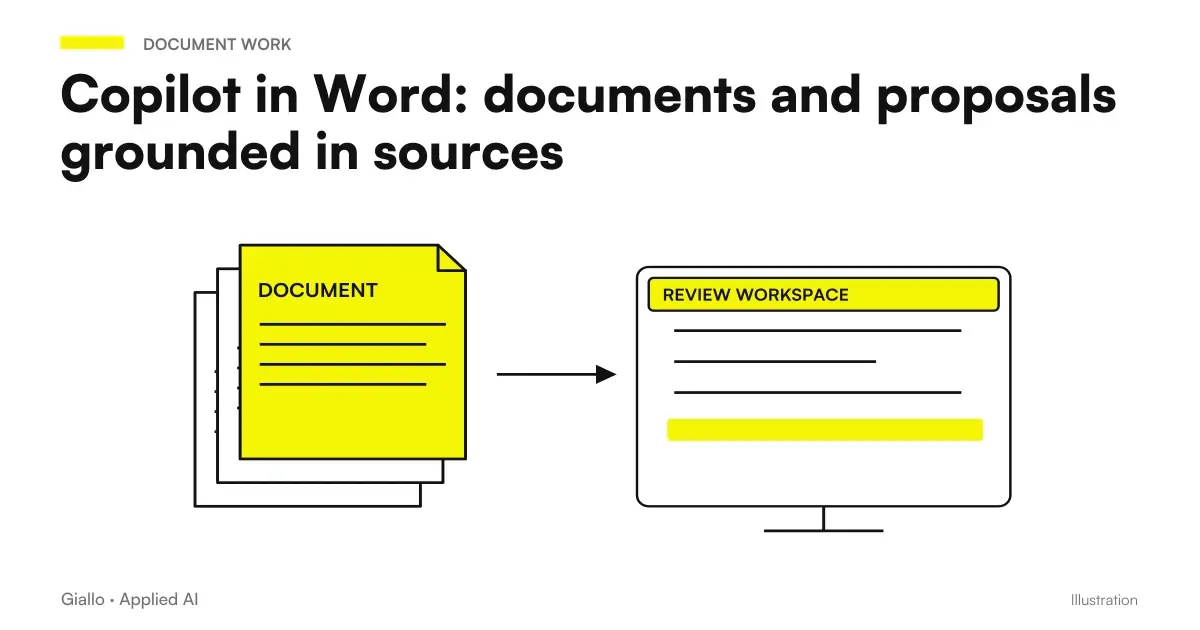 Copilot in Word: documents and proposals from sources
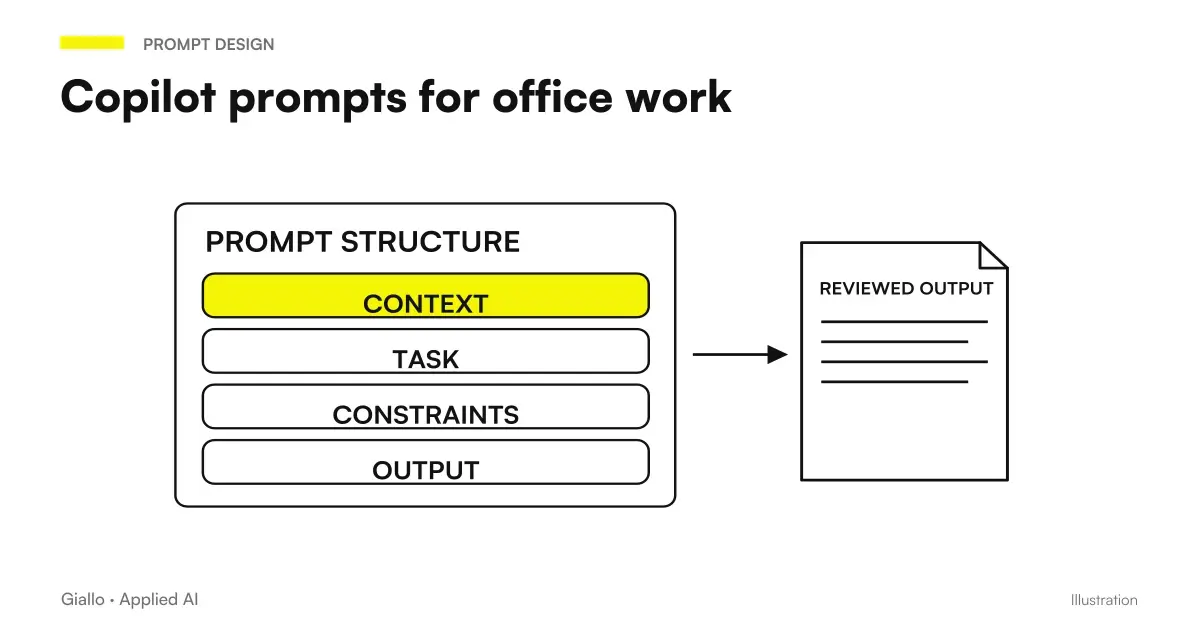 Copilot prompts: examples for office work
 Copilot, SharePoint, and OneDrive: Finding Reliable Documents
 Copilot for SMEs: pilot project, adoption and ROI
 Copilot for Microsoft 365
 Copilot for companies
 ChatGPT Ads vs Google Ads (and Meta Ads): differences and when to use each
FAQ
What can Copilot do in PowerPoint?
Microsoft documents creating presentations from a supported request or source, summaries, and slide questions. The result is a draft to be verified for facts, structure, and visual rendering.
Can I create slides from a Word document?
Yes, in the documented workflow for creating a presentation from a file. The FAQ distinguishes Word and, with a suitable work license, PDF as well; requirements and paths can change with the rollout. Check what sources your account selector offers.
Can Copilot create a single slide from a file?
The Microsoft guide describes the selection of a source through the picker or slash character, asking for a slide on a specific theme or section. You then need to review the result and adapt it to the presentation.
How many files can Copilot PowerPoint use together?
The consulted FAQ describes one source at a time in the document generation path. Different experiences or previews should not be equated: check the available stream in the tenant before designing a process with multiple files.
Do the generated slides maintain correct numbers and conditions?
They need to be checked. A summary can lose a unit, a dependency or the distinction between observed data and hypotheses. Compare numbers and commitments with the approved source before presenting.
How do I get an effective business presentation?
Define the audience and expected decision, prepare a consistent source and an approved template, then review one slide for each message. Also check the speaker notes, readability, and consistency with any attachments.