
Best AI for Excel (October 2026): Copilot, ChatGPT, Claude or Gemini?
The best AI for Excel: Copilot, ChatGPT, Claude and Gemini compared, with spreadsheet features, verified plans and prices, limits and 3 ready-to-use prompts.
Reading time: 10 min
The Best AI for Excel Depends on where you work. If the company uses Microsoft 365, Copilot is already inside Excel; for financial models and folders with many sheets there are ChatGPT add-ons for Excel and Claude for Excel; if the data is in Google Sheets, the natural choice is Gemini.
Plans, prices and functions below are verified on the official pages on October 3, 2026. And there is something new to know immediately: from September 14, 2026 the function =COPILOT() in Excel cells no longer exists (Microsoft).
In summary
- Copilot work in Excel with Microsoft 365 Personal, Family and Premium or with business plans that include it.
- ChatGPT for Excel and Claude for Excel are add-ons designed for patterns, scenarios, and formulas that span multiple sheets.
- Gemini in Google Sheets works in Italian and has an AI function that summarizes or classifies entire columns.
- For a one-off analysis just upload the exported file to ChatGPT or Claude.
- Each proposed formula should be sampled, and salaries or customer data remain in business accounts.
What are the best AIs for Excel in October 2026?
Four tools cover almost all cases of an SME. The table compares them on where they work, the plan from which to start and the limit to know before paying.
| Tool | Where he works | From Which Plan | Strong point | Limit to know |
|---|---|---|---|---|
| Copilot in Excel | Inside Excel, on Windows, Mac and web | Microsoft 365 Personal, €10 per month (Microsoft) | Edit the sheet, create charts and pivot tables | Trained especially on English sources |
| ChatGPT for Excel | Add-on for Excel and Google Sheets | Limited in Free and Go, included by Plus, €23 per month (ChatGPT) | Patterns and scenarios between multiple sheets | Complex formulas to be reviewed by hand |
| Claude for Excel | Add-on for Excel web, Windows, and Mac | Claude Pro, 18 € per month (Claude) | Explain calculations by citing cells | No VBA macros or data tables |
| Gemini in Google Sheets | Side panel and AI function in Sheets | Workspace Business Standard or a Google AI plan (Google) | In Italian, he works on entire columns | Excluded from the Business Starter Plan |
Copilot in Excel: what does it do and with what plans Microsoft 365?
For the complete procedure on the file, switch to Copilot in Excel: formulas, analysis, and changes to verify. The guide distinguishes data preparation, request to the assistant and independent control of the results.
Copilot lives in a box next to the sheet. According to Microsoft's guide edit sheets and cells, generate data and formulas, create graphs, pivot tables and data-related shapes, answer questions about trends, highlight, sort and filter, search the web citing sources and import data from other workbooks (guide to Copilot in Excel). On Windows, Mac and web it has three modes, edit, chat and schedule; on smartphones for now it works mainly in chat.
You need one of these subscriptions: Microsoft 365 Personal or Family with plan AI credits, Microsoft 365 Premium, a business subscription to Microsoft 365 Copilot or a Business or Enterprise plan that entitles Copilot Chat, with standard access instead of priority (Microsoft FAQs). Italian is supported, but Microsoft warns that Copilot has been trained mainly on English sources and can render less with prompts and data in other languages.
Prices on Microsoft's Italian website on October 3, 2026:
- Microsoft 365 Personal: 10 € per month or 99 € per year, for one person (Microsoft 365 plans).
- Microsoft 365 Family: 13 € per month or 129 € per year, up to six people, but the AI remains to the holder only.
- Microsoft 365 Premium: 22 € per month or 219 € per year, with extended use of Copilot and agent functions.
- Companies: Business Standard with Copilot Business costs €20.36 per user per month with annual commitment, Business Premium with Copilot Business €27.73; those who already have a Business plan add Copilot Business to €18.20, in promotion to €15.60 for the first year until 31 December 2026, excluding VAT (Business Plans). Business Basic includes Copilot Chat, but in the Copilot plan table inside Word and Excel only appears in packages with Copilot Business.
The assistant in other Office apps is described in Copilot for Microsoft 365.
Gemini in Google Sheets: what does it do and who can use it?
In Gemini Sheets, it works in a side pane: it creates tables and formulas, generates analysis and graphs, summarizes Gmail Drive and email files, applies conditional formatting, pivot tables, filters, and drop-down menus (Google Guide). The box and the AI function are available in Italian (languages supported).
The AI function you write directly in the cells and it serves to generate text, summarize, classify, evaluate the tone of a comment and search for updated information with Google. The limits are stated by Google itself: it only responds with text, does not see the entire sheet or the other Drive files and can propose inaccurate information (AI function). It is the opposite road to that of Microsoft, that its function in cells has just withdrawn it.
In business plans Gemini in Sheets is included by Business Standard, €13.60 per user per month with annual commitment, and is missing in Business Starter (Workspace prices); with a personal account you need a Google AI plan, like Google AI Pro at €21.99 per month (Google AI plans). Google writes that Gemini in Workspace apps does not use content to train models (Privacy of Gemini). The step by step guide is in Gemini for Google Sheets, the larger picture in Gemini for Google Workspace.
ChatGPT and Claude in Excel: add-on or exported file?
OpenAI presented ChatGPT for Excel on March 5, 2026: an add-on that works in the workbook to create and update models, run scenarios, and show how a hypothesis propagates between sheets, asking for permission before editing the file. Since April 22, 2026 it is also available for Google Sheets (OpenAI announcement). On the Italian rates page extensions for Excel, Word, PowerPoint and Google Sheets are limited in Free and Go, included in Plus and extended in Pro (ChatGPT rates).
Claude for Excel does a similar job and is available for Pro, Max, Team, and Enterprise plans: answers questions about the file by citing cells, changes a hypothesis without breaking related formulas, finds the origin of errors like ,RIF! and builds new models or compiles existing ones (Claude Documentation). It does not manage VBA macros and data tables and does not run on Excel 2016 and 2019 with perpetual license. Claude Pro costs 18 € per month, 15 € with the annual subscription, excluding taxes (Claude Plans).
For a one-off analysis, you don't need to install anything: expose the sheet and upload it to chat. ChatGPT also offers data analysis in the free plan, in limited form, and Claude creates and edits files by running code already in the Free plan (same price pages). A new file comes out to bring back to Excel: convenient for an analysis, uncomfortable for a report that updates every week. The practical steps are in ChatGPT for Excel, the comparison with other instruments in best AI for data analysis.
Which AI do I work for in Excel?
You can also evaluate Kimi AI for Excel, distinguishing analysis of a file and work in the spreadsheet. The guide insists on fields, formulas and reconciliation of totals, so the comparison remains linked to the result to be delivered.
| Work | AI most suitable | Why |
|---|---|---|
| Write or explain a formula | Copilot, or ChatGPT or Claude's free chat | Just describe columns and expected result |
| Pivots, charts, and filters on a corporate file | Copilot in Excel | Acts on the open sheet |
| Financial models and scenarios | ChatGPT for Excel or Claude for Excel | They follow the formulas between multiple sheets and show the cells touched |
| Summarize or classify thousands of lines of text | Gemini, with the AI function of Sheets | Work cell by cell on entire columns |
| One-off analysis of an export | ChatGPT or Claude with uploaded file | They execute code and return tables and graphs |
| Report repeating each week | A process automation, not a chat | The data comes into the sheet without anyone copying it |
What AI to use to model scenarios and financial flows in Excel?
More specific research, such as tools to automate scenario modeling or co-pilots for financial flows, leads to the same two add-ons. OpenAI presented ChatGPT for Excel along with an improved model right on financial modeling and scenario analysis, and added to ChatGPT integrations with data providers such as FactSet, LSEG and S&P Global (OpenAI). Anthropic suggests requests such as “increase the growth rate from 5% to 10% and show me the impact” or “build a three-statement model from this trial balance”, with connectors to S&P Global, LSEG and Daloopa (Claude for Excel).
Two precautions apply to everyone. Check the first scenario AI produces manually on a key cell, repeating the calculation in the traditional way. Excel’s native tools remain useful: Scenario Manager and data tables give repeatable results, and Claude for Excel, for example, does not handle data tables. For monthly closes and management accounting, AI helps the analyst, but if someone copies the same figures from the business management software every month, the problem to solve is data flow.
Three AI-ready prompts in Excel, with the use case
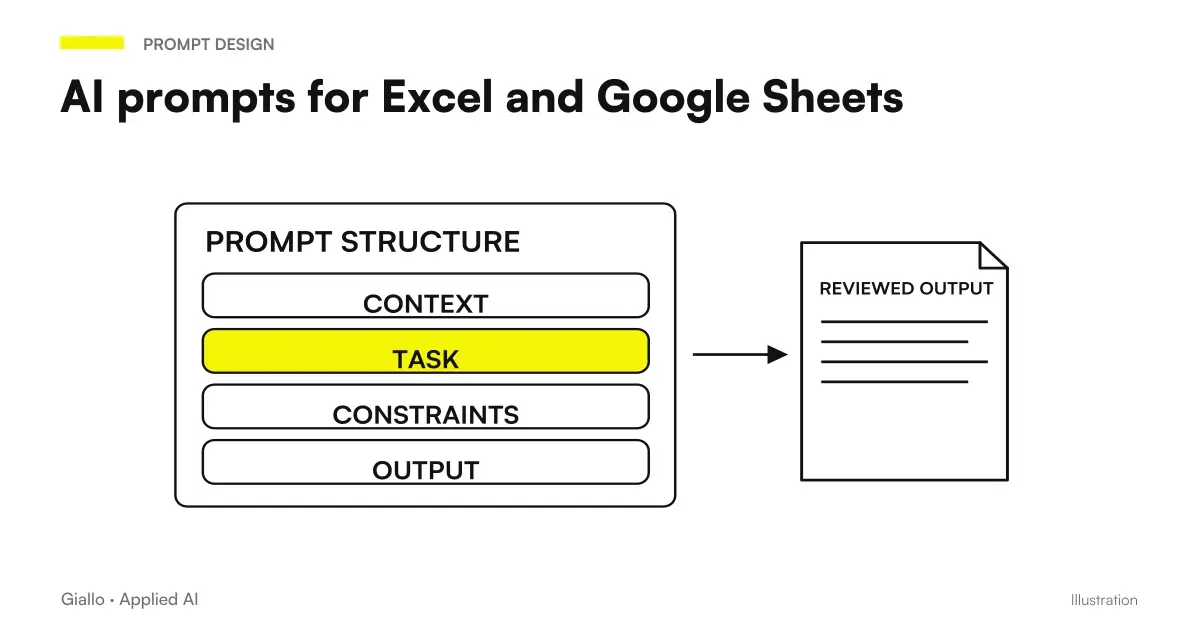
They are valid for Copilot, ChatGPT and Claude. Always write the real names of sheets and columns: it is the difference between a right formula and one to be corrected.
Reconciling statement and invoices. A study that follows about forty SMEs receives CSV statements every month and must match them with registered invoices. Other cases in the sector are in AI for accountants.
"In the sheet "Bank" I have given, description and amount of the movements; in the sheet "Invoices" I have number, customer, date and total. Find the movements without an invoice with the same amount within three days away, put them in a new "To be verified" sheet and explain to me the formula you used."
Simulate a scenario on the budget. A small manufacturing company wants to see the effect of a different price list on the margin before the meeting with the bank.
“In the 'Budget 2027' sheet, revenue depends on the average price in B3 and volumes in B4. Create three scenarios, cautious, baseline and optimistic, with the price at minus five, zero and plus five percent, without changing the existing formulas, and summarise the effect on the margin in a table.”
Clean up the customer records. An e-commerce wants to load customers into the new CRM without carrying errors and duplicates. Other uses in online commerce are in AI for e-commerce.
«In column C there are customer emails and in column D provinces written in different ways. Report invalid emails, match provinces to the two-letter signature and indicate duplicate lines, without erasing anything."
Other examples, with the formulae coming out, are in AI prompt for Excel.
Where AI is wrong in Excel and how to notice it
- Plausible but wrong formulas. A moved reference of a line or a range too short is not seen at a glance: check three lines by hand before extending. OpenAI itself writes that complex formulas and limit cases may require manual interventions (OpenAI).
- Data in the wrong accounts. In ChatGPT and Claude's personal plans, content can be used to train models until you disable the option (ChatGPT rates, Claude Plans); in Microsoft and Google's business plans no (Microsoft, Google). The complete picture is in AI and corporate privacy.
- Data coming out of Europe. Microsoft specifies that the Anthropic models used in Copilot are currently excluded from the EU Data Boundary (same page): a detail to flag to the person responsible for privacy.
- Files coming from outside. Anthropic warns that a downloaded spreadsheet can hide instructions that push the AI to extract or modify data: use it on files you trust and manually confirm risky operations (Claude for Excel).
- Messy sheets. United cells, headers on two lines and totals in the middle of the data confuse any assistant: a line for records and clear headers are worth more than a long prompt.
How to bring AI into an SME spreadsheets
- Start from the suite you already have: with Microsoft 365 try Copilot, with Google Workspace Gemini, with no new accounts to manage.
- Choose a job that repeats itself, like the monthly reconciliation or the Monday sales report, and note how long it takes today.
- Work on a copy of the file until you have checked the results on a few lines.
- Write a rule about data: what you can upload, with which account, what stays out.
- Remove identical steps from the middle: when a job repeats the same every week, an automatic stream brings the data into the sheet on its own.
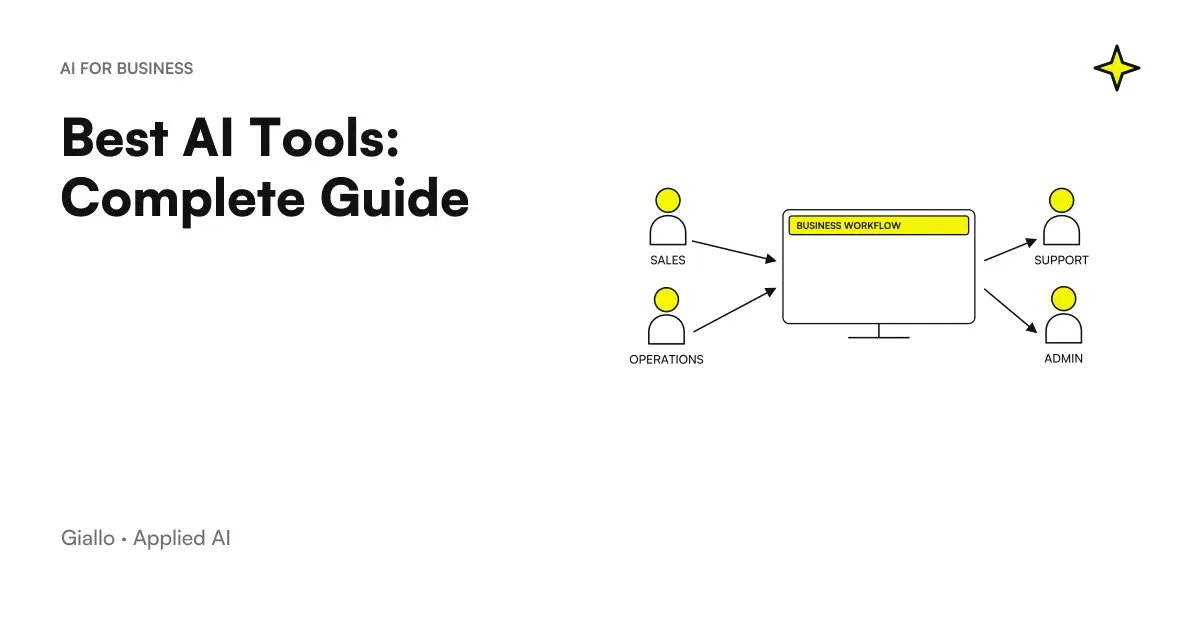
When Excel has become management software, with multiple people editing the same file and versions overlapping, AI is not enough: you need a custom software with a real database. To orient you among all the tools, not just those for spreadsheets, there is the guide to Best AI Tools.
Which AI for Excel to choose, in one line
If you work in Microsoft 365, start with Copilot; if you build models and scenarios, try ChatGPT for Excel and Claude for Excel on the same file; if you work in Google Sheets, use Gemini with the AI function. In every case, spot-check formulas and keep client data in business accounts. The general comparison of assistants is in the guide to Best Artificial Intelligence; to choose the ChatGPT plan there is Free ChatGPT vs Plus.
If the report you update by hand every week could arrive ready, Giallo Studio designs the flow that takes data from the management software and leaves to the AI only the part that requires judgment.
Giallo Studio guides: methodology and sources
How we apply it in the company
Related resources
 ChatGPT for Excel and Google Sheets
 Gemini for Google Sheets
 Copilot for Microsoft 365
 AI prompts for Excel and Google Sheets: formulas and data analysis
 Best AI for Data Analytics: Tools and Platforms
 Best AI tools by use case: October 2026
 Best AI Tools: Complete Guide
 Claude, GPT and Gemini in comparison
Comparisons by activity
Which tool suits the other tasks.
- Best AI for email: tools to write and manage mail
- Best AI for Marketing: Tools and Platforms
- Best AI for Customer Care: Customer Service Tools
- Best AI for presentations: tools to create slides
- Best AI for CRM: Sales Management Tools
- Best AIs to summarize PDFs and documents
- Best AI to Create Websites
- Best AI for SEO: Tools to Optimize Content
- Best AI for Data Analytics: Tools and Platforms
- Best AI for social media: tools for content and management
- Best AI for Translations: Tools and Comparison
- Best AI for Students: Tools for Better Studying
FAQ
What is the best AI for Excel?
It depends on where you work. If the company uses Microsoft 365, Copilot is already within Excel and acts on the open spreadsheet. The ChatGPT for Excel and Claude for Excel add-ins are designed for financial models and scenarios across multiple sheets. If the data is in Google Sheets, Gemini is the natural choice.
What Microsoft 365 plan does it take to have Copilot in Excel?
Copilot in Excel works with Microsoft 365 Personal or Family, Microsoft 365 Premium, and business plans that include Microsoft 365 Copilot. Business or Enterprise plans that entitle Copilot Chat have standard access. Office Home 2024, which you only buy once, does not include Copilot.
Can you use ChatGPT in Excel?
Yes. ChatGPT for Excel is an add-in that works in the workbook: it creates and updates models, runs scenarios and explains formulas. The Italian pricing page lists it as limited in Free and Go and included from Plus onwards. Alternatively, you can upload the exported file into chat and receive tables and charts.
Does Claude work with Excel?
Yes, through the Claude for Excel add-in, available on Pro, Max, Team and Enterprise plans. It answers questions about formulas with cell citations, updates assumptions without breaking links and finds the source of errors. It does not handle VBA macros or data tables.
What happened to the COPILOT function in Excel?
Microsoft withdrew it from September 14, 2026. The already calculated results remain visible, but when the cell recalculates, the unrecognised name error appears. Instead, Microsoft indicates the Copilot pane, which performs many of the same tasks outside the cells.
Which AI should you use for scenario modelling in Excel?
ChatGPT for Excel and Claude for Excel are built specifically for models and scenarios: they change an assumption and show its effect on linked cells. Always verify the first scenario manually on a key cell. Excel's native tools also remain useful for simulations that must be repeated identically.
Are AIs for Excel secure for business data?
In Microsoft and Google business plans, content is not used to train models. In ChatGPT and Claude's personal plans, however, it can be used for training until you turn off the option. Salaries, health data and customer records should therefore only be processed with business accounts.