
AI prompts for Excel and Google Sheets: formulas and data analysis
Ready-to-use AI prompts for Excel and Google Sheets: VLOOKUP formulas, pivot tables, data analysis and VBA macros. Real input/output examples.
Reading time: 9 min
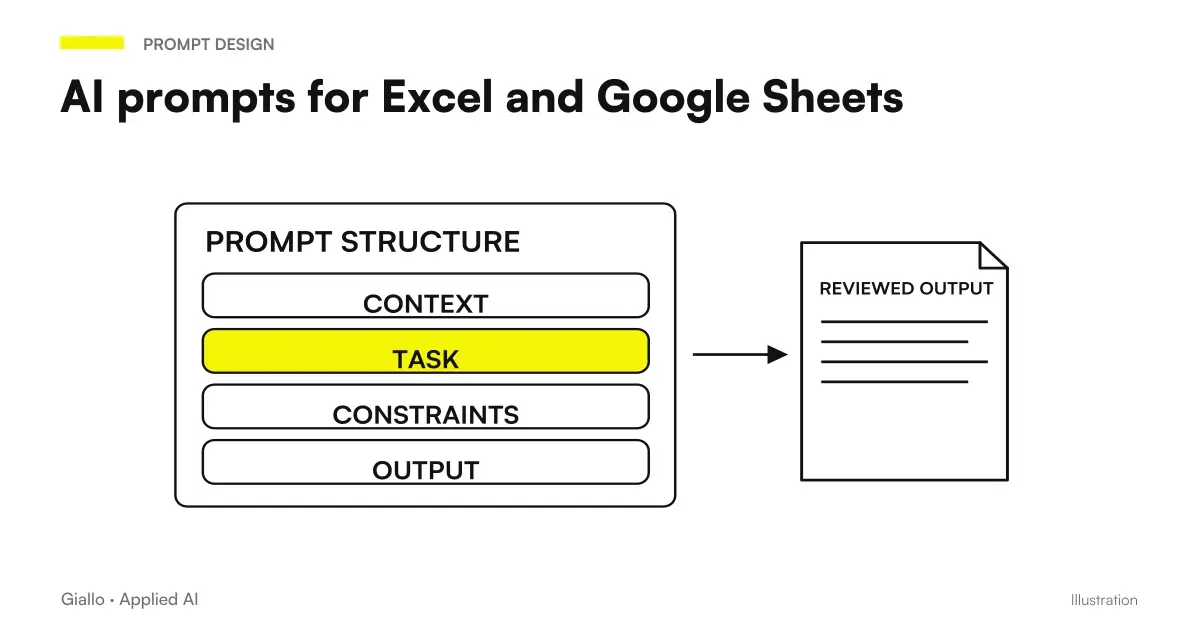
Using AI for Excel and Google Sheets does not mean that AI “opens the file and does everything”. It means having a technical assistant available around the clock, to whom you can describe the problem — the spreadsheet structure, the starting data and the expected result — and receive a formula, macro or code ready to paste. The difference between a prompt that works and one that produces garbage is in the context that you give, not in the magic formula to use.
This article does not explain what ChatGPT is or how to access Google Sheets: that is found in the article dedicated to ChatGPT for Excel. Here you will find specific prompts with real input and output examples, organized by type of task, so you can adapt them to your case in a few minutes. If you want to understand the logic of prompt engineering before using them, read prompt engineering: what it is and how to get started.
In summary
- A effective prompt for Excel always includes: sheet structure (columns), starting date, expected result.
- For complex formulas (CERCA.VERT, INDEX/MATCH, SUMIFS) describe the problem in Italian; AI produces the ready-to-paste formula.
- For VBA macros describe the sequence of manual actions; the AI translates it into code. For Google Sheets ask Apps Script.
- If the formula gives error, paste error into prompt: is the fastest way to correct.
- For data analysis, you can paste a CSV extract into the prompt and ask for a natural language analysis.
- Always specify Excel or Sheets version: some functions (XLOOKUP, LAMBDA) are not available everywhere.
How to build an AI prompt for Excel that really works
If you use these prompts with Moonshot, match them to the guide Kimi AI for Excel. To prepare the context and specify the output, find an example of first use in how to use Kimi AI in Italian.
Before templates, a principle: AI doesn't see your paper. He must "view" it from the description you give him. The more accurate this is, the more usable the answer is on the first attempt.
The minimum format that works:
- Sheet structure: "I have a sheet with column A = article code, B = description, C = quantity sold, D = unit price."
- What do you want to do: "I want to calculate the total turnover only for products with quantity > 10."
- Where does the result go: "The result must be in cell F2."
- Version Constraints: "Use Excel 2019" or "Use Google Sheets."
With this scheme the formula gets correct on the first attempt in 80% of cases. Without context, the AI guesses and often misses. For a broader guide on AI prompt in general, the concept is the same: context beats creativity.
Ready prompts for task type
The table below collects the most requested tasks, the prompt-model to adapt and the output you can expect.
| Task | Prompt-model to be adapted | Expected Output |
|---|---|---|
| SEARCH.VERT / VLOOKUP | "I have the sheet 'Prodotti' with A=code, B=price. In 'Ordini', column D contains the code. I want the price in E2. Use Excel 365." | Formula VLOOKUP or XLOOKUP ready |
| INDEX/MATCH | "CERCA.VERT does not work because the key column is not the first. I have A=name, B=region, C=revenue. I want to find the revenue for the name in E2." | INDEX/MATCH formula with explanation |
| SUMIFS / COUNTIFS | "Column A = date, B = category, C = amount. I want the sum of amounts where the category is 'Vendite' and the date is in March 2025." | SUMIFS formula with multiple criteria |
| Pivot Table | "I have 5000 rows: Date, Seller, Product, Amount columns. Explain step by step how to create a pivot that shows the total by Seller and by Product." | Step-by-step instructions for pivoting |
| Conditional Formatting | "I want to color in red the cells of column C where the value is less than the average of the same column. Excel 365." | Adjust conditional formatting with formula |
| Macro VBA | "Every week I copy the data from the 'Dati grezzi' sheet into columns A:D, filter column B = 'Approvato', copy it into the 'Report' sheet and save. Write me the VBA macro." | Full VBA macro, ready to paste into editor |
| Import JSON / API | "I have a JSON with 'id', 'name', 'value' fields. Like the amount in Google Sheets with IMPORTDATA or Apps Script?" | IMPORTED Formula or Script Apps Script |
| Quick data analysis | "Here are 20 lines of my sales sheet [paste CSV]. What trends or known anomalies?" | Textual analysis with actionable observations |
Full examples: input → output
Seeing the prompt in the vacuum is not enough. Here are three cases with real input and output, directly adaptable.
Case 1 Formula Formula SEARCH.VERT with error handling
Input to AI Model:
"I have an Excel 365 workbook with two sheets: 'Listino' (A=code, B=price) and 'Fattura' (A=code, B=quantity, C=unit price). I want C2 to look up the price from the price list using the code in A2. If the code is not in the price list, I want it to show 'N/D' instead of the error."
Expected Output:
=IFERROR(VLOOKUP(A2,Listino!A:B,2,0),"N/D")
With explanation: VLOOKUP searches for A2 in the A:B range of the Listing sheet, returns the second column, IFERROR intercepts the ".N/D error and displays the text "N/D".
Case 2 — VBA macro for weekly data cleaning
Input to AI Model:
"Every Monday morning I receive an Excel file with the previous week’s sales data. Sheet 'Grezzo', columns A=date, B=salesperson code, C=product, D=amount. I must: 1) remove rows where D is empty, 2) convert D to a number (sometimes it arrives as text with a decimal comma), 3) copy the result to the 'Pulito' sheet, overwriting the existing data. Write a VBA macro."
Expected Output: complete macro with For Each, IsEmpty, Replace for comma, copy with PasteSpecial xlValues. AI also includes comment on where to paste it (ALT+F11, module).
Case 3 Analisi Analysis with Google Sheets + Gemini
Input to AI model (with Gemini in Sheets or ChatGPT):
"Here are the monthly turnover data of my e-commerce over the past 12 months [paste table]. Which months had a decline from the previous month? Is there a seasonality? Suggest a formula to automatically highlight months below average."
Expected Output: textual analysis (e.g. "August and December show declines"), observation on seasonality, formula for media-based conditional formatting. To learn more about specific use on Google, see Gemini for Google Sheets.
AI prompt for advanced scenarios
Prompt for LAMBDA and custom functions (Excel 365 / Sheets)
The LAMBDA functions allow you to create reusable functions without VBA. Example of prompt:
"I want to create a custom function in Excel 365 that takes a cell with text in the 'Last Name' format and returns 'Last Name'. Write it with LAMBDA."
Output: =LAMBDA(testo, TRIM(MID(testo,FIND(" ",testo)+1,100))&" "&LEFT(testo,FIND(" ",testo)-1)) with explanation of parameters.
Prompt for Power Query (import and transform data)
Example prompt: "I have three CSV files with the same structure (columns: date, product, sales) in a folder. I want to import them all into Excel as a single upgradeable table with Power Query. Explain the passages."
The AI describes: Data → Get Data → From Folder → select columns → append → Close and Load.
Prompt for Google Apps Script (sheets automations)
Example: "I want Google Sheets to send an automatic email every Friday with the week's sales total ('Sales' sheet, column D). Write the script and explain where to configure the trigger."
The AI produces the complete script with MailApp.sendEmail() and instructions for the time-based trigger in the Extensions → Apps Script → Trigger menu.
Mistakes to Avoid
- Prompt without sheet structure. "How do I do a SEARCH.VERT?" produces a generic answer. "I have sheet A with column X and sheet B with column Y, I want to find..." produces the formula ready.
- Not specifying the version. XLOOKUP exists from Excel 2019/365; LAMBDA from 365. If you use older versions and don't say it, you receive formulas that give error.
- Copying the formula without understanding it. It works until the data changes. Add to the prompt: "Explain the formula step by step" — saves you when you need to edit it.
- Giving sensitive data to public models. Customer records, tax codes, confidential financial data should not be pasted into public ChatGPT. Use anonymous data or business tools with data processing agreement. See also considerations on best AI for data analysis from the point of view of privacy.
- Not pasting the error. If formula returns
#REF!or#VALORE!, paste the error into the prompt along with the formula: "I used this formula and get .VALUE!, what's wrong?" It's the fastest way to fix it.
How to apply it in the company
Spreadsheets are the unofficial “database” of many Italian SMEs: order management, sales reporting, budgeting and activity tracking. AI does not replace business management software, but reduces the time of construction and maintenance of the sheets.
Three concrete applications for non-technical teams:
Administrative Office. The accountant spends 2 hours a week matching sales invoices against the payment register. A prompt describes the problem → the AI builds the INDEX/MATCH + SUMIFS formula → the time falls to 20 minutes of checking. The AI reminder about analysing AI prompt for documents also applies here: describing the problem well is already half the solution.
Commercial. The sales manager wants an automatic report for each salesperson, updated weekly. VBA macro prompt → the AI writes the code → the salesperson runs it with one click. No technical expertise is needed, only the ability to describe what is done manually.
Team marketing. Campaign analysis: data from multiple channels exported to CSV. Prompt for Power Query → Automatic Consolidation → pivot by channel and period. The AI guide step by step even those who have never opened the query editor.
If your team often uses complex sheets and wants to build more structured processes, Giallo Studio develop custom software that replaces sheets when they become brittle or too complex to maintain. You can also explore use cases at The Lab.
Conclusion
The AI prompt for Excel and Google Sheets they work because they translate a problem into natural language into code (formula or macro) that you can use right away. The rule is simple: The more context you give, the fewer attempts you need. Sheet structure, software version, expected result: these three items in the prompt take you from 80% of cases to the correct formula on the first try.
The next step is to automate not only individual formulas, but entire flows: data that comes from external sources, reports that are generated on their own, alerts about anomalies. For this, look at how the ChatGPT prompt on more articulated tasks — the principle is the same, the scale is different.
Do you want to understand what processes in your company can be automated with AI? Giallo Studio can help you turn the problem into a real workflow.
Giallo Studio guides: methodology and sources
How we apply it in the company
Related resources
 ChatGPT for Excel and Google Sheets
 Gemini for Google Sheets
 Best AI for Excel (October 2026): Copilot, ChatGPT, Claude or Gemini?
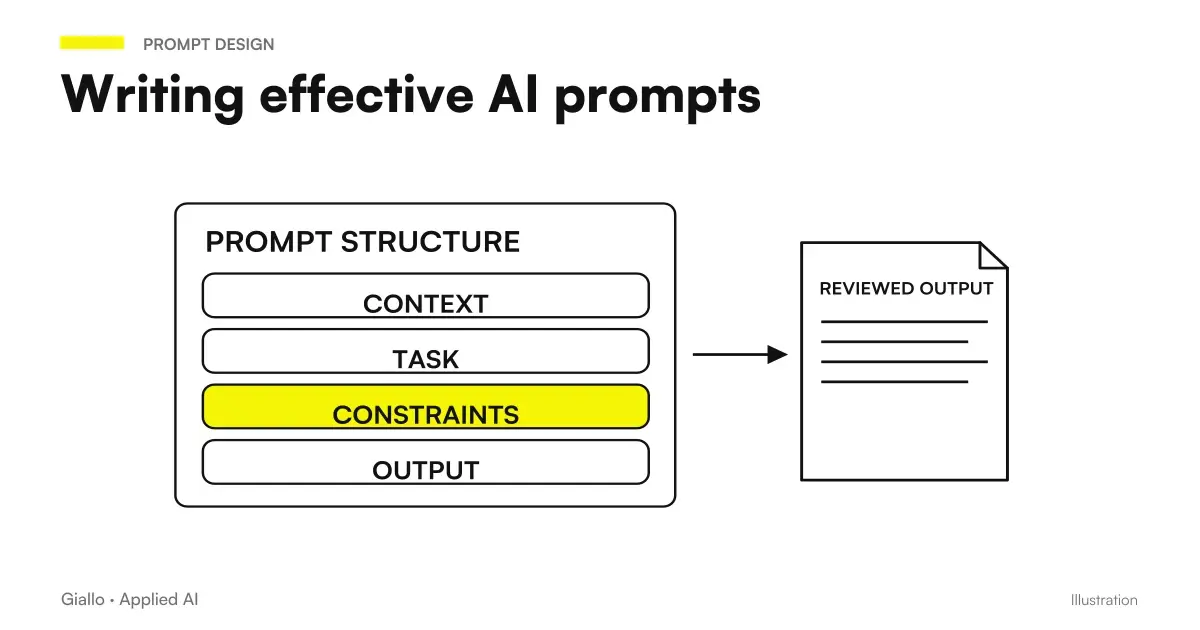 AI prompts: a complete guide to effective instructions
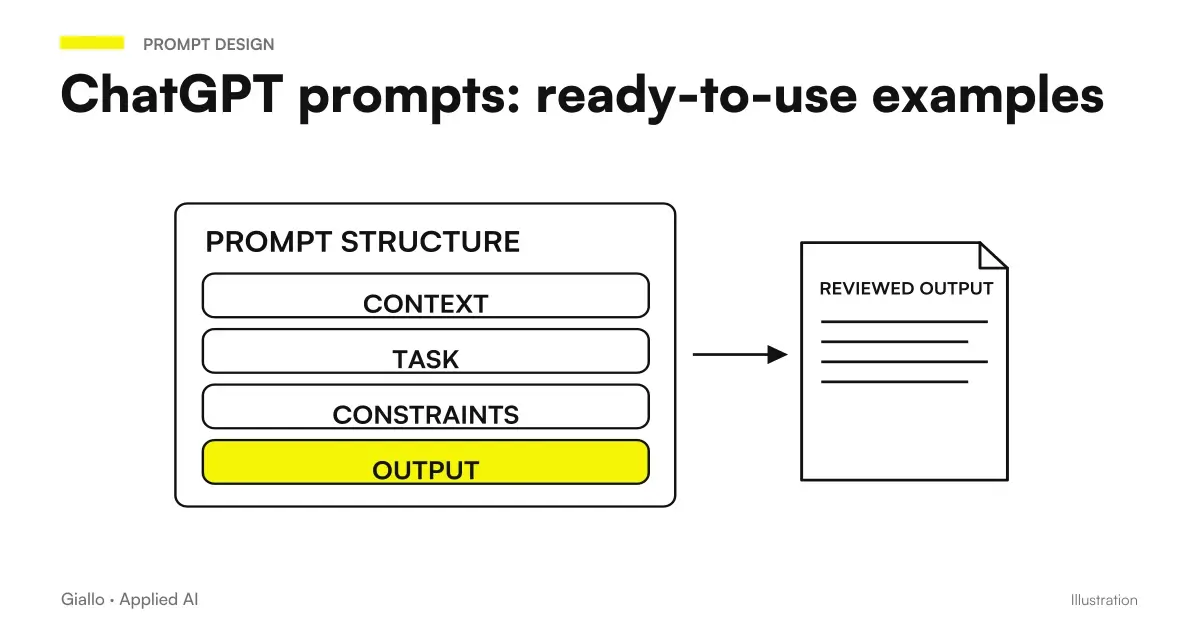 ChatGPT prompts: ready-to-use examples to copy and adapt
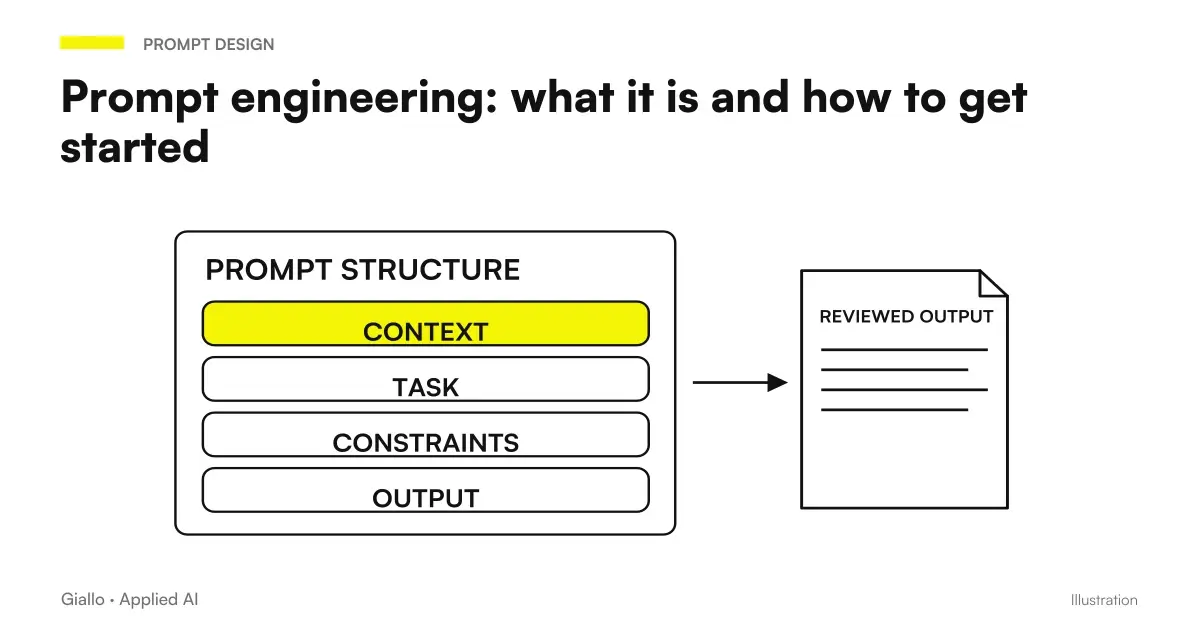 Prompt engineering: what it is and how to get started
 Copilot in Excel: Analysis, Formulas, and Changes to Check
Prompt Collections
Ready prompts for other roles and tasks.
- AI email prompts: ready-to-use examples for every situation
- AI image prompts: examples for Midjourney, ChatGPT and Firefly
- AI e-commerce prompts: product descriptions, email and support
- AI marketing prompts: copy, campaigns and content
- AI document analysis prompts: contracts, reports and PDFs
- AI presentation prompts: PowerPoint and Google Slides examples
- AI customer support prompts: ready-to-use examples
- AI coding prompts: write, fix and explain code
- AI prompts for accountants: ready-made examples for documents, analytics and clients
- AI SEO prompts: optimise content and rankings
- AI prompts for lawyers: legal documents and communications
- AI prompts for social media: ready-to-use posts, captions and content
FAQ
What are the most useful AI prompts for Excel?
The most useful prompts concern the construction of complex formulas (CERCA.VERT, INDEX/MATCH, SUMIFS), the explanation of existing formulas, the creation of VBA macros for repetitive automations and data cleaning. In all cases the secret is to describe the context: how many columns, what they contain, what result you want to achieve.
How do I use ChatGPT to write Excel formulas?
Describe the spreadsheet structure (the columns and their contents), the starting data and the expected result. Example: "I have a sheet with column A = product code, column B = price. I want to look up the price for a code in cell E2." ChatGPT will return a ready-to-use formula. If it does not work, paste the error message and ask it to correct it.
Do AI prompts for Excel also work on Google Sheets?
Yes, with small adaptations. Many functions are identical (SUM, IF, VLOOKUP). Main differences: QUERY and IMPORTRANGE exist only on Sheets; Excel's VBA macros become Google Apps Script. Always specify 'Google Sheets' in the prompt to receive the correct syntax.
Can I use AI to automate VBA macros in Excel?
Yes, it is one of the most powerful use cases. Describe the sequence of actions you do by hand (copy column A, filter by value X, paste to sheet 2, save) and ask to write the VBA macro. Then test on non-critical data before using it in production. For Google Sheets ask Apps Script instead of VBA.
How to prevent ChatGPT from producing wrong formulas in Excel?
Three rules: 1) Describe the sheet structure with the exact columns. 2) Always paste the error message if the formula does not work. 3) Specify the version of Excel or if you use Google Sheets, because some functions (such as XLOOKUP) are not available in earlier versions.
Can I use AI to analyse Excel data without formulas?
Yes: copy the data (without PII) into the prompt and ask for a natural-language analysis — trends, anomalies or a summary. Tools such as Copilot for Excel or Gemini in Google Sheets do this directly in the interface. With ChatGPT, paste the data as text and ask 'What patterns do you notice in these data?' or upload the file if you use the version with Advanced Data Analysis.