
Kimi AI for Excel: Data Analysis and Controls
Kimi AI Excel and Kimi Sheets for data analysis and XLSX spreadsheets. File preparation, formulas, totals and checks before using the output.
Reading time: 11 min
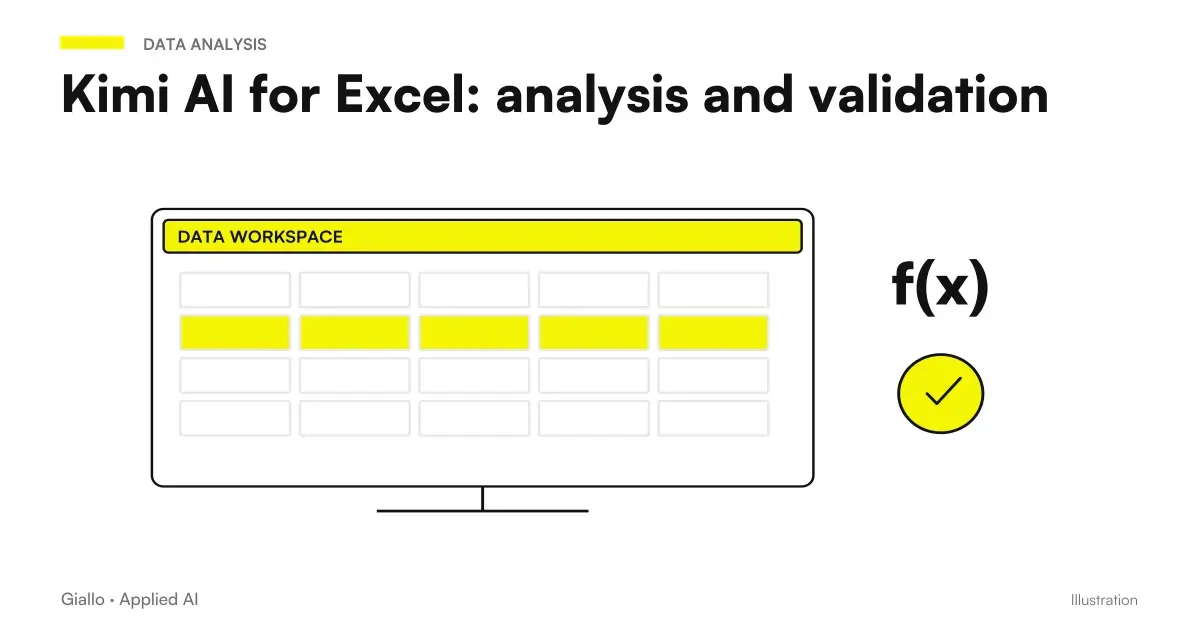
Kimi AI can assist Excel analysis and produce XLSX sheets through Kimi Sheets, but the numbers must remain reconcilable with the original data. A convincing graph does not prove that the calculation is correct: the decisive step is to check lines included, formulas and definition of indicators.
The Kimi Docs and Sheets documentation, consulted on October 9, 2026, describes work on Excel and CSV, preview and download XLSX. Here is a method for preparing a verifiable analysis. To distinguish apps, models and services, find the picture in the Guide to Kimi AI.
In summary
- Kimi Sheets works on sheets and produces XLSX; this guide does not assume a native Microsoft Excel plugin.
- Before charts define columns, units, period, and inclusion rules.
- The totals of the result must be compared with those of the origin.
- Ask for visible formulas and hypotheses, avoiding unexplained final numbers.
- Preserves original data, transformations, and exceptions in distinct areas of the file.
What does Kimi Sheets do with Excel and CSV?
Kimi Sheets is the product path dedicated to sheets. The supplier describes file consolidation, data organization and XLSX output creation; the Official Case Library Sheets includes monthly reports and data visualization. These descriptions show the perimeter of the function, without certifying the accuracy of any reports uploaded.
The flow of this guide is simple: prepare an admitted copy, load it into the app, describe the result and check the downloaded file. It is not an execution directly inside the original business sheet. If you want to synchronize data from the management software or update reports automatically, you need to design the integration and its controls separately.
The current model guide associates the creation of XLSX files with K3, while K2.6 returns textual content. If you only get an explanation or formula, verify that you have asked for the file in the appropriate product. The distinction is documented in the Official selection of Kimi models.
Keep analysis and decision separate as well. Kimi can help identify abnormal lines; deciding whether an invoice is correct or an article needs to be reordered depends on business rules. A useful numerical answer explains what data and definitions were built on, allowing the manager to retrace the calculation.
How to prepare data before analysis?
A readable sheet for a person can be ambiguous for an automatic process. Scattered titles, empty rows, subtotals inside the data, and joined cells make it difficult to figure out where a table begins. For a first processing use a copy with a clear header and a line for the type of event you want to analyze.
Define what each column means. “Amount” may mean the taxable amount, invoice total, amount received or order value. “Date” may refer to issue, payment or delivery. Without this distinction, two analyses of the same sheet can answer different questions while presenting arithmetically correct totals.
Indicates units and conventions: currency, percentages, quantities, decimal separators, and date format. An article code with initial zeros should be treated as an identifier; an empty cell may represent a missing data instead of a zero. These rules must be written in the prompt or in an instruction sheet, not entrusted to the intuition of the assistant.
It preserves existing formulas and explains which ones cannot be altered. If you send a CSV, remember that you are providing textual data, not the complete structure of the workbook with all its elements. When the problem arises from tables retrieved from other documents, the guide Kimi AI for PDF helps to verify extraction before calculations.
What prompt to use to analyze Excel with Kimi?
A prompt should declare result, perimeter, and controls. For example: “Analyze the attached copy of the orders. Use the delivery date to assign the month. Exclude undones, save returns with a negative sign, and report missing codes. Create a summary by category with visible formulas and a separate list of excluded lines.” It is a demonstrative instruction, not a test performed.
Ask for a description of the dataset first: present sheets, recognized columns, and ambiguity. If the assistant interprets "revenue" as "collection", correct the definition before producing graphs. Initial confirmation avoids building an entire presentation on a basic misunderstanding.
Then specify the final file. A useful structure includes origin, transformations, summary, and exceptions. The source area remains true to the uploaded copy; the transformations explain normalizations and calculations; the summary answers the question; the exceptions collect what a person must decide. The name of the sheets may vary, but the roles must remain clear.
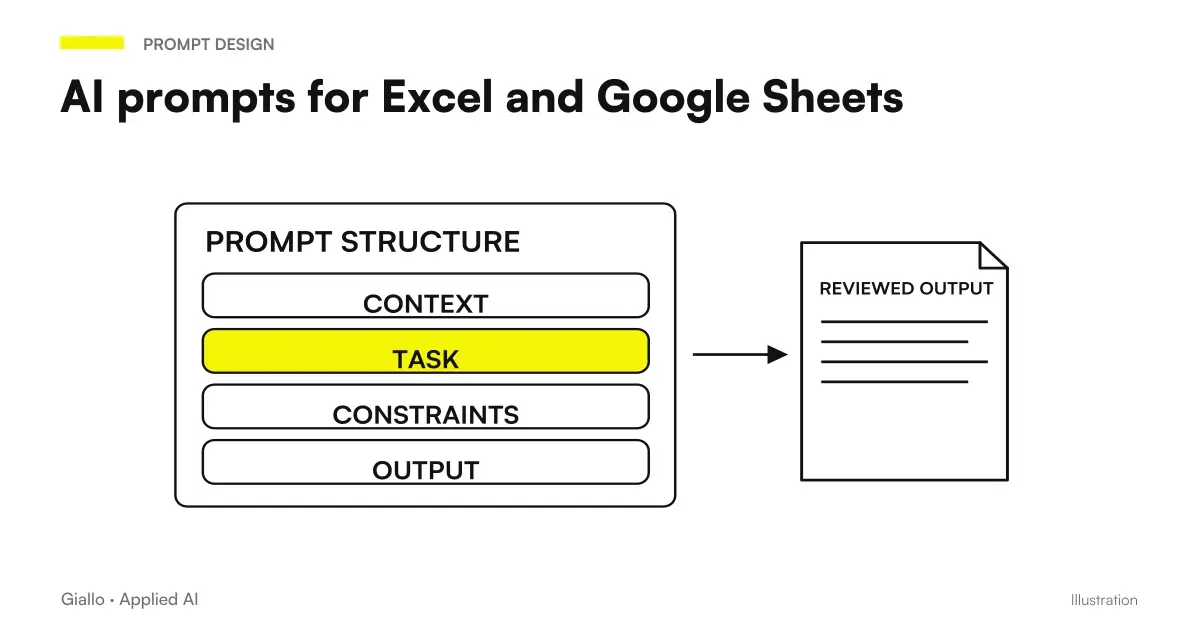
The Guide to AI prompt for Excel deepens re-usable requests and formulas. If you still have to choose between tools, see AI for Excel: the comparison makes sense on the same file and on the same definition of the result, not on different demonstration screens.
How to check formulas, margins and percentages?
A formula must be checked in two ways: economic meaning and mathematical result. The margin on revenue is different from the reload on cost. If you ask generically "calculate the marginality", you risk getting a different indicator than the one used in your department. Write the definition before asking for the expression or graph.
In a hypothetical numerical example, an article generates 1,000 euros in revenues and 700 euros in direct costs: the difference is 300 euros. The ratio of difference to revenue is 30%; the ratio of difference to cost is about 42.86%. These are calculations on the same example, not a customer's data. Changing denominator changes the indicator without changing the starting data.
Ask how missing costs, zero revenue and negative values are handled. A formula that hides every error behind a blank cell may make the report cleaner but less auditable. It is better to distinguish missing data, a division that does not apply and an anomaly to correct. The absence of an error message does not certify correctness.
It also checks compatibility with the team sheet: function names, separators, and date behavior may depend on the settings. Open the file in the actual environment, force recalculation if necessary and check some cases with a known solution. Don't just distribute a result screen: keep the file where the numbers come from.
| Control Point | Question to ask | Signal requiring verification |
|---|---|---|
| Totals | Do the sums coincide with the source after the declared exclusions? | Unlisted difference of lines involved |
| Duplicates | What key identifies a unique event? | Elimination based only on amount or nominative |
| Percentage | Are numerator and denominator explicit? | Indicator called margin without definition |
| Dates | Does the period follow issue, delivery or collection? | Inverted days and months or dates treated as text |
| Formulas | Do the calculations remain inspectable? | Fixed values replacing required formulas |
| Missing | Are zero and absence distinct? | Empty cells automatically converted to zero |
How to merge monthly reports without duplicating data?
Before consolidating, verify that the files use the same schema. One ward may call one column “quantity” and another “pieces”; one month may contain an additional cost absent in the others. Ask for a map of matches and a list of fields without equivalence, keeping track of the source file.
Define the key to uniqueness. An order may have several lines, so the order number alone may not be enough. Two identical lines in content could be two real events. The duplicate rule must come from the business process; the assistant may report candidates, but should not invent the elimination rule.
Consolidation control starts with count lines and totals per file. Compare them with the result, taking into account documented exclusions. If reconciliation fails, it returns to the transformation that created the difference. Regenerating the chart or rewriting the conclusion does not solve an error in merging tables.
Also check the sorting and categories. Nearly identical labels, trailing spaces or changed names can split one group into several rows. Before merging them, ask for a table of proposed correspondences: two similar names do not necessarily refer to the same category. Keep a stable code where the process provides for one, using the description only to make reading easier. If you add new months, check that formulas and charts include the new rows without retroactively changing the rule used in previous periods. An updateable summary must remain comparable over time, rather than merely have totals that reconcile in the latest export.
A reconciliation before trusting the summary
Preserves for each file the number of rows and the totals of the key columns. In the result add origin, lines included and lines excluded with pattern. The differences must be explained through this register. Check a selection of normal lines and any exceptions that change the total; only after approves the summary for use of the department.
Can a hardware store analyze purchases and sales with Kimi?
Consider one hypothetical scenario: a hardware store in Verona wants to understand which categories require attention. The holder exports purchases and sales, using dummy item codes in the first test. The task is to create a framework by category with missing amounts, quantities and data, without automatically generating orders to suppliers.
The main problem is the consistency of the units. Some purchases are recorded in packs, while sales are in pieces. Before calculating stocks or comparing quantities, the holder must provide the correct conversions. Kimi cannot derive from a similarity of the name the number of pieces contained in each pack.
The report proposes anomalies and requests for clarification. The person checks conversions, returns, and late registrations, then decides whether to use the indicators for planning. A list of categories to be rearranged without these rules would be a premature result. The analysis is useful when it makes the data and conditions necessary for the decision visible.
How to check a sales report in a small workshop?
One second hypothetical scenario concerns a mechanical workshop in Bergamo. Each manager fills out a sheet with hours and materials of his or her order. The coordinator wants a coherent summary to discuss it, keeping separate finals and estimates. In the test he uses synthetic data, without personal information.
The prompt asks to recognize scheme and unit, report missing hours and distinguish recorded costs from expected costs. An order without an update is not automatically classified as an order without charge. Empty cells arrive in the exception register, where the person responsible completes or confirms the data.
To present the result to the management, the coordinator approves the totals first. Only the verified summary passes to the visual work described in Kimi AI for presentations. Keeping separate analysis and communication prevents a clean slide from hiding an unvalidated estimate.
What errors make an Excel analysis with AI unreliable?
The first is to ask for “find something interesting” without a business question. The assistant can produce correct but irrelevant associations. Start from the problem: reconcile amounts, identify missing records or compare periods with the same rule. The application guides necessary data and controls.
The second mistake is to accept automatic cleanup with no change list. The third is to confuse a chart with a statistical verification: a visible trend does not prove a cause. The fourth is to replace formulas with fixed values without noticing, making the report impossible to update properly.
Finally, avoid sending company data only because the file is small. Choose allowed fields, test copies and appropriate conditions; the guide Kimi AI and privacy distinguishes the products to be evaluated. Economic analysis can remain sensitive even without names of people.
When to automate repeating sheets?
An occasional processing can stay in the chat. If you receive the same export each period, define a stable pattern, controls, and exception handling. Before integrating tools, keep a sample with expected output: it will be the reference to verify the flow and its updates.
In the automatic process, known rules should be applied deterministically; AI can assist interpretations and reports where they are needed. Maintain approval before the result produces actions on management software. The Guide to Kimi AI with n8n addresses integration design, distinct from manual upload.
If your department sheets always require the same reconciliations, Giallo Studio can help you turn exports and controls into a readable stream. The result to look for is an updateable report, with explained differences and clear responsibilities for exceptions.
Giallo Studio guides: methodology and sources
How we apply it in the company
Related resources
 Kimi AI: what it is, what it does and when to use it
 Kimi AI for PDFs and documents: analysis to verify
 Kimi AI for presentations: from sources to slides
 Kimi AI with n8n: how to design a workflow
 Best AI for Excel (October 2026): Copilot, ChatGPT, Claude or Gemini?
 AI prompts for Excel and Google Sheets: formulas and data analysis
 Copilot in Excel: Analysis, Formulas, and Changes to Check
FAQ
Can Kimi AI analyse an Excel file?
Kimi documents Excel file uploads and a dedicated spreadsheet product, Sheets. Before the analysis, clarify the meaning of columns, units, periods and rules for duplicates and missing data.
Does Kimi Sheets create downloadable XLSX files?
The official documentation describes preview and download of XLSX files. Open the file in the program used by the team and verify formulas, totals, formats and charts before distributing it.
Is Kimi AI a native plugin of Microsoft Excel?
This guide describes working in the Kimi app and with uploaded or downloaded files. It does not present a verified native Microsoft Excel add-in: any integration requires a separate assessment.
Are the formulas created by Kimi always correct?
No, they must be checked. Check the calculation's definition, ranges, missing values, divisors and compatibility with your spreadsheet's language and settings.
Can I merge several monthly reports with Kimi?
This is a use case described by the provider for Kimi Sheets. For reliable consolidation, specify the common schema, duplicate rule, handling of amounts and reconciliation checks.
Can Kimi extract a PDF table and bring it to Excel?
It can assist with extraction and spreadsheet creation, but the result depends on the PDF's readability. Check headers, merged cells, signs and totals before treating the values as ready for analysis.