
AI for Excel: how to use it on files and spreadsheets, step by step
How to use AI for Excel to analyze and tidy your work files: Copilot, Gemini and Claude, prerequisites, steps, mistakes to avoid and checks.
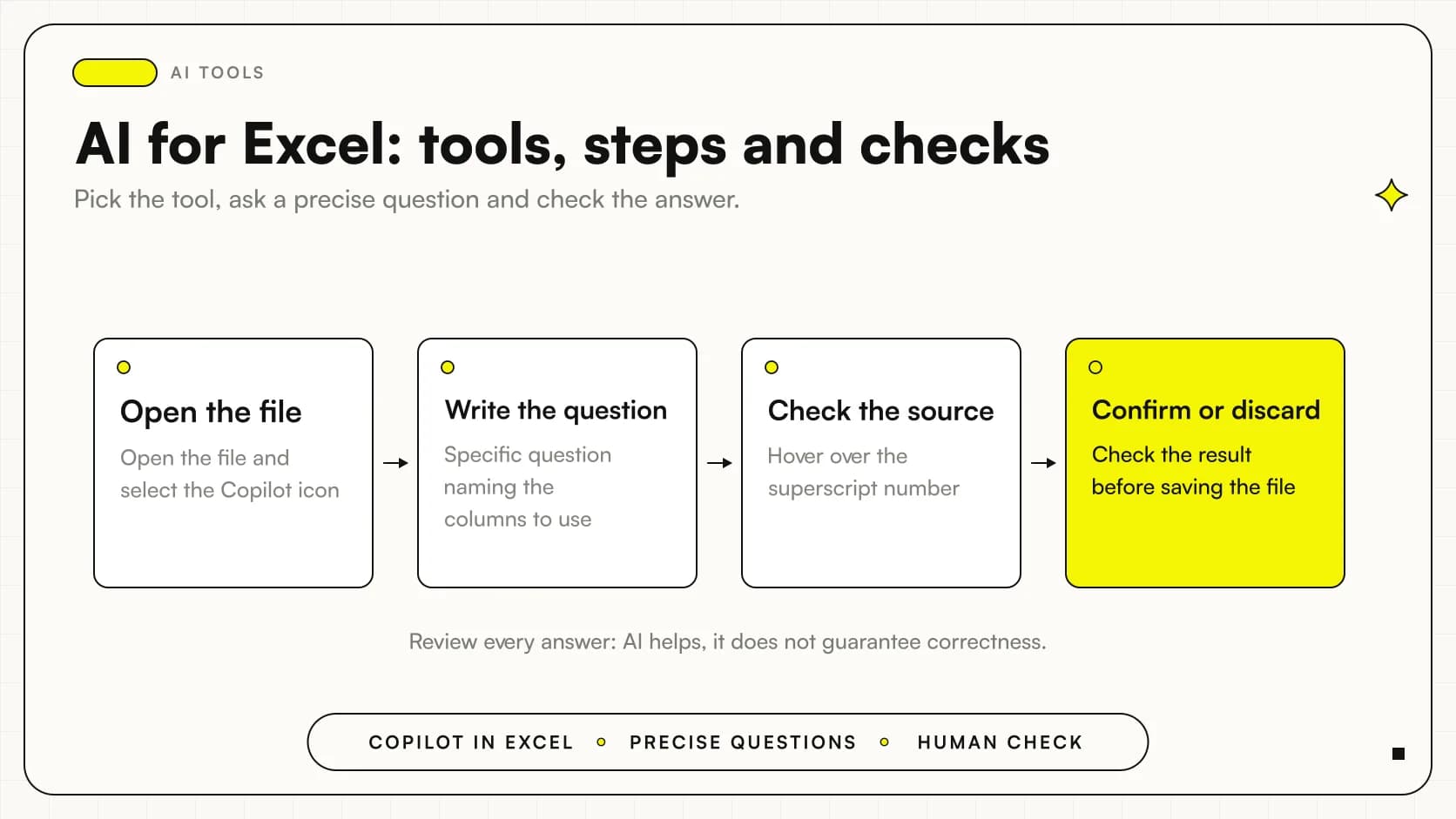
You use AI for Excel by opening the assistant built into the program, writing a precise question about your data and checking the result before you use it. Microsoft offers Copilot in Excel, Google offers Gemini in Google Sheets, and alternatively you can upload the file to a tool like Claude. In every case, the real work is preparing the data well and verifying the answers.
By AI for Excel we mean an assistant that understands questions in natural language, reads the tables in the file, calculates an answer and can suggest formulas, columns or charts. It is not a person who knows your company: it works on what it finds in the sheet. That is why the quality of the file matters more than the skill of the tool.
This guide explains what you need before you start, how to proceed with the three tools documented by the official sources, what can go wrong and which internal rules are worth adopting. There is no price comparison: the sources we consulted do not contain one, and availability depends on license, subscription and administrator settings, as Microsoft explains.
In summary
- Copilot in Excel answers natural-language questions about tables and table-like ranges; unstructured data is not supported.
- Gemini in Google Sheets gives the best results on native files: an .xlsx must first be saved as a Google Sheets file.
- Claude can create and analyze Excel and CSV files, but you need to be careful about the risk of data leaving the work environment.
- The more specific the question and the more the columns are named, the more accurate the result.
- Every answer must be reviewed: AI is an aid for calculating and explaining, not a guarantee of correctness.
What does AI really do on a spreadsheet?
It does three useful things and one cautious one. The three useful ones: it answers questions about the data, suggests formulas and new columns, and explains formulas that someone wrote years ago and nobody remembers any more. The cautious one: it does not decide for you.
For questions about data, Copilot uses a Python-based analysis to interpret the request, identify the relevant data in the workbook and calculate an answer. For formulas, it can create new columns or rows that calculate values from the existing data, and explain how each formula works. If you select a cell containing a formula, you can ask Copilot to explain it.
The cautious part comes from the same sources: as with any content generated by artificial intelligence, review, edit and verify everything Copilot creates. If you need a deeper look at Copilot alone, see the dedicated article on Copilot in Excel, between analysis and formulas to verify.
What do you need before you start?
Before opening any chat, it is worth checking a few things. They are mundane, but they are what separates a useful answer from an invented one or one that is impossible to obtain.
- Your license or plan includes the feature: availability varies depending on license, subscription and administrator settings.
- The data is organized in tables or table-like ranges, with clear column headers.
- The columns have understandable names, because naming them in the question makes the results more accurate.
- If the file is an .xlsx and you will use Gemini, it has been saved as a Google Sheets file.
- There is an internal rule about which data can be given to an external tool.
- There is a copy of the original file, kept intact.
On the point about organized data, the sources are clear: Copilot works with single tables, table-like ranges or multiple ranges of this kind, while unstructured data is not supported. A sheet with merged cells, side notes and totals scattered among the data is the typical case where it pays to tidy up first.
How do you use Copilot in Excel, step by step?
The path is short. Below you will find the steps, all taken from the Microsoft support pages.
- Open the file and select the Copilot icon to open the chat pane; the Microsoft guide places it in the lower-right corner of Excel.
- Write a specific question in natural language, naming the columns to analyze, for example which revenue stream is growing fastest.
- Read the answer and check the source: by hovering over the superscript number in the analysis, you see the source data Copilot refers to.
- If you need a calculated column, ask for it and have the formula explained before you keep it.
- Confirm or discard the result with your own checks, then save the file only if you are satisfied.
One surprising detail: in direct answers mode, Copilot does not change the workbook. Sometimes it returns a static table or an image that you can insert into the sheet, but these do not update on their own. It can also open a new sheet and run Python code for a deeper, customizable analysis. If the numbers change, the analysis has to be redone.
What about Google Sheets and Gemini?
In Google Sheets, the assistant is called Gemini and opens from a button. At the top right, you click Ask Gemini. The feature requires an eligible Google Workspace or Google AI plan, so here too you need to check what is enabled in your organization.
The practical point concerns Excel files. According to the Google support page, you get the best results with native Google Sheets files; to use Gemini on an .xlsx, you need to choose File, then Save as Google Sheets. For anyone with an archive full of Excel files, this is an organizational decision: after the conversion you will work on a Google Sheets file, no longer on the original file.
When Gemini proposes an action, it generates a preview card with the details of what it intends to do, and that step is the right moment to stop and read. There is also a useful warning about charts: the generated one is not linked to and does not respond to changes made to the original dataset. If you update the numbers, the chart stays as it was. For more detail, see the guide to Gemini for Google Sheets.
And with Claude, if the file is an Excel or a CSV?
Claude works differently: it does not live inside Excel, but creates and analyzes files. On the Free, Pro and Max plans, you need to enable file creation from Settings by turning on Code execution and file creation, as the Anthropic Help Center describes. You can also upload CSV and TSV files for data analysis and visualization.
There is a concrete limit: the maximum size is 30MB per file, both for upload and for download, according to the same page. A larger file has to be split or reduced, for example by exporting only the columns you need. Here too, the outputs must be reviewed and refined to meet your requirements.
The page also contains a security warning that a business owner should read. Claude can be induced to send information from its context, for example prompts, projects or data connected through integrations, to malicious third parties. Disabling network access prevents data from leaving the isolated environment, even if something goes wrong. For a broader comparison between tools, you can see Best AI for Excel and ChatGPT for Excel and Google Sheets.
Which tool should you choose for your case?
There is no absolute winner: it depends on where your files already live and what data they contain. The table summarizes the differences documented by the sources.
| Tool | Where is it used | Point of attention | Source |
|---|---|---|---|
| Copilot in Excel | Chat pane inside Excel | Only tables and table-like ranges; availability depends on license and administrator | Microsoft |
| Gemini in Google Sheets | Ask Gemini button | Better on native sheets; an .xlsx must be saved as a Google Sheets file | |
| Claude | Uploading Excel and CSV files | 30MB limit per file; risk of data being sent outside to be assessed | Anthropic |
The practical rule is simple. If you already work in Excel with a license that includes Copilot, start there. If your team uses Google Workspace, start with Gemini. If you have an isolated file to analyze and you have decided the data can leave, Claude is an option, provided you know its warnings.
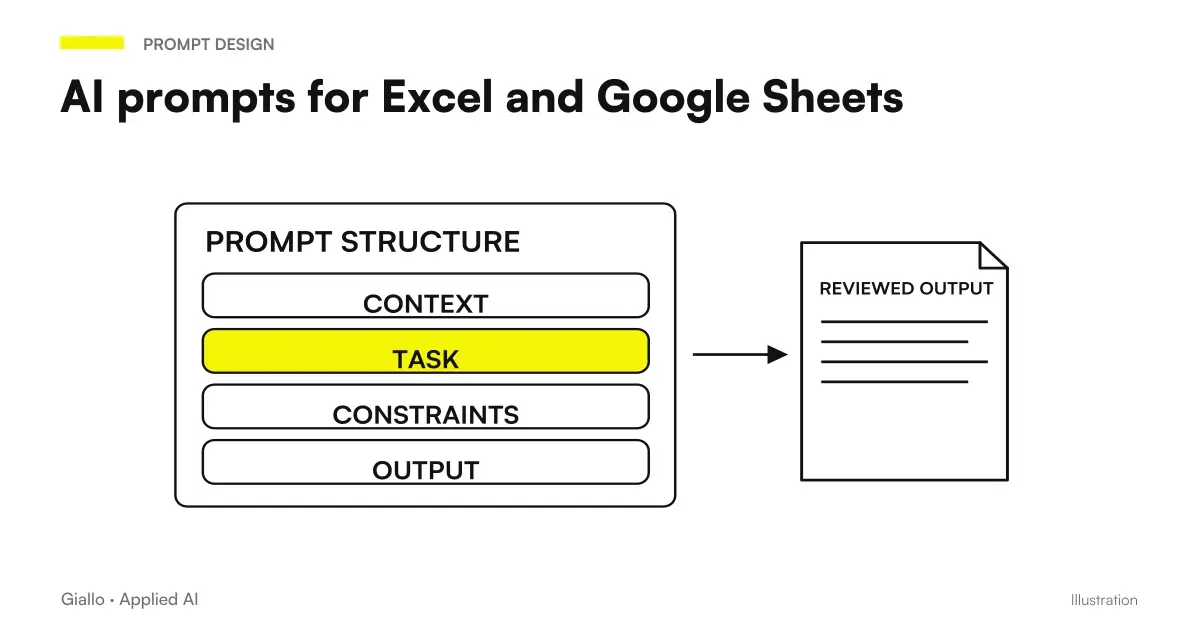
How do you write a question that works?
The Microsoft sources give two clear indications: starting with a specific question helps Copilot understand what you are asking, and naming the columns to analyze produces more accurate results. It also holds as a general principle for the other tools.
A weak question: "How are sales going?". A better question: "In the Amount column and the Customer column, who are the five customers with the highest revenue and how is it distributed by month?". The second tells the tool where to look, what to calculate and in what form you want the answer. More request templates, suited to formulas and analysis, are collected in AI prompt for Excel.
Two examples: how might a small Italian business use it?
These are hypothetical examples to illustrate the method, not real client cases.
An accounting firm. The firm has a file with client deadlines for each month. It asks Copilot to identify, in the Deadline column, the cases still open for each team member. Then it checks the answer by hovering over the superscript number, to see the rows it comes from. The file with clients' personal data, however, does not leave the firm: the internal rule states that client lists are not uploaded to Claude.
A small distribution company. The purchasing manager keeps a supplier price list in Google Sheets. After converting the old .xlsx into a Google Sheets file, they ask Gemini to propose a column that compares prices across suppliers. Gemini shows the action's preview card, the manager reads it, approves it and then rechecks a few rows by hand. They know that a generated chart does not update if prices change, so they regenerate it at every revision of the price list.
In both cases AI speeds up a tedious job, but the final decision stays with a person.
What can go wrong?
Almost all problems come from three sources: messy data, unverified results and data uploaded where it should not have been. The risk to data is real even when the tool is reliable.
On the first point, a messy table produces unreliable answers or the feature does not start. On the second, grounding improves accuracy and relevance and provides citations to check, but you still need to review the sources and confirm critical details before sharing them or acting on them. On the third, Microsoft states that Copilot does not train public models on company data, while for Claude the warning concerns the exfiltration described above.
A gap to declare. The sources we consulted do not contain an official list of data not to upload. The caution about personal data, contracts and confidential price lists is our own common-sense recommendation, inferred from the warnings, not a rule set by the vendors. For more detail, see the article on what happens to business data in AI tools.
Which mistakes should you avoid?
These are five recurring mistakes, all avoidable with a little discipline.
- Trusting the first result. It happens because the answer is well written and sounds confident. You avoid it by opening the source data and redoing a spot check by hand.
- Working on unstructured data. It happens when the sheet is a form with merged cells and free text. You avoid it by first arranging the data in a table, with clear headers.
- Believing that charts and tables update. A static Copilot table and a Gemini chart do not follow the original data. You avoid it by regenerating them whenever the numbers change.
- Uploading everything to an external tool. It happens out of haste. You avoid it with a written rule on what can be uploaded, as explained in corporate policy on the use of AI.
- Overwriting the only original. It happens when you convert or edit without a copy. You avoid it by always keeping the starting file.
How do you apply it in your company this week?
You don't need a project. Pick a single file, for example the monthly sales report, and a single tool already included in your license. Prepare the data in a table, write three specific questions and compare the answers with the ones you would have obtained by hand. Note where the tool made mistakes or misunderstood.
After a week you will have a concrete basis for deciding whether to extend its use, and you will be able to write a short internal rule on what gets uploaded and who checks the outputs. If the idea is to fit these tools into a broader path, a good starting point is the guide to getting started with AI in a small business.
Where is it best to start?
With one file, one precise question and a human check on every result. If you would like an opinion on where AI makes sense in your spreadsheets and in the processes that feed them, you can talk to us on the AI consulting page.
Giallo Studio guides: methodology and sources
How we apply it in the company
Related resources
AI by sector
The same reasoning, applied to the other areas we follow.
- AI for electricians: wallboxes, solar power and installation deadlines
- AI for pharmacies: customers, service bookings and loyalty
- AI for e-commerce: compliant returns, product descriptions, discounted prices and reviews
- AI and e-invoicing: what can be automated
- AI for dentists and dental practices: recalls, quotes and scheduling
- AI for physiotherapists: bookings, reminders and patients
- AI for Business Customer Care: How It Really Works
- AI follow-ups: keep track of every contact
- AI for CRM and sales: automate the sales process
- AI for internal business training
- Creating quotes with AI: how to speed up the process
- AI for photographers: requests, selection of shots, galleries and image rights
FAQ
Does AI in Excel change my file?
In direct answers mode, Copilot does not change the workbook. It can, however, return a static table or an image to insert into the sheet, and these do not update on their own. Features that create columns or formulas should still be reviewed before you keep them.
Can I use Gemini on an .xlsx file?
Yes, but you get the best results with native Google Sheets files. To use Gemini on an Excel file, choose File, then Save as Google Sheets. It's a good idea to keep a copy of the original.
What data should I not upload to Claude?
The sources we consulted do not provide an official list. They do point out the risk that Claude could be induced to send information to malicious third parties, and the option to disable network access. In practice, it is best to exclude personal data, contracts and confidential price lists, unless the company has made an explicit decision.
Why isn't Copilot working on my sheet?
There are two likely causes. Availability depends on your license, subscription and administrator settings, and Copilot works on tables or table-like ranges, not on unstructured data. Check the license first, then how the data is organized.
How do I check that the result is correct?
In Copilot you can hover over the superscript number in the analysis to see the source data. Then redo a spot check by hand on a few rows. The sources recommend reviewing, editing and verifying everything the AI creates.
Does a chart created by Gemini update with the data?
No. The generated chart is not linked to the original dataset and does not respond to changes made to it. If the numbers change, it has to be regenerated.