
Gemini for Gmail
Gemini for Gmail: write replies, summarise threads, adjust tone and search your inbox. A practical guide with prompts and examples.
Reading time: 10 min
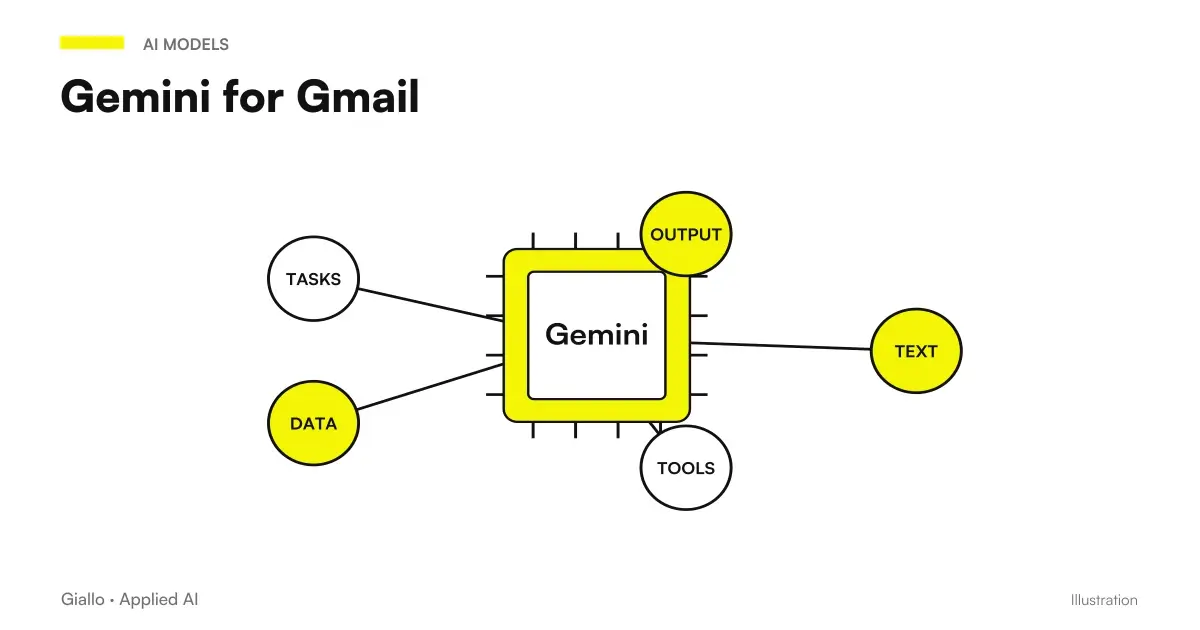
Gemini for Gmail is Google's AI assistant built directly into your inbox: it helps you write new emails from a few words, respond to messages in the right tone, summarize long conversations, and search for information inside your mail using normal phrases instead of keywords. Basically, it's ChatGPT applied to your inbox, with the advantage of already seeing the message you're reading.
The promise is concrete: reduce the time spent fixing an empty "object" field or re-reading a twenty-message thread for the third time. But like any tool of Generative AI, Gemini produces the most likely draft, not the certainly correct one: the value comes when you use it with method, giving clear context and rereading before sending. If you still don't know what the model is under the hood, start with the guide What is Gemini AI.
In this practical guide we see step by step how to use Gemini in Gmail for the tasks you do every day, with example prompts, a task table→how, the privacy notes and the point where, instead of writing by hand, it is best to move to the Automation.
In summary
- Gemini for Gmail integrate Google's AI assistant into the box: write, reply, summarize and search without leaving the mail.
- The four main activities are write a new email, reply to a message, summarize a long thread and search for information in natural language.
- The quality of the draft depends on context that you provide: recipient, target and tone. Vagus prompt, generic response.
- Drafts always go rilette: Gemini can invent dates, amounts or commitments that you have not indicated.
- By email repetitive and high volume It is worth an automation, not manual message-by-message use.
What is Gemini in Gmail and where it appears
Gemini in Gmail is not a separate app: it is a function that appears inside the Gmail interface, usually as a "Help me write" button in the composition window and as a side pane with which you can dialogue about the contents of the box. From there you can ask to generate a text, summarize the open message or find an information, without copying and pasting anything into another tool.
The advantage over a generic AI assistant is the context: Gemini in Gmail already sees the email you're reading or the thread open, so you don't have to explain what you're talking about. This makes it particularly convenient to respond to a specific message while keeping the thread of the conversation.
Gemini in Gmail is part of the broader suite of AI functions within Google tools: if you want the full picture on Documents, Sheets and Presentations, see Gemini for Google Workspace.
How to Write a New Email with Gemini
The most frequent scenario: start from scratch and don't feel like finding the words. Open the composition, activate "Help me write" and give Gemini a short but precise request. The more you indicate recipient, goal and tone, the less you will have to correct.
- Open a new email and starts the write assist feature in the compose window.
- Write the request indicating to whom you write, what you want to achieve and in what tone.
- Generate draft and read it: Gemini proposes a complete text of opening, body and closing.
- Refine asking to shorten, lengthen, make more formal or more direct, as long as it is good.
- Read and Correct names, dates and numbers before sending. This step is not optional.
Example of an email prompt to a new customer
"Write a friendly but professional email to a new customer who has just requested a quote for a website. Thank him for the contact, tell him we'll send the quote within 2 working days and ask if he prefers a short cognitive call. Hot tone, maximum 120 words, no superlatives."
The difference between a useful draft and a generic one lies in the dai context. "Write an email to the customer" will produce a vague text and full of formulas; the request for the example above produces something almost ready. The same principle also applies to other assistants: you find it explained in the guide ChatGPT to write emails, which applies almost identical to Gemini.
How to respond to an email in the right tone
Here Gemini plays its main advantage: since it already sees the received message, you can directly ask it to prepare an answer. It is useful when the message is delicate (a claim, a request for discount, a no to communicate) and you want to start from a balanced basis instead of the blank sheet.
Example of a prompt to respond to a complaint
"Prepare a response to this complaint. Recognize the customer's discomfort, explain that the shipment had a courier delay, offer a 10% voucher on the next order and propose to personally follow the new shipment. Empathetic but not servile tone, without promising refunds."
Example of prompt to decline gracefully
"Reply to this request for collaboration by politely declining. He explains that we cannot take on new projects at this time, thanks for thinking about us and leaves the door open for the future. Maximum 80 words."
The tones are one of the strong points: you can ask Gemini to make the same text more formal, more friendly, more synthetic or more assertive. This is valuable for those who manage communications in which the registry counts — customer support, debt collection, relationships with suppliers. The golden rule remains valid: the draft is a starting point, not an automatic submission.
How to summarize a long email thread
Conversations with twenty messages, copy people coming and going and scattered decisions are the classic waste of time. Gemini can summarize the open thread in a few points: what has been decided, who has to do what, what questions are still open. It is especially useful when you are added to a conversation in half and you do not want to read the whole historian.
Example of a thread's operational summary prompt
"Summary this conversation in maximum 5 points: what was decided, the actions assigned with its manager, the deadlines cited and the questions still unanswered. No puns."
Beware of a real limit: the summary is convenient but does not replace the reading of critical points. On contractual or numerical issues, use the summary to orient yourself and then check the original message. It is the same principle as the AI Hallucinations: AI tends to produce plausible text, which does not always coincide with the exact detail.
How to Search in Mail with Natural Language
The classic Gmail search works with operators (from:, has:attachment, dates). Gemini instead allows you to ask in normal language, for example "find the accountant's last email with the F24 attached" or "what was the price the packaging supplier had made us in March". It is useful when you remember the content but not the exact keywords to look for.
It remains a support tool: if the box is huge or messy, natural search helps but does not work miracles. For the information that is often needed by the whole team, a dedicated type system makes more sense RAG, which queries company documents instead of the single box.
Task Table → how it is done
A quick map of the most common activities in Gmail and how to deal with them with Gemini.
| Tasks | How to use it with Gemini | What to check before sending |
|---|---|---|
| Write a new email | "Help me write" + request with recipient, target and tone | Names, dates, commitments made in the text |
| Replying to a Message | Ask for an answer on the open message, indicating the point to be made | Consistency with what was promised, proper tone |
| Change Tone | "Make this text more formal / more synthetic / more cordial" | That sense does not change in rewording |
| Summarize a thread | "Summarize in 5 points: decisions, actions, deadlines, open questions" | The critical details on the original (numbers, clauses) |
| Search in the mail | Natural language question instead of operators | That the message found is really the right one |
| Translate or adapt | "Translate to English while maintaining a professional tone" | Technical terms and proper names |
Gemini for Gmail vs ChatGPT for Emails
Many already use ChatGPT to write emails by copying and pasting the text back and forth. The difference is not in the quality of the writing —both are excellent —but in the context and integration.
When to Buy Gemini in Gmail
- You already work inside Gmail and Google Workspace every day.
- You must respond to a specific message without copying the text elsewhere.
- You want to summarize or search in the box, not just write.
- You need the assistant to see the thread without explaining it.
When convenient ChatGPT (or an external assistant)
- Write emails from material that lives outside the box.
- You want a unique assistant for emails, texts, code and more.
- You don't use the Google ecosystem or you're on an account with no AI features.
- You already have streams and prompts built on ChatGPT that work.
In practice it is not an exclusive choice: those who live in Gmail find Gemini more comfortable for mail, those who work transversely also keep a general assistant. The detailed comparison on the email case is in the guide ChatGPT to write emails. If you have to decide which subscription to pay, the comparison between Google AI Pro and ChatGPT Plus is in ChatGPT vs Gemini paid.
Privacy: what to know before using it
This is the point that Italian SMEs are most often wrong about. Gemini accesses the content of emails to generate what you ask for: it is normal, but it involves responsibility.
- On business accounts of Google Workspace, your data is not used to train public models and remains within the perimeter of your domain.
- On Accounts free personals the conditions are different: read the privacy notes before processing customer data.
- Avoid asking Gemini to process emails that contain particularly sensitive data (health, judicial data) without having verified compliance.
- Remember the GDPR: you are processing personal data of third parties, so we need appropriate legal and information bases.
Practical examples
Three real situations of Italian SMEs and professionals, to see Gemini in Gmail at work.
1. Professional study — responses to customers. A studio secretary receives dozens of similar requests every morning: appointments, status of a practice, missing documents. With Gemini he opens the message, asks for a courteous response in the tone of the study and within seconds has a coherent draft to review and send. The time per email drops, the quality remains constant even on peak days.
2. E-commerce — handling complaints and returns. The owner of a small e-commerce manages the assistance on his own. When a complaint arrives, use Gemini to start with an empathetic and balanced response, then adjust details and offer. Avoid written answers of haste or tummy, which often make the situation worse. For the online sales part, the bigger picture is in the guide to e-commerce sites.
3. Freelance consultant — thread summary. A consultant followed by multiple clients is often added to already long conversations. Before answering, he asks Gemini for a five-point summary of the open thread: decisions, actions, deadlines. Enter the prepared conversation in thirty seconds instead of ten minutes of reading.
In all cases the model is the same: Gemini prepares, the person decides and sends. It is when this balance jumps — send without rereading — that the problems come.
Mistakes to Avoid
- Sending without rereading. It's error number one. Gemini can enter a wrong date, a commitment you didn't want to make or an invented amount. Rereading is part of the process, not one more.
- Giving vague prompts. "Reply You" produces generic, formula-filled texts. Always indicates recipient, goal, and tone: three lines of context are worth ten corrections.
- Treating sensitive data without criterion. Having Gemini process emails with personal data of customers without having verified plan and compliance is a concrete, not theoretical, GDPR risk.
- Use it by hand for repetitive emails. If you write twenty almost identical order confirmations every day, it is not an assistant-to-hand job: it is to be automated. We see this in the next paragraph.
- Expecting me to know your company. Gemini does not know your prices, policies or customer history if you do not provide them. On these points, guide it with the right context or check separately.
How to apply it in the company
Gemini in Gmail gives an immediate benefit to anyone who handles a lot of varied mail: support, sales, voicemail, direction. The sensible way to introduce it is light and repeatable.
- Locate who writes multiple "different" emails every day: that's where the assistant makes the most, because every message requires a new text.
- Define 3-4 reusable prompts for recurring cases (answer on request info, complaint management, appointment confirmation) and share them in the team.
- Set the Rereading Rule as standard: no email starts without a human verification of names, dates and numbers.
- It separates the "various" from the "repetitive". The various remains in Gemini by hand; the repetitive goes towards automation.
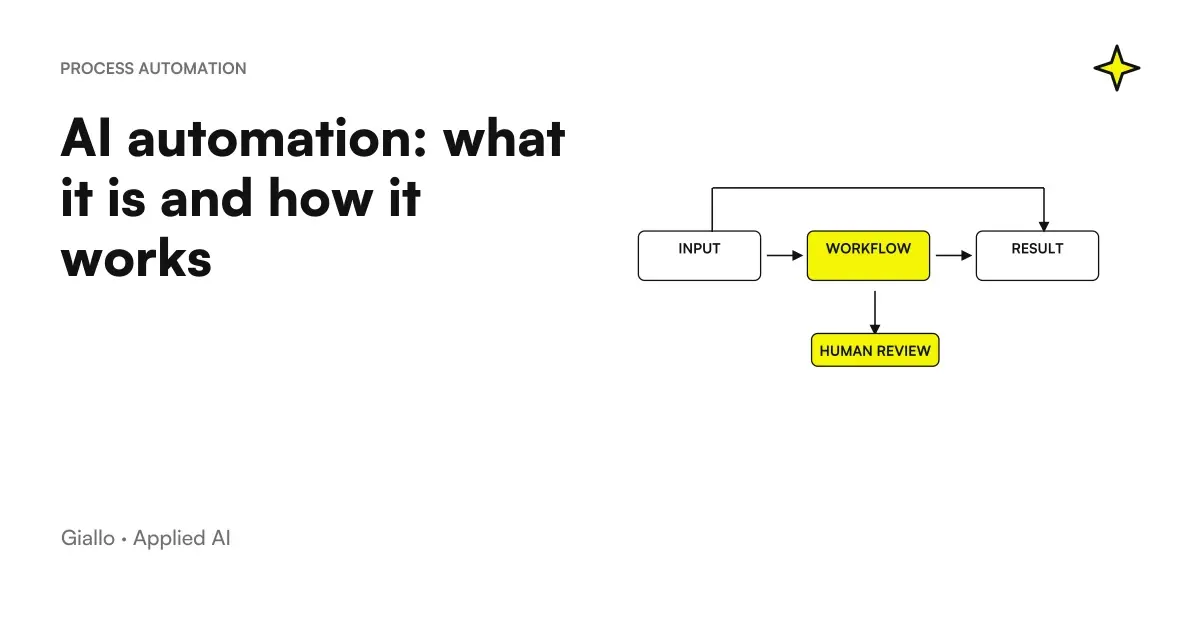
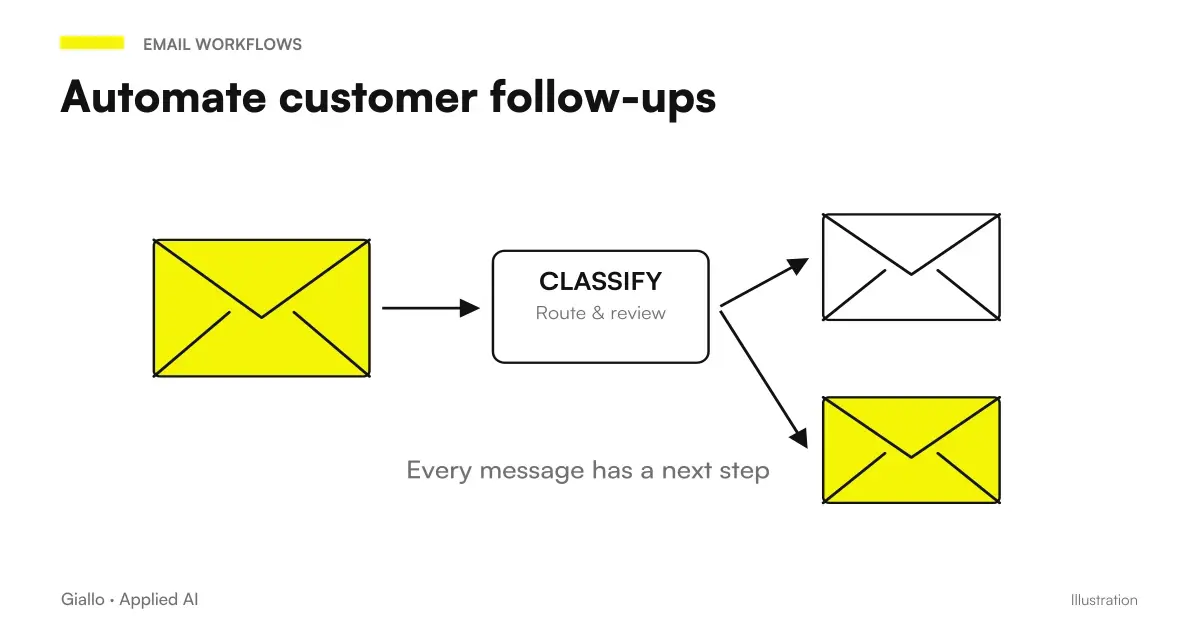
And here comes the important crossroads. Gemini in Gmail is perfect for emails different each time, but when messages become repetitive and high volume — payment reminders, order confirmations, standard responses, sorting usarlo using it by hand is a waste. In those cases an automation that reads, classifies and responds on its own, leaving only the exceptions to the human: the operation is explained in the guide AI Automation, and the way to build it on your real processes is the work described in automation of business processes.
The practical difference: with Gemini in Gmail you save minutes on every email you write; with an automation you eliminate the category of emails that are not worth writing by hand altogether.
Conclusion
Gemini for Gmail is one of the most immediate and concrete uses of AI for those who work: write, answer, summarize and search without leaving the box. Real value comes with two simple habits — giving precise context in prompts and always rereading before sending — and with the awareness of where its ground ends: various emails. When messages become repetitive, the answer is not to write faster, but to stop writing them by hand. From here you can deepen with What is Gemini AI and understand how the assistant extends to all Google tools in Gemini for Google Workspace.
AI becomes useful when it enters processes. Giallo Studio helps SMEs and teams build concrete, measurable and sustainable automations — even starting right from email management. To see experiments and prototypes, take a look at the The Lab.
Giallo Studio guides: methodology and sources
How we apply it in the company
Related resources
 Gemini AI: what it is and how it works
 Gemini for Google Workspace
 ChatGPT to write emails
 AI automation: what it is and how it works
 Gemini for Companies
 Automate customer follow-ups: fewer missed contacts, more closed deals
 Best AI Tools: Complete Guide
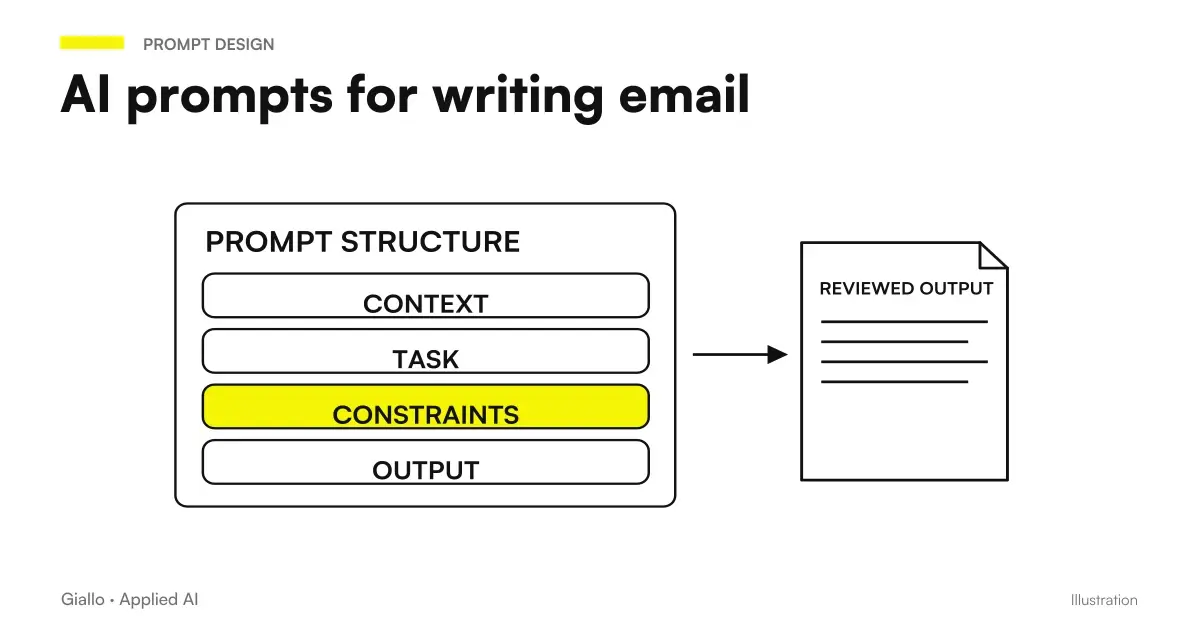 AI email prompts: ready-to-use examples for every situation
FAQ
What is Gemini for Gmail and what is it used for?
Gemini for Gmail is Google’s AI assistant integrated directly into your inbox. It drafts new emails from a brief instruction, replies to a message in the right tone, summarizes long threads and searches your email using natural language. It works within your inbox’s context, so it can take account of the message you are reading.
Is Gemini in Gmail free, or do I need a subscription?
Full AI features in Gmail are designed for paid Google Workspace accounts and some Google One plans with Gemini; on free accounts the features are more limited or absent. Availability, plans and prices often change: always check the official Google Workspace page for your country and account type.
Does Gemini read all my emails?
Gemini accesses email content to generate the answers you request, but on Google Workspace business plans your data is not used to train public models and remains within the perimeter of your account. The conditions differ between personal and business accounts: read your plan's privacy notes before processing sensitive data.
How do I write a good request to Gemini in Gmail?
Specify three things: the recipient and your relationship (customer, supplier, colleague), the message’s purpose (following up, thanking, declining), and the desired tone (formal, friendly, concise). More precise context means less work correcting the draft. You can also start with your own draft and ask Gemini to shorten it or make it more formal.
Can I trust the Gemini-generated drafts?
Drafts are a starting point, not a text to be sent blindly. Gemini can invent details (dates, amounts, commitments) that you have not provided, so always reread before sending, especially on contractual emails or with numbers. The rule is simple: the AI writes the first draft, you approve.
When is it better to automate emails instead of using Gemini by hand?
Gemini in Gmail is ideal for varied, low-volume emails, where every message is different. For repetitive, high-volume emails (order confirmations, payment reminders, standard replies), automation is preferable: it handles them without manual intervention, leaving you only the exceptions.