
NotebookLM for company documents: how to get started step by step
How to use NotebookLM on your company's documents: prerequisites, uploading sources, file limits, checking answers and what not to upload.
You use NotebookLM by uploading your company's documents as sources and asking questions that the tool answers based on those materials, with inline citations showing where each statement comes from. In practice, you are no longer asking a generic AI: you hand it a file and ask it to stay within that file. The result is only useful if someone then checks the citations.
To define it clearly: it is a Google assistant that works on the sources you choose, such as PDFs, web pages, YouTube videos, audio files, Google Docs and Google Slides. In the official guides we consulted, the tool appears under the name Gemini Notebook, inside the NotebookLM help: in this article we use the name of the topic and we point out where we follow Google's wording. The information comes from the Google guide to Gemini Notebook.
This is a practical guide: first the prerequisites, then the steps, then what can go wrong. Where the official sources do not say enough, we say so, instead of filling the gap with assumptions.
In summary
- NotebookLM answers based on the sources you upload and shows inline citations, but the answers still need to be verified.
- You need a Google Account; with a work account, access depends on your organization's administrator.
- The format and size limits published by Google concern the Gemini app and should be rechecked at the time of use.
- There is no official list of confidential documents not to upload: the decision rests with the company, before uploading.
- The answers are not a substitute for the advice of a legal, medical or financial professional.
What does NotebookLM do with a company's documents?
The idea is simple: you upload the sources, ask a question, and get an answer that relies on those sources. Google presents it as a way to get reliable information based on your materials, with clear inline citations designed to provide accuracy, transparency and reliability. You can read this on the information page about Gemini Notebook.
The mechanism has a practical consequence. The tool is designed to answer based on what you have uploaded: if a piece of information is not in the sources, you should not expect it to draw it from general knowledge. For a business owner this is the strength of the tool, because a question such as "what does our standard contract say about delivery delays?" gets an answer tied to your texts and not to an average idea of the industry.
It is the same principle behind document search systems: if you want to understand it better, the guide on how to design a local RAG on company documents covers the version built on your own infrastructure. NotebookLM is usually simpler to get started with, but it depends on the rules and availability decided by Google.
If you want a broader picture of what you can ask an AI when it comes to files and contracts, the practical guide to analyzing company documents with AI also covers alternative tools.
What do you need before you start?
Before opening the tool, it is worth sorting out a few prerequisites, especially if you work with a company account. The first items come from Google's guides; the last two are our own common-sense recommendations.
- You have signed in to your Google Account.
- If you use a managed school or work account, your organization's administrator has enabled access to Gemini Notebook.
- If you want to upload files from Google Drive, the Workspace administrator has enabled access to apps in Gemini.
- You have decided internally which documents can be uploaded and which cannot.
- You have identified a person who checks the answers before they are used.
The first three conditions are stated in the guide to Gemini Notebook and in the guide to uploading and analyzing files in the Gemini apps. If access does not appear, a possible cause is account administration, not a mistake on your part.
How do you upload documents, step by step?
The steps below follow Google's guide for the Gemini app on a computer. The Notebook option appears among the uploads in the Gemini app; the Gemini Notebook guide, instead, lists the types of source you can add.
- On your computer, go to gemini.google.com and sign in with your Google Account.
- In the text box at the bottom, write the question or prompt you want to ask.
- To upload a file supported from your device, click Upload files.
- To add a notebook, click More uploads and then Notebook.
- In the notebook, add the sources: PDFs, websites, YouTube videos, audio files, Google Docs or Google Slides.
- Ask specific questions and open the inline citations to check the passage each answer comes from.
The first four steps are taken from the guide to uploading and analyzing files in the Gemini apps; the list of source types is in the guide to Gemini Notebook. An important caveat: the sources we consulted do not describe the steps for creating a notebook from scratch in Gemini Notebook. If the interface you see differs from the one described, trust what appears on screen and Google's up-to-date guide.
What can go wrong?
Four problems to keep in mind, each with a different remedy.
- Missing access. With a work account, the option may not appear until the administrator enables access. It is solved with an internal request, not by trying again.
- File too large. If you upload a file that is too large, Gemini's response may be incomplete, leaving out some details or logical connections present in the content, as explained in the guide to files in the Gemini apps. The risk is an answer that looks complete and is not.
- Analysis error. If an error appears saying that Gemini was unable to analyze the file correctly, the same guide suggests uploading it again.
- Wrong answer. Gemini can hallucinate and present inaccurate information as factual, as stated in the guide to answers from the Gemini apps. That is why citations must be opened, not just read.
If you want a general overview of the phenomenon, there is the article on AI hallucinations and how to reduce them.
Which files and which limits should you consider?
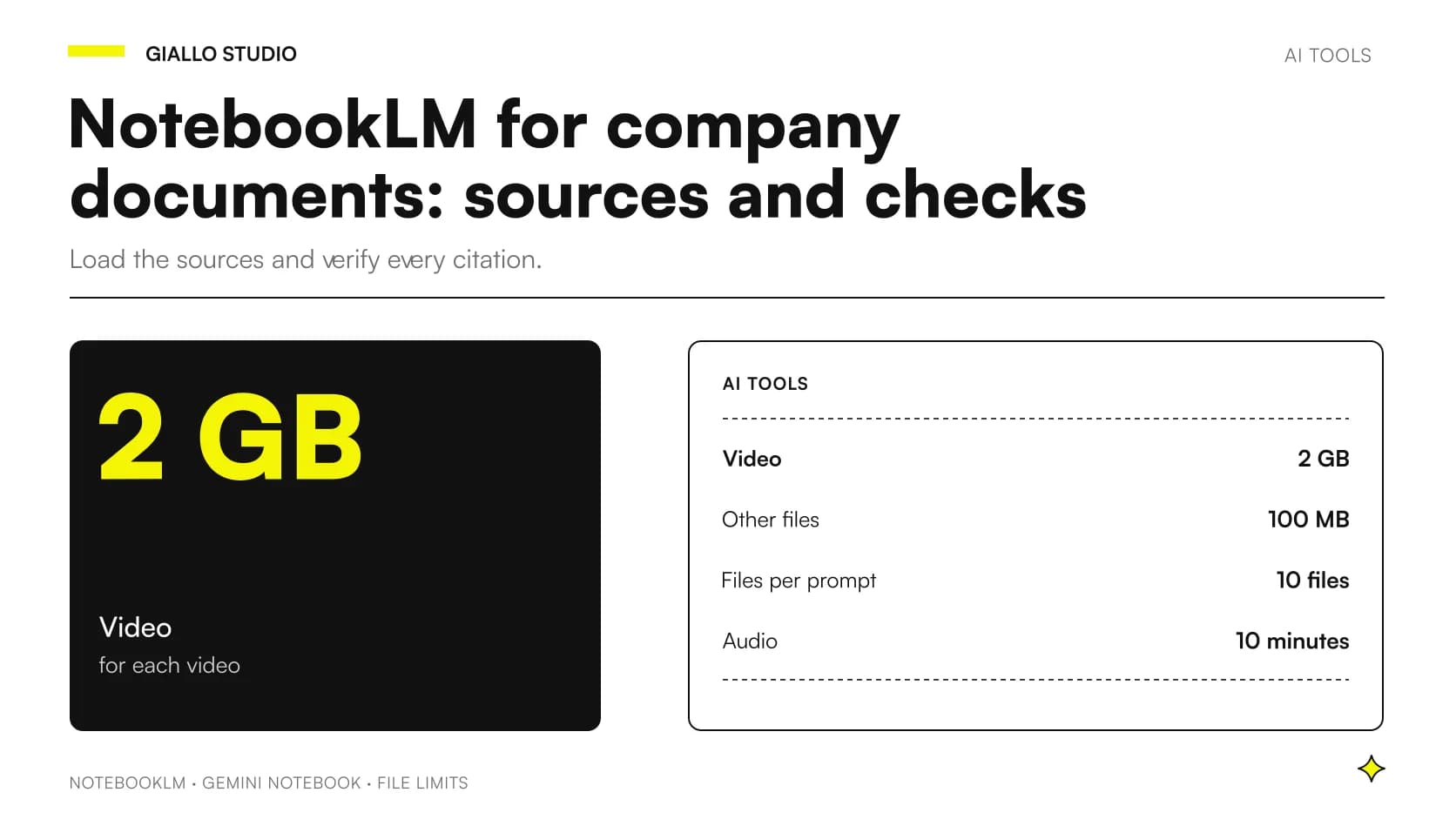
The numbers below are those published by Google for the Gemini apps. The same guide specifies that the Gemini apps support most file types and that there are progressive limits on the number of files you can upload and analyze in a given period of time, as the page on uploading files. Gemini Notebook, on the other hand, lists the supported source types in its guide and does not report these same limits.
| Appearance | What Google states for the Gemini apps | Source |
|---|---|---|
| Video | Each video can be up to 2 GB | Guide to files in the Gemini apps |
| Other supported files | They can be up to 100 MB | Guide to files in the Gemini apps |
| Files per prompt | Up to 10 files in the same prompt, depending on availability | Guide to files in the Gemini apps |
| Audio | The total length of audio files cannot exceed 10 minutes | Guide to files in the Gemini apps |
| Source types in Gemini Notebook | PDFs, websites, YouTube videos, audio files, Google Docs and Google Slides | Guide to Gemini Notebook |
To recheck. File limits, languages and countries depend on availability, plan and account type. Before setting up a workflow, verify the values on the Google page on the day you adopt it.
How do you check answers before using them?
Inline citations are the checking tool: next to the answer you find the reference to the passage in the source, and you can compare the two. Google nonetheless reminds users that the Gemini apps can provide inaccurate answers and invites you to verify them; the answers should not be treated as equivalent to medical, legal, financial or other advice. You can find this in the guide to answers from the Gemini apps, and the guide to Gemini Notebook adds that you should always consult a qualified professional for medical, legal or financial advice.
A simple method for a company: for every answer intended for a client, a contract or a report, open the citation, read the original paragraph and note who did the check. If the citation does not support the answer, the answer does not go out.
Which documents can you upload and which not?
Here the sources are cautious, and it makes sense for us to be too. Google explains that your data is protected and is not used to train Gemini Notebook, unless you provide feedback. When you share feedback, Google may review the entire context of the interaction, including queries, uploads and the model's responses. The text is in the guide to Gemini Notebook.
The sources, however, do not provide an official list of prohibited document categories. So the choice is yours, and it must be made before uploading, with your internal policies. To set them up you need a written starting point: the guide on the corporate policy on the use of AI and the one on what happens to the company data you type into an AI help you think through the categories.
A prudent criterion, which is ours and not Google's: start from documents you could already share with an external collaborator (manuals, procedures, public price lists, data sheets) and leave out contracts with confidentiality clauses, personal data and third-party materials until you have a written rule. Google also reminds users to respect copyright law and not to share protected content without the necessary rights, as the guide to Gemini Notebook.
How would an SME or a professional use it? Two examples
These are hypothetical examples, built to show the reasoning: they do not describe real clients.
An accounting firm. The firm has collected in a folder the internal procedures and circulars it uses to train new staff, all its own non-confidential documents. It uploads those files as sources and asks: "What steps does our procedure provide for collecting the documents of a new client?". The answer helps the team member get oriented, but every tax indication is checked against the original source and by the responsible professional, because the tool does not replace an opinion.
An SME that makes window and door frames. The company has installation manuals, data sheets and standard specifications. The sales department uploads those materials and asks: "Which accessories are listed in the data sheet for this model?". Every answer is compared with the cited data sheet before it ends up in a quote. If the information then has to become a presentation for the client, you can move on to slides built from company documents with Copilot.
In both cases the value lies in reducing search time, not in delegating the decision.
Which mistakes should you avoid?
There are five, to keep in mind from the start.
Uploading everything without criteria
It happens because giving the tool the entire archive seems more convenient. The risk is mixing confidential and non-confidential documents, old and new versions. You avoid it by choosing a few sources for a specific goal.
Trusting answers without opening the citations
Citations give an impression of solidity. But Gemini can hallucinate and present inaccurate information as factual. You avoid it by always opening the source, at least for the answers that leave the company.
Treating the tool as a consultant
An answer about a contract or a compliance requirement is not an opinion. Google says not to treat it as equivalent to legal, medical or financial advice. You avoid it by keeping a professional in the final step.
Giving feedback with confidential documents in the notebook
With feedback, Google may review queries, uploads and responses. It happens because the button seems harmless. You avoid it by deciding beforehand who can send it and with what content.
Taking limits and access for granted
File limits depend on availability, plan and account type, and access with a managed account depends on the administrator. You avoid it by rechecking Google's pages at every new project and involving whoever manages Workspace right away.
How do you apply it in your company without complications?
A reasonable start, which you can complete in a few weeks, is this:
- Choose a single use case, for example the sales department's recurring questions about data sheets.
- Select a folder of non-confidential, well-organized documents with understandable names.
- Check with the administrator that access is active for the accounts involved.
- Prepare a few questions whose answers you already know and compare them with the tool's.
- Note where it gets things wrong, where the citation does not hold up and where files turn out to be too large.
- Write a one-page rule on what is uploaded, who checks and who can give feedback.
If the results are good, extend to a second group. If instead the documents cannot leave the company, consider the alternative of local AI search in company documents. And to decide which function to start with, the guide on where it makes sense to start with AI in business functions offers a selection criterion.
Where to start now?
Starting well means choosing a few documents, a person in charge of checking, and a written rule on data. If you want to discuss which function and which documents make sense to try first, you can talk to us in an AI consultation.
Giallo Studio guides: methodology and sources
Want to apply this to your business?In 30 minutes, free of charge: the first process to automate and its estimated return, in writing.
Book the free auditHow we apply it in the company
Related resources
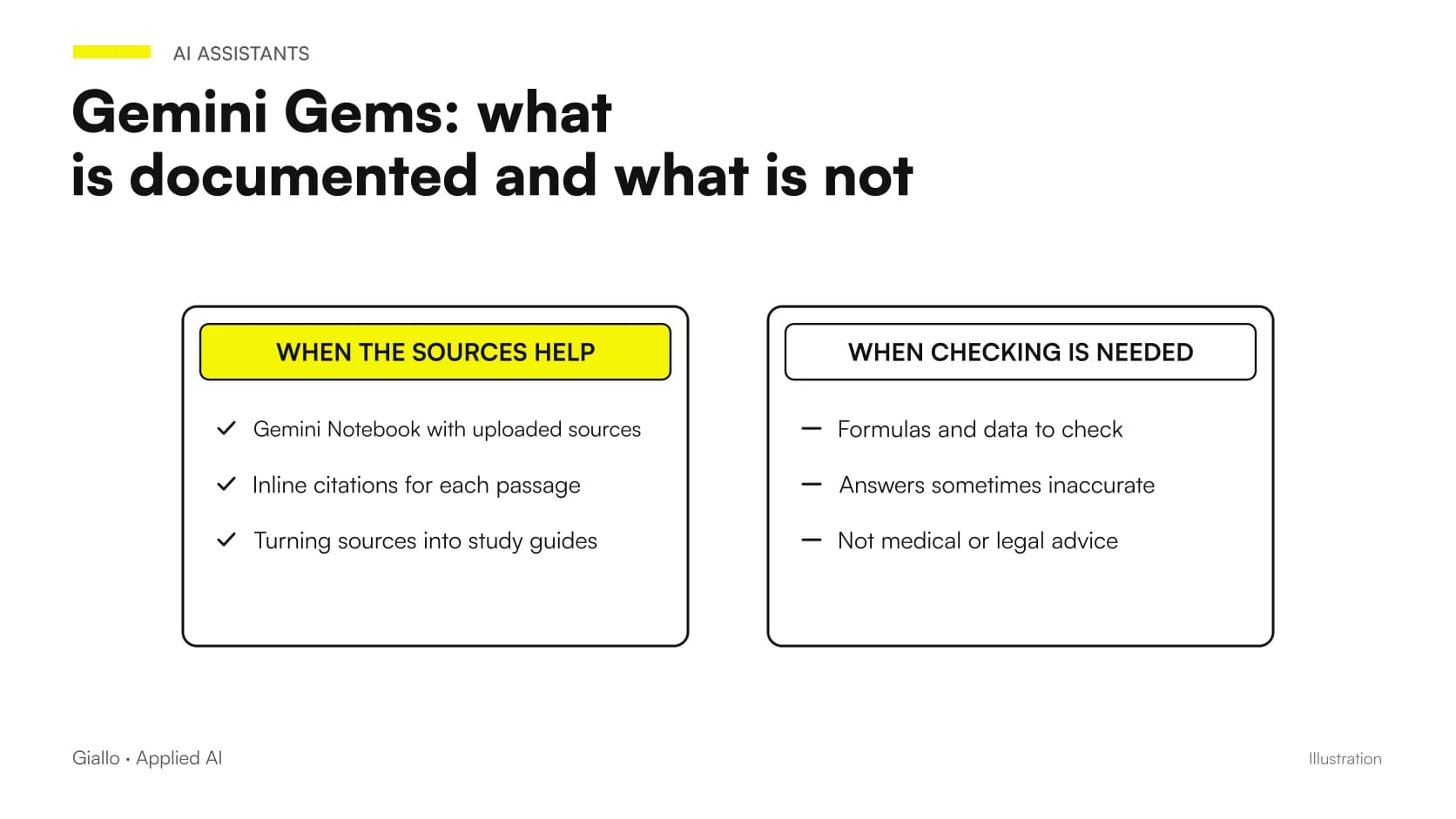 Gemini Gems and Gemini Live: What They Can Do and the Limits Google Declares
 AI for business document analysis: a practical guide
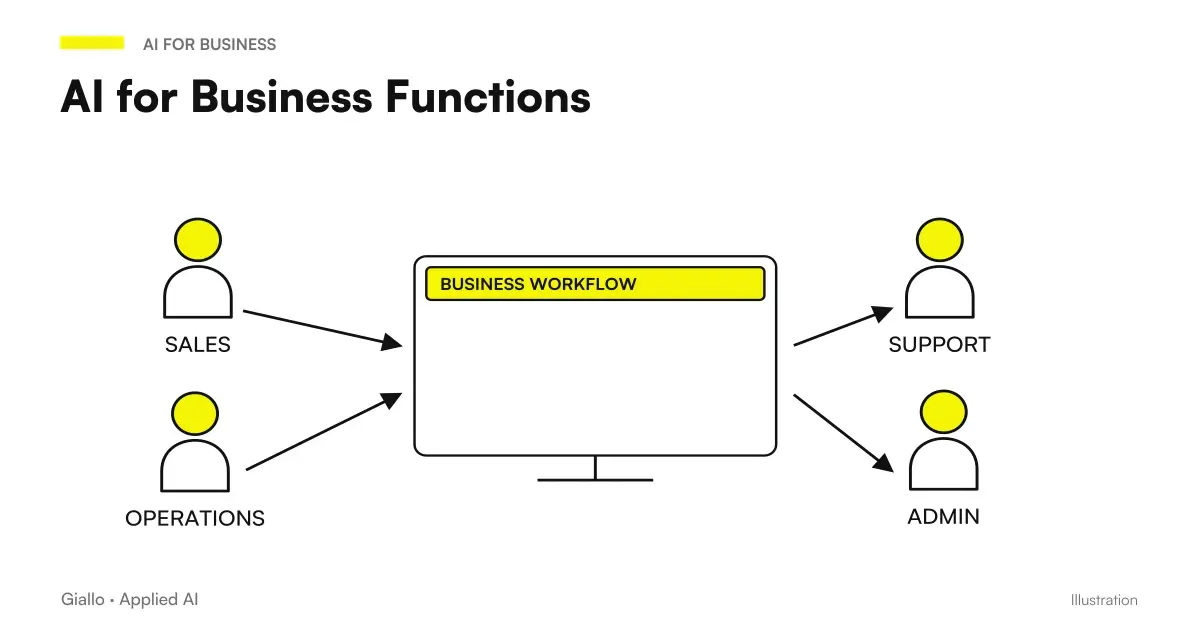 AI for Business Functions: Where to Start
 Local RAG for business documents: a practical design
 Copilot in PowerPoint: slides from business documents
 EmbeddingGemma 2: Local AI search in business documents
FAQ
Are NotebookLM and Gemini Notebook the same thing?
In the official guides we consulted, the tool is called Gemini Notebook, and the guide is found in the NotebookLM help. For this reason, in this article we use the two names with the same meaning. It is still worth checking the wording you see on screen, because names can change.
Can I use NotebookLM with a company account?
Yes, but with a managed work account your organization's administrator must enable access to Gemini Notebook. To upload files from Google Drive, the Workspace administrator must also have enabled apps in Gemini. If the option does not appear, ask them.
Are NotebookLM's answers reliable?
They are based on the sources you upload and show inline citations, but they can contain errors. Google itself urges users to verify answers and reminds them that Gemini can hallucinate. Always open the citation before using a piece of information.
Which confidential documents should I not upload?
The official sources we consulted do not provide a list of prohibited categories. The decision rests with the company, using internal policies, before uploading. A prudent approach is to start only with non-confidential documents.
Are my documents used to train the model?
According to the Gemini Notebook guide, your data is protected and is not used to train the tool, unless you provide feedback. With feedback, Google may review the entire context of the interaction, including uploads and responses. Clarify within the company who can send it.
Can I use the answers as legal or tax advice?
No. Google says not to treat the answers as equivalent to medical, legal, financial or other advice. For these topics you need a qualified professional.