
Gemini prompts: useful examples for Google AI
Gemini prompts for Gmail, Google Docs, Google Sheets and Meet: effective instructions with practical examples.
Reading time: 8 min
Gemini is Google's AI assistant, integrated directly into Gmail, Documents, Sheets, Meet and Drive. Unlike other models that you use in a separate screen, Gemini acts included the tools you probably already use every day at work. For this Prompt quality makes all the difference: a vague statement produces a generic response, a precise statement produces an output that you can use almost directly.
This guide collects Practical Prompt Examples for Gemini organized by Google product, with a section dedicated to the most common mistakes and how to adapt them to work in the company. If you want to understand first how Gemini works in general, read the guide to Gemini AI; if you are interested in comparing with ChatGPT, you can start from ChatGPT vs Gemini.
In summary
- The prompt for Gemini They work best when they include role, context, task, and output format in a single instruction.
- Gemini is more effective inside Google products (Gmail, Docs, Sheets) where you have direct access to the content of the file or email.
- A prompt with explicit format ("5 points", "table", "formal tone") drastically reduces generic responses.
- For the Google Sheets, Gemini can suggest formulas and analyze data: always ask the "why" of the formula to understand and correct.
- The availability of Gemini features depends on the Google Workspace plan: always check the official Google page.
How a Prompt Works for Gemini
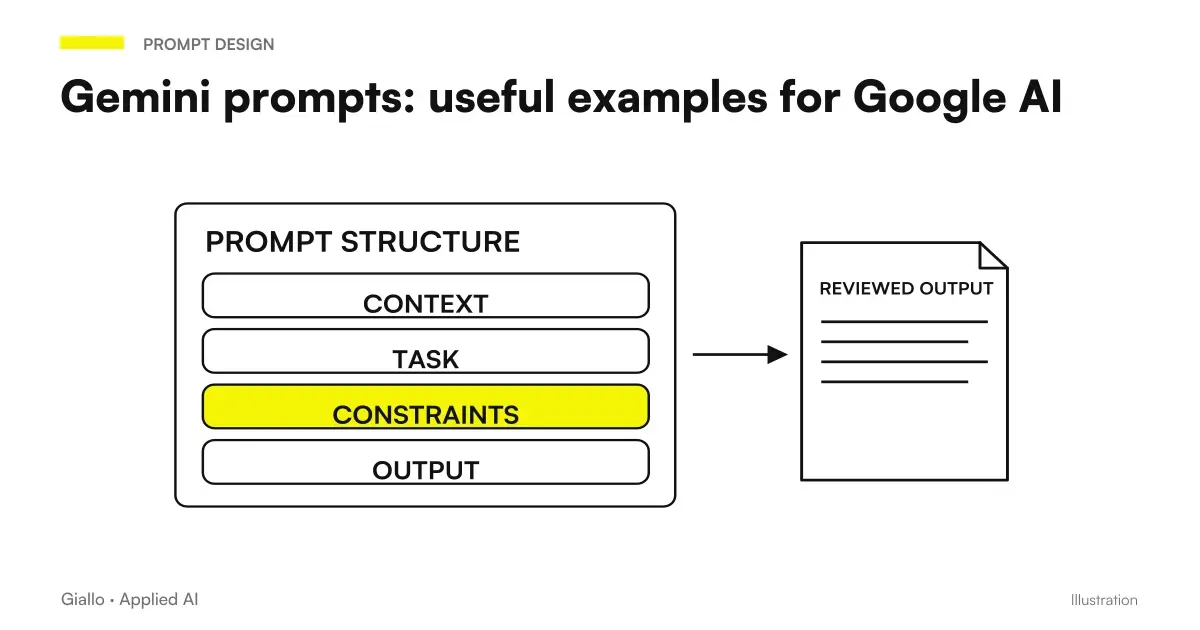
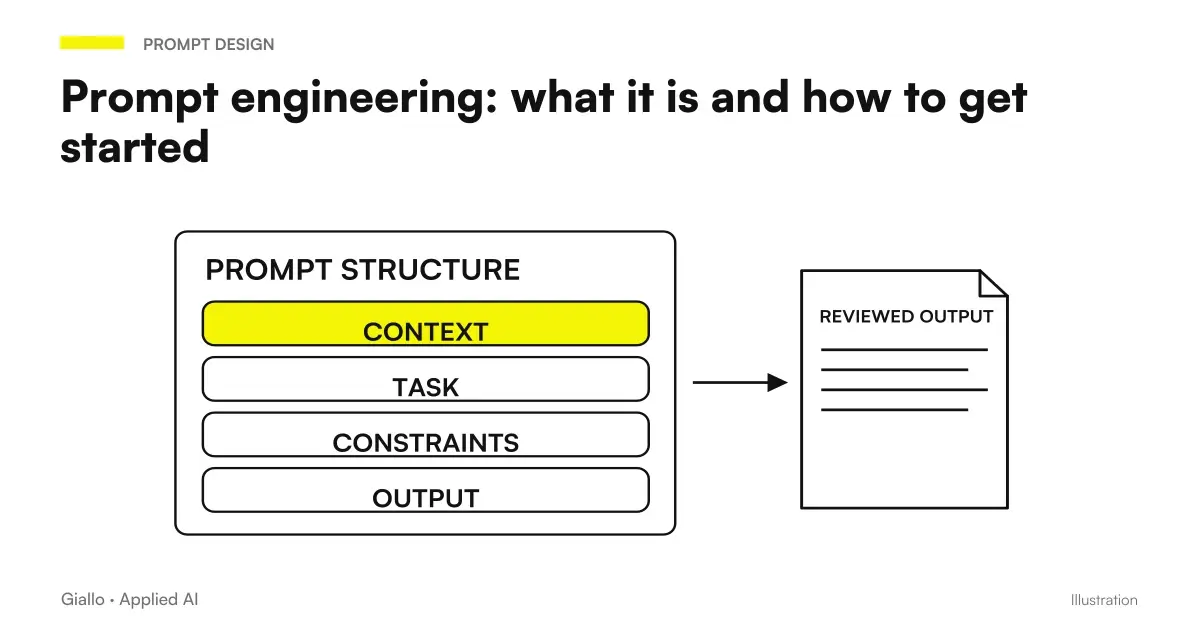
Before seeing the examples, it is worth understanding the structure that makes an effective prompt on Gemini — and any other model. The Prompt Engineering teaches that every good prompt has four components:
- Role: who is Gemini to be? ("You're an assistant for commercial communications in Italian")
- Background: what is it about? ("I received a quote request from a customer")
- Task: what to do exactly? ("Write a professional response confirming receipt and indicating timing")
- Format: how should the output be? ("At most 5 lines, formal but direct tone")
The more accurate these four elements are, the more Gemini produces something useful. The big mistake is stopping at the task alone — "write a response" — without context or format.
Prompt for Gemini in Gmail
Gmail is where Gemini shows its smoothest integration: it can read the email thread and propose relevant answers. To learn more about the specific possibilities of this integration, read the guide on Gemini for Gmail.
Examples of prompts to respond to emails
Formal short answer: "Write a reply in Italian confirming receipt of this email, indicate that we will reply within 48 working hours and thank you for contacting us. Maximum 4 lines."
Reply to a complaint: "This email contains a complaint about a delay in delivery. Write a response that sincerely apologizes, briefly explains the causes, and proposes a concrete solution. Professional tone, maximum 6 lines."
Commercial follow-up: "I sent a quote 5 days ago without an answer. Write a kind follow-up that remembers the offer, asks if there are any questions and leaves a space to fix a call."
Prompt to summarize a long thread:
"Summary this email thread in 4-5 points. For each point indicates: who wrote, what it required, what is the current state. List any actions still open."
Prompt to filter and categorize:
"Read last week's emails and create a list of pending requests, divided by urgency: high (answer needed by today), average (within the week), low (no deadline)."
Prompt for Gemini in Google Docs
In Google Docs, Gemini has access to the text of the open file. You can select a passage and ask it to rephrase it, or start from scratch with a complex statement.
Prompt to draw up a document from scratch:
"You're a business consultant. Create a draft internal policy on the use of AI tools in the company. Structure it with: objective, scope, rules of use, what is prohibited, mode of review. Professional tone, length about 600 words."
Prompt to rephrase an existing text:
"The selected text is too technical for an inexperienced reader. Rewrite it more clearly, without changing the main concepts. You keep the same titles and the same structure, you just change the language."
Prompt to summarize a long document:
"Create an executive summary of this document in up to 150 words. Highlight: Main objective, 3 key points, decision or recommended action."
Gemini Prompt in Google Sheets
In Google Sheets, Gemini can suggest formulas, explain how they work, and analyze columns of data. For a complete guide, see Gemini for Google Sheets.
Data Analysis Prompt:
"I have a column with monthly turnover values from the last 12 months (column B, B2 to B13). Write one formula to calculate the average of the last 3 months and another to identify the month with the maximum value. It briefly explains what each one is for."
Data cleanup prompt:
"In column C I have manually entered email addresses, some in uppercase and some with spaces. Write a formula that normalizes them: all lowercase, with no initial or final spaces."
Prompt to create a descriptive pivot table:
"I have a table with columns: Date, Customer, Product, Amount. Describe step by step how to create a pivot that shows the total per customer and per month, without using macros."
Prompt for Gemini in Google Meet and other tools
Gemini in Meet can generate summaries of meetings and track action points. These prompts are used at the end of the call or on the generated summary document.
Post-meeting prompt:
"This is the automatic summary of the meeting. Extract: the 3 main decisions taken, the actions assigned with manager and deadline, the topics postponed to the next call."
Prompt to prepare a meeting:
"In an hour I have a call with a potential client who runs a firm of accountants with 8 people. Prepare a list of 5 questions to understand which repetitive processes take the most time for the team and where AI might help."
Practical examples by product: summary table
| Google Product | Typical task | Example of a prompt |
|---|---|---|
| Gmail | Reply to an email | "Write a formal confirmation response, maximum 4 lines" |
| Gmail | Summarizing a thread | "Summary thread in 4 points, list pending actions" |
| Documents | Draft from scratch | "Create a policy on corporate AI usage, 600 words, professional tone" |
| Documents | Simplify text | "Rewrite the selected text for a non-technical reader" |
| Sheets | Suggest formula | "Formula for last 3 months average in column B, with explanation" |
| Sheets | Clear Data | "Normalize email addresses in column C: lowercase, no spaces" |
| Meet | Post Meeting | "Extract Decisions, Assigned Actions, and Postponed Topics" |
| Drive | Search for information | "In the open document, find all the deadlines mentioned and collect them on the list" |
For an overview of the ecosystem, read the guide to Gemini for Google Workspace.
Mistakes to Avoid
- Prompt without format. "Write an answer" returns something generic. Adding "in 4 lines, formal tone, no formal openings like 'Gentile'" completely changes the output.
- Not providing context about the recipient. Gemini doesn't know who you're writing to. Specifying "the recipient is a purchasing manager of a mid-sized manufacturing company" orients the tone and technical level.
- Asking for everything at once. If you want a complete document, start from the structure, then fill section by section. A single giant prompt produces long but shallow output.
- Copying the result without reading. Gemini can invent numbers, standards, or technical details. Output is always a first draft, not a verified fact.
- Ignoring text selection. In Documents and Sheets, selecting the text you want to work on before launching the prompt is much more effective than describing it in words.
How to apply it in the company
The value of Gemini prompts is not in occasional use, but in building a standard instruction library for team repetitive tasks. Some concrete examples.
Professional study (commercialists, consultants): create a prompt set to respond to customers consistently —receipt confirmations, missing document requests, reminder deadlines risparmiasave tens of minutes a day without each person remembering the right formulas from memory.
Sales team: a prompt to generate custom follow-ups starting with the company name and from the last contact reduces the time for commercial emails to less than a minute, while maintaining customization.
Administrative Office: prompts for Google Sheets that clean and normalize data imported from other systems (CRM, management software) eliminate recurring manual work and reduce typing errors.
If you want to understand how to integrate these flows into more structured automations — where Gemini works together with other tools without manual intervention — Giallo Studio helps SMEs and teams to build concrete, measurable and sustainable automations.
To deepen the comparison between Gemini and other models such as Claude, read Claude vs Gemini. If you already use ChatGPT, the guide on prompt for ChatGPT It can be useful for comparing approaches.
Conclusion
The prompt for Gemini They work better than other models when you already work within Google Workspace: native integration with Gmail, Documents, and Sheets means Gemini knows the context without you having to copy it. The principle is simple — role + context + task + format — and applies the same whether you're writing an email or analyzing data in a sheet. Start with a task that you do repeatedly every week, write a precise prompt, save it as a template and measure the time that frees you. To deepen the techniques of writing prompts, the guide to prompt engineering and the one on Gemini for Companies are the next most useful steps.
AI becomes useful when it enters processes. Giallo Studio helps SMEs and teams to build concrete, measurable and sustainable automations.
Giallo Studio guides: methodology and sources
How we apply it in the company
Related resources
FAQ
How do you write a good prompt for Gemini?
A good Gemini prompt includes four elements: role (who Gemini should be), context (what the request concerns), precise task (what to do) and expected output format. The more specific the context, the more useful the answer.
Does Gemini work better with long or short prompts?
It depends on the task. A short, direct instruction is enough for synthesis and research. For complex tasks such as drafting a document or analyzing data, a prompt with detailed context produces significantly better results.
Can I use Gemini prompts in Gmail without a paid subscription?
Gemini availability in Gmail varies by Google Workspace plan and your region. Some basic features are included in standard plans; advanced features require Google One AI Premium or an additional Gemini Workspace plan. Always check the official Google page for updated details.
What are the prompt limits for Gemini compared to other models?
Gemini is particularly strong on Google products (Gmail, Docs, Sheets, Meet). On general creative writing or complex reasoning tasks, Claude or ChatGPT can be more accurate. Gemini excels when the answer requires real-time web access or native integration with Google Workspace.
Can Gemini read my Google Drive files with a prompt?
Yes. In Google Docs and Google Sheets, Gemini has direct access to the contents of the open file. You can ask for summaries, rewording and data analysis. For files on Drive that are not open, availability depends on the version and the integration active on your account.
How to improve a prompt that gives disappointing results on Gemini?
First thing: add an explicit output format ('answer me in 5 points', 'create a table', 'write in a formal tone'). Second: specify the context — who you are, who the answer is intended for. Third: if you use Gemini in a Google document, select the text you want to work on before launching the prompt.