
DeepL: AI translation and writing, documented features and plans
What DeepL can do to translate documents and glossaries, how it handles data, and what the official sources say about the Free and Pro plans.
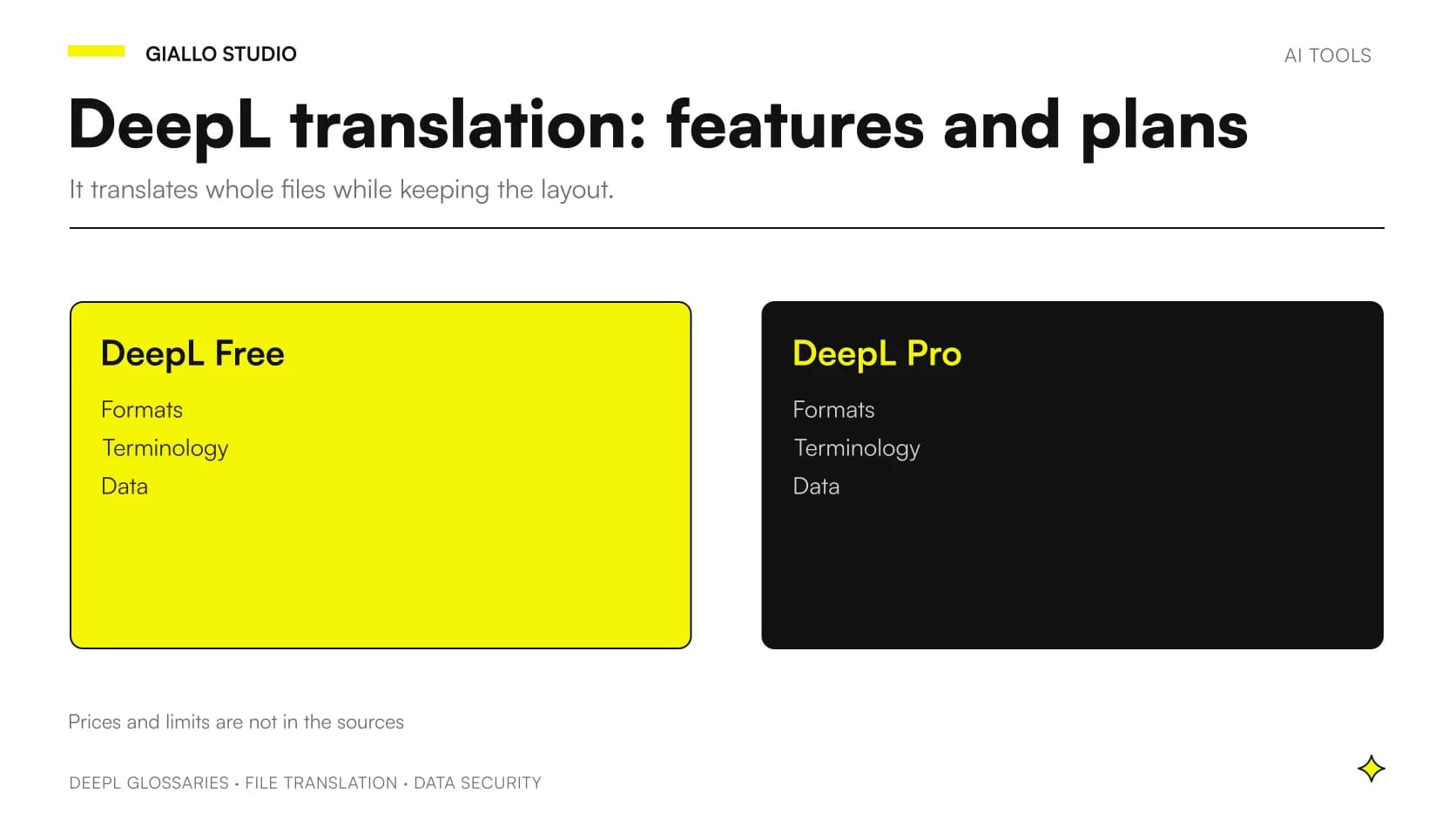
DeepL is an AI-based translation service that works not only on pasted text but on entire files. According to the official page, it keeps the formatting, layout and visual context of the original documents and handles bulk translations into multiple languages for business workflows.
On AI-assisted writing, the sources are thinner. The site mentions AI-powered translation and writing tools, but in the materials we read the writing product is not described by name. That is why this guide focuses on what is documented: file translation, glossaries, security and the API.
On plans, the honest answer is partial: the sources name Free and Pro, but they do not report prices or plan contents. Further down you will find what can be stated and what needs to be checked before buying.
In summary
- DeepL translates whole files while keeping formatting and layout, as described on the official document translation page.
- Files can be imported by dragging them in, from OneDrive or in bulk, according to the same page.
- Glossaries make terminology consistent, as explained in the API documentation on glossaries.
- The site states that texts are not stored or used to train models without consent, on the data security page.
- Prices and contents of the Free and Pro plans do not appear in the sources: the Privacy Documentation only says that data processing may differ.
Which translation features does DeepL offer for documents?
The official sources describe a fairly clear set of features. We go through them one by one, covering what each does, how it is used, an imaginary work example and the limits that emerge from the documentation. The examples are hypotheticals to help you picture the use, not client cases.
Translation of files that keep their look
What it does: it adapts PDFs and other files while keeping formatting, layout and visual context, so you do not have to redo the graphics by hand.
How to use it: you upload the file in the interface, choose the target language and download the translated document.
Work example: a small furniture company translates its PDF catalog for a foreign distributor and gets a file that looks like the original, to be reviewed by a native speaker before sending.
Limits: the sources do not state limits on size or number of files, so we cannot give you thresholds. The quality of the result on complex layouts should be tested on a real document.
Supported formats, including scanned PDFs
What it does: the page says it translates all major file types, including scanned and digitally created PDFs, along with Word, PowerPoint, Excel, HTML, SRT, TXT and other formats.
How to use it: you drag the file in, import it from OneDrive or upload it in bulk.
Work example: a professional firm receives scanned supply contracts and has them translated for a first internal read. The result is a draft for understanding, not a sworn translation.
Limits: the list of formats is the one declared by the vendor; for unusual formats it is worth running a test.
Bulk translation and OneDrive import
What it does: it lets you import files in bulk or transfer them from OneDrive and translate them into several languages at once.
How to use it: you select several files or a folder, indicate the target languages and start the job.
Work example: a travel agency prepares the same itinerary sheets in several languages for its partners abroad, starting from a shared folder.
Limits: the sources do not explain costs, queues or processing times. For high volumes you need to check the plan conditions.
Glossaries, translation memory and style rules
What it does: in the Customization Hub, glossaries, translation memory and style rules define formatting, tone, key phrases and terminology. The API documentation adds that glossaries improve consistency across multiple languages.
How to use it: you create a glossary with term pairs and apply it to translations. Anyone using the API should know that client libraries currently require the source language when a glossary is used.
Work example: a machinery manufacturer sets how to translate the names of its components, so the manual does not alternate three variants of the same term.
Limits: a glossary covers the terms you give it. The rest of the text remains a machine translation to be proofread.
Translation Flow and multilingual projects
What it does: according to the official page, with Translation Flow you translate files and manage multilingual projects for your team.
How to use it: the source does not go into operational detail. It presents itself as a project management tool for several people.
Work example: a marketing team with several colleagues coordinates the translation of a brochure, avoiding files circulating by email.
Limits: the materials do not describe permissions, roles or integrations. Ask for a demo before building a process on it.
Images, visual content and multimedia files
What it does: the page claims that DeepL adapts the visual content of PDFs, images and other multimedia files across multiple formats.
How to use it: you upload the file with the text to translate and check the result on the output file.
Work example: an online store translates promotional graphics that contain text, checking that the wording does not overflow the intended spaces.
Limits: the source is a product description, with no quality data. The visual check remains yours.
How does DeepL protect data?
The security page states that texts are never stored or used to train models without your consent. It also lists Single Sign-On with OIDC and SAML support, custom encryption with Bring Your Own Key and network access restrictions, as well as systematic checks by internal and external experts.
On file translation, the vendor says it offers enterprise-grade security and compliance with GDPR, HIPAA and other standards. These are vendor statements: for business use, it is worth asking for the certification documents and involving whoever handles privacy. On this topic you will find a deeper look in Business Data and AI: What Happens to What You Write.
Watch out for plans. The API privacy documentation warns that data processing may differ between Free and Pro. Before developing, confirm which plan your key belongs to and read the terms.
Which plans does DeepL offer, Free and Pro?
The sources name only two plans. The API documentation says to use the api.deepl.com address for Pro plans and api-free.deepl.com for the Free plan. They do not report prices, included features or limits for each plan, so we do not write them.
The documentation also notes that for some customers there are regional API endpoints that guarantee data processing in specific geographic areas. For costs, a general starting point is how much AI costs a company: a guide to real prices.
| Topic | What the sources say | Source |
|---|---|---|
| Formats | PDF, Word, PowerPoint, Excel, HTML, SRT, TXT | Document translation |
| Terminology | Glossaries, translation memory, style rules | Document translation |
| Data and Training | No use without consent | Data security |
| Plans | Free and Pro, data processing may differ | API privacy |
| Prices and file limits | Not present in the sources | To be verified with the vendor |
Is DeepL suitable for the API and for business use?
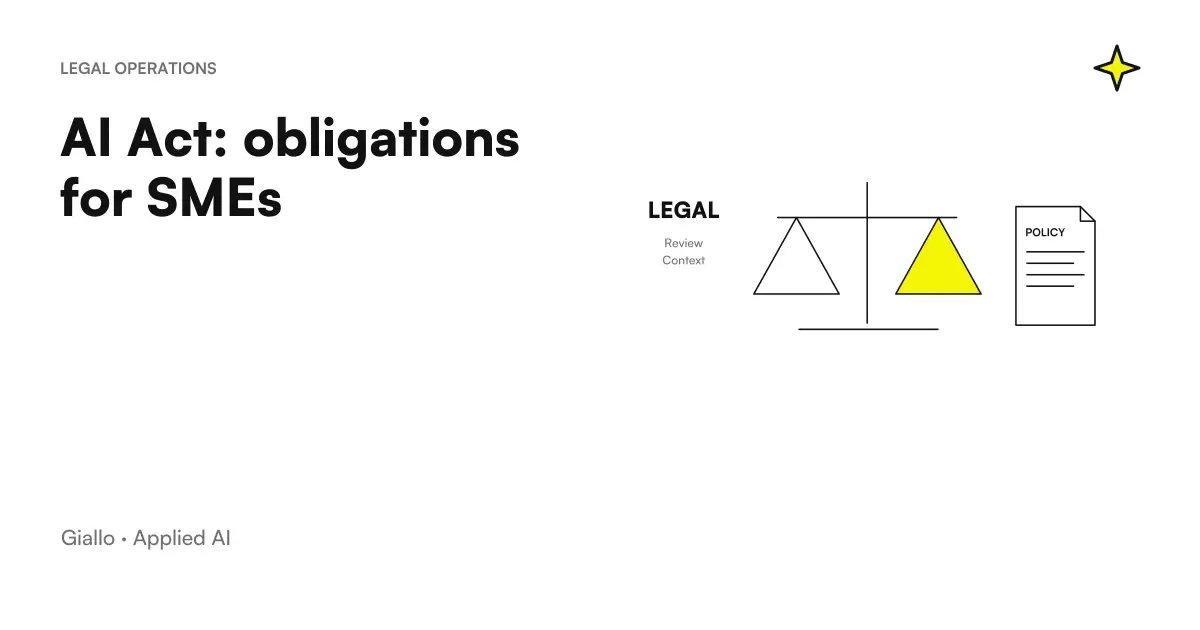
Yes, an API exists, documented separately. The same documentation specifies that it is intended for translating or processing general documents and other content provided by the customer and not for high-risk applications under Article six of the European AI Act. If you are interested in the regulatory framework, read AI Act: what obligations does an SME really have.
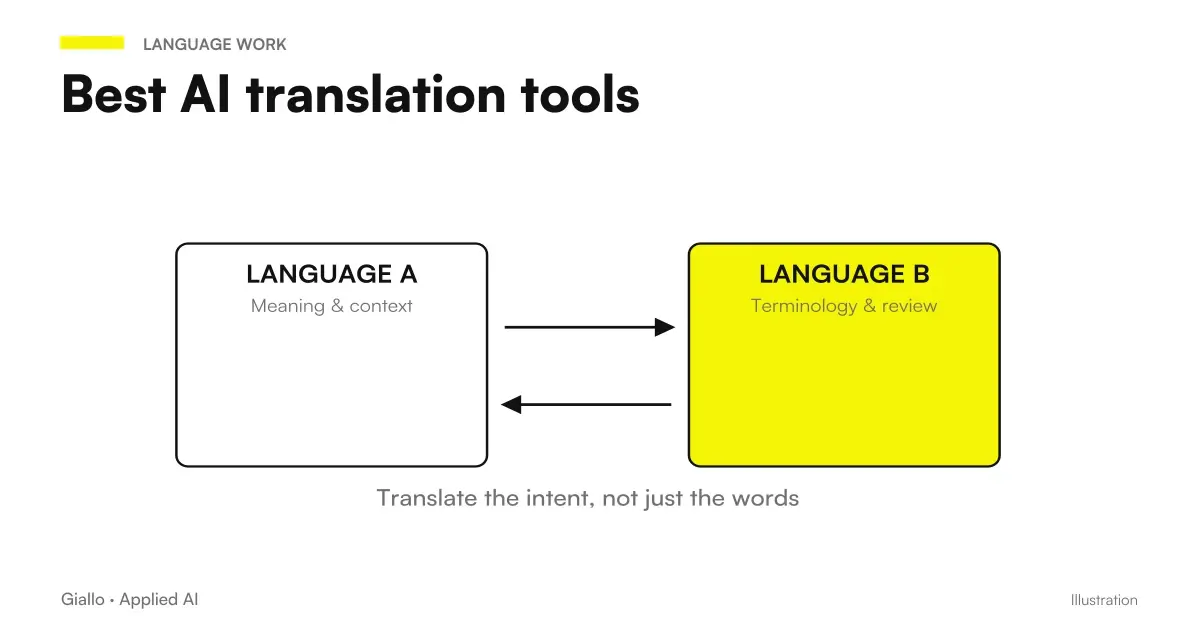
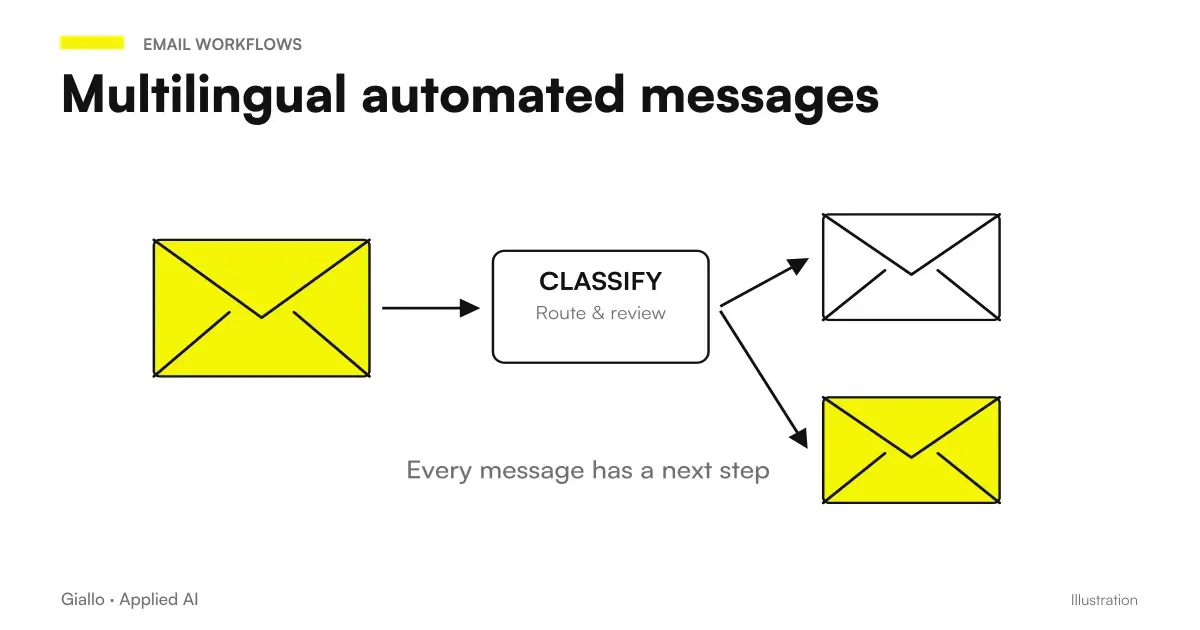
To compare DeepL with other tools, there is the guide best AI for translation: tools and comparison. If instead you need to handle automatic messages to foreign customers, see multilingual automatic messages: how to choose the right language.
Which mistakes should you avoid when translating with DeepL?
There are five most likely mistakes, drawn from the limits of the sources.
- Taking the prices for granted. The sources do not report them: ask for a written quote.
- Mixing up plans. The data processing may differ between Free and Pro: check which plan the key belongs to.
- Not using the glossary. Without fixed terminology, the same term can come out in different variants; the glossary documentation explains how to improve consistency.
- Sending the file without proofreading. A machine translation is a draft; for important texts use the checklist for verifying AI answers.
- Uploading sensitive documents without a rule. First define who can upload what, as in corporate policy on the use of AI.
How do you apply it in an SME, step by step?
Before starting, have these items ready:
- A real, non-sensitive document to use as a test.
- A list of the terms that must stay consistent.
- A native speaker or competent person to proofread the result.
- The chosen plan and the terms read in the Privacy Documentation.
Then proceed like this:
- Choose a file and upload it, by dragging it in or importing it from OneDrive, as indicated on the document translation page.
- Create a glossary with the key terms and apply it to the translation.
- Compare the original with the translated file, checking layout and terms.
- Have the text corrected by someone who knows the language and the industry.
- Note what worked and only then extend the work to more files. To organize the test you can start from Analyzing Business Documents with AI.
What can a company concretely do with it?
A company can use DeepL to bring catalogs, offers, manuals and presentations into several languages while keeping the look of the files, fix terminology with glossaries and check the security points declared by the vendor. What remains unclear is what the plans include and what limits files have: data the sources do not provide.
If you want to understand where to fit a tool like this into your processes and how to assess risks and costs, you can start with an AI consulting session with Giallo Studio, with no obligation.
Giallo Studio guides: methodology and sources
Want to apply this to your business?In 30 minutes, free of charge: the first process to automate and its estimated return, in writing.
Book the free auditHow we apply it in the company
Related resources
FAQ
Does DeepL also translate scanned PDFs?
Yes, according to the official page DeepL translates scanned and digitally created PDFs, in addition to the most common formats. It is still worth testing a real document and having the result proofread.
Which plans exist and how much do they cost?
The sources name the Free and Pro plans, but they do not report prices or plan contents. For costs, check the vendor's website or ask for a quote.
Does DeepL use my texts to train its models?
The security page states that texts are never stored or used to train models without your consent. Data processing may however differ between Free and Pro, so check the terms of your plan.
Can I keep the same terminology across all documents?
Yes, with glossaries, translation memory and style rules in the Customization Hub. Those who use the API can include glossaries in translations to improve consistency.
Is DeepL Write described in the sources?
Not by name: the site only mentions AI-powered translation and writing tools. For this reason we do not attribute specific features to a writing product.
Is the DeepL API suitable for any application?
The documentation says it is intended for general documents and content provided by the customer. It is not intended for high-risk applications under the European AI Act.